BrassRing new features for release 26.01.13 are listed here.
BRASSRING Dark Launch
Dark Launch features are those that are released to the Staging environment only and are NOT released to the Production environment for a considerable amount of time.
This process gives an opportunity and enough time to test these features thoroughly before they are available in the production environment. Clients are requested to configure and test these features and provide their feedback and inputs to your respective Infinite representatives.
There are no Dark Launch features in this release.
BRASSRING VISIBLE CHANGES
The BrassRing visible changes for the current release are listed here.
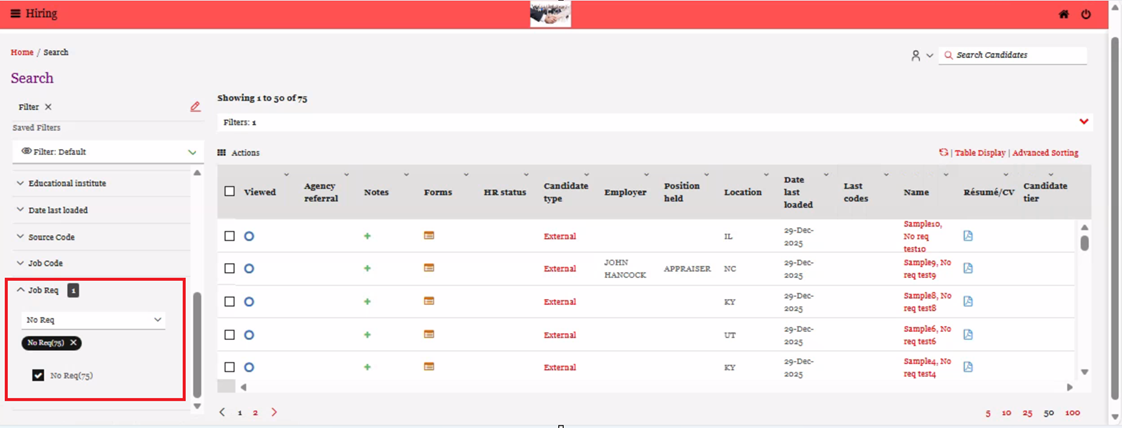
Responsive Recruiter: Candidate Search – Job Req filter
Starting with this release, a new filter option called ‘No Req’ has been added to the ‘Job Req’ Filter. This option allows users to search for candidates who have submitted applications without being associated with any specific job requisition. This feature makes it easier for users to track and manage candidates who have jobless submissions.
Path: Login to BrassRing application >> Click on the Hamburger menu >> Candidates >> Search >> Filter >> Job Req >> Select ‘No Req’ option
Internal Reference Azure Board # 55144.
Responsive Recruiter: Candidate Profile - Contact Details
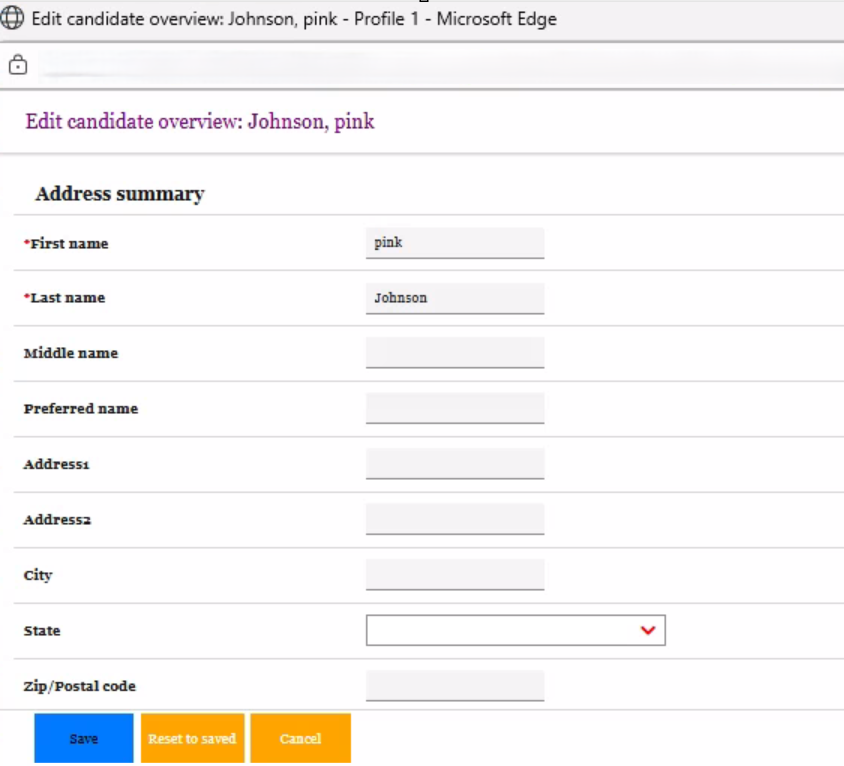
Starting with this release, the candidate contact detail fields on the profile tab of the candidate talent record are now made clickable, allowing BrassRing users to edit those fields from the edit candidate overview page. This behaviour is common in both the old and new UIs.
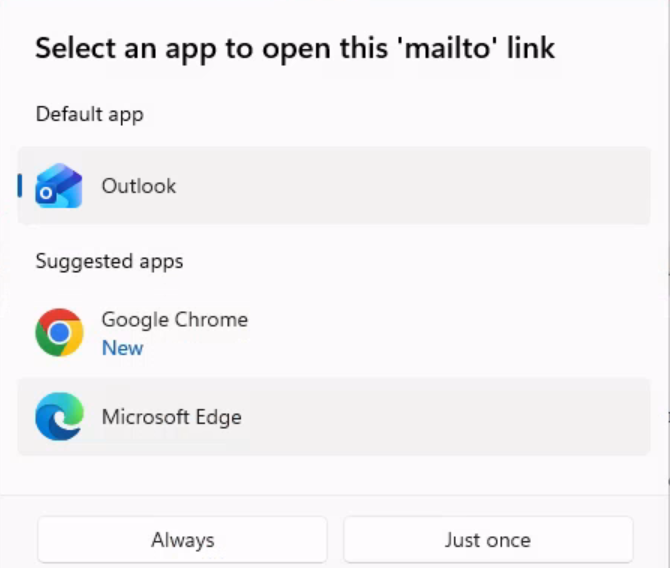
Particularly, for the ‘Email address’ field, when the user clicks on the candidate's email address, a small pop-up appears with options displayed in the order ‘Edit Contact Details’ and ‘Open Email App’ in both the old and new UIs.
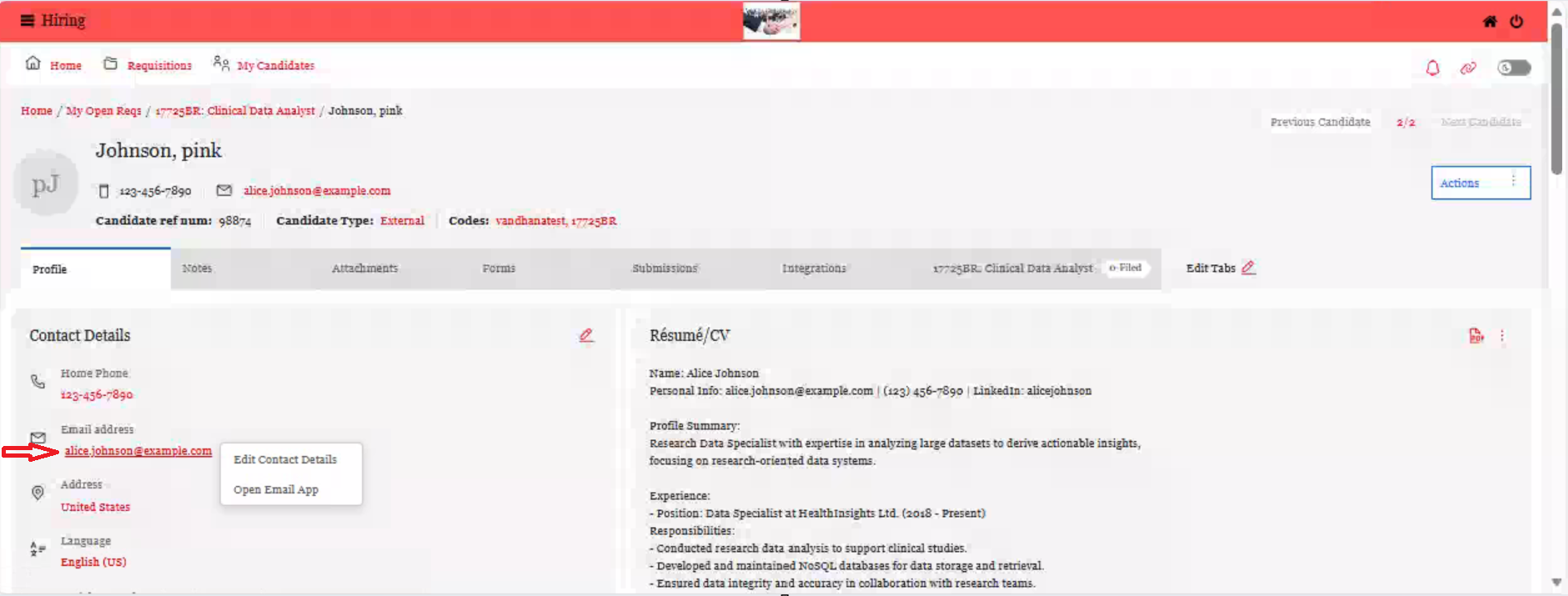
Clicking on 'Edit Contact Details' opens the candidate overview page where you can make edits and save.
By clicking on ‘Open Email App’, the client’s default email application is selected, or the user can choose the application to send an email to the candidate.
Internal Reference Azure Board # 60737.
Talent Gateway: Active Referrals
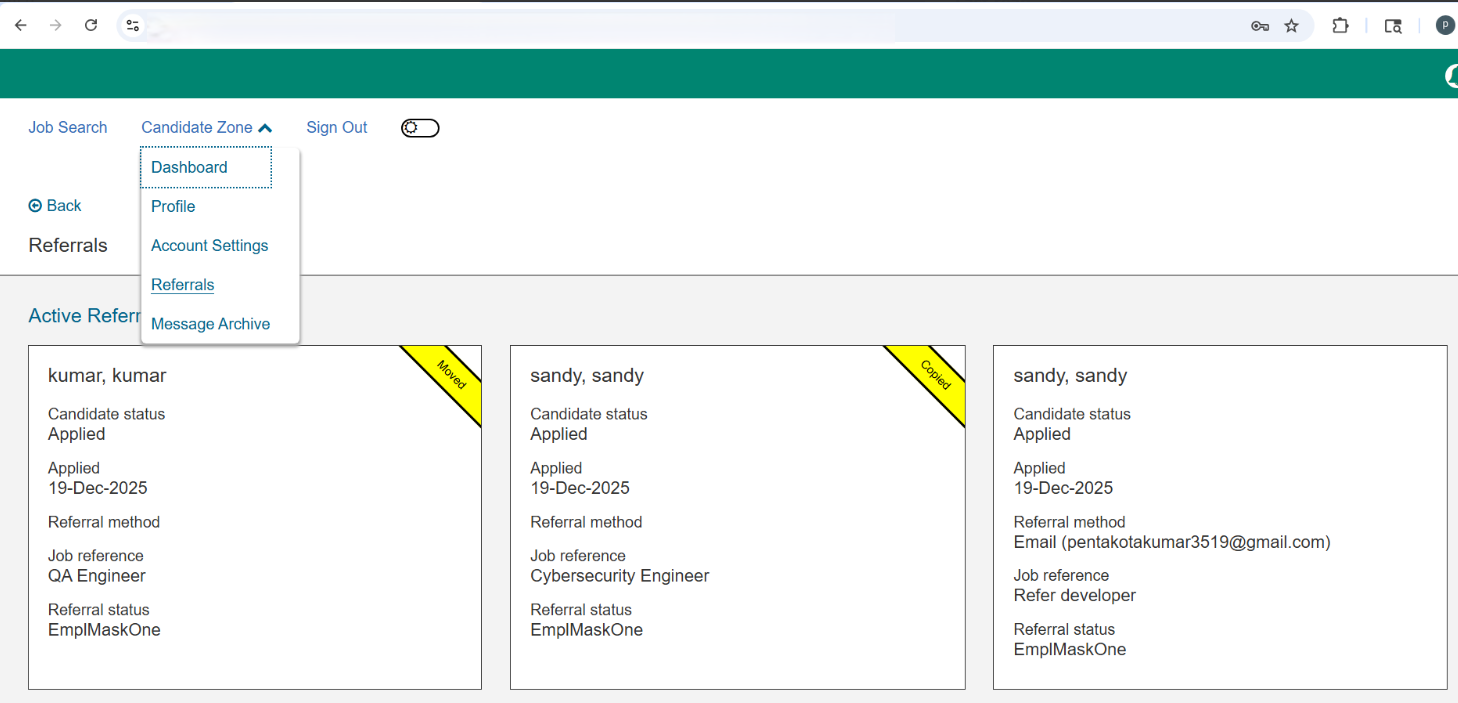
In the current employee referral per candidate workflow, when an employee refers a candidate, the application is shown in the ‘Active Referrals’ section of the candidate zone referrals dashboard. However, if the candidate is moved or copied to a different requisition by any user, the referral information does not appear for the new requisition.
With this release, we are enhancing the user experience by ensuring that the referral information is now displayed for the new requisition in the ‘Active Referrals’ section, whether the candidate has been moved or copied. This provides users with complete visibility into the candidate's application journey, eliminating the need to contact internal teams for updates on their status across different requisitions.
Path: Login to a Talent Gateway >> Candidate Zone >> Referrals >> Active Referrals
Internal Reference Azure Board # 57570.
Talent Gateway: Pagination
Currently, if there are more than 50 job results displayed on the Talent Gateway Search Results or Job Listing page, the candidate must click 'Next' at the bottom of the page to view the next set of job results.
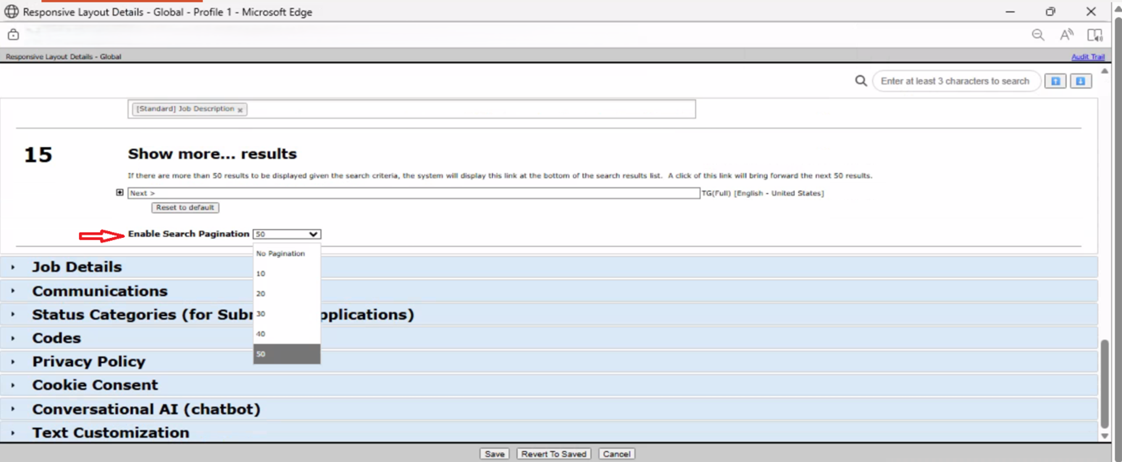
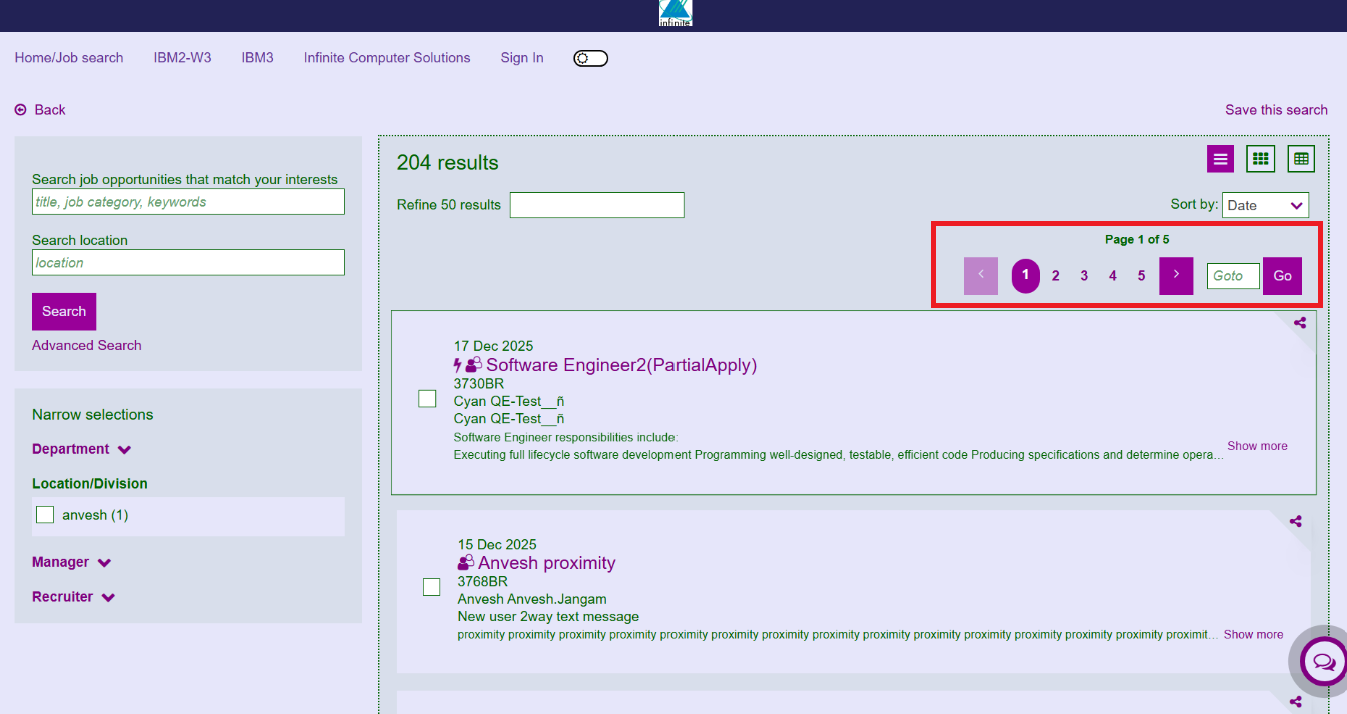
With this release, we are enhancing the candidate experience by introducing a new feature called "Enable Search Pagination." This feature allows users to choose the number of job listings displayed per page on the Talent Gateway job listing page. The options available in the dropdown menu include No Pagination, 10, 20, 30, 40, or 50 jobs per page.
The pagination menu is located at the top and bottom of the job listing page, enabling candidates to easily navigate through multiple pages to view job results or jump directly to a specific page.
Path: Workbench >> Tools >> Talent Gateways >> Responsive Layout >> Search Results / Job Listing >> Under 15th section i.e., Show more…results >> Enable Search Pagination
Internal Reference Azure Board # 60227.
Talent Gateway: Stacking Logic
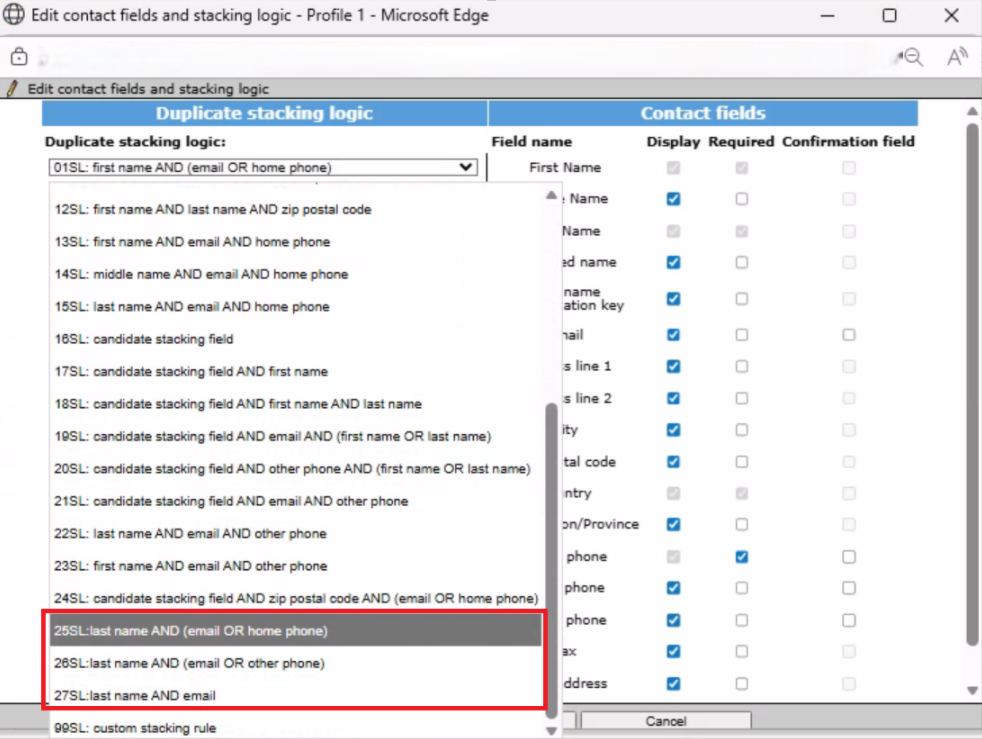
Starting with this release, the following new stacking logic options are implemented in the talent gateway.
last name AND (email OR home phone)
last name AND (email OR other phone)
last name AND email
Path: Workbench >> Tools >> Talent Gateways >> Edit >> Contact fields and Stacking logic >> Edit >> Duplicate stacking logic
Internal Reference Azure Board # 61066.
Talent Gateway: Landing Page Title
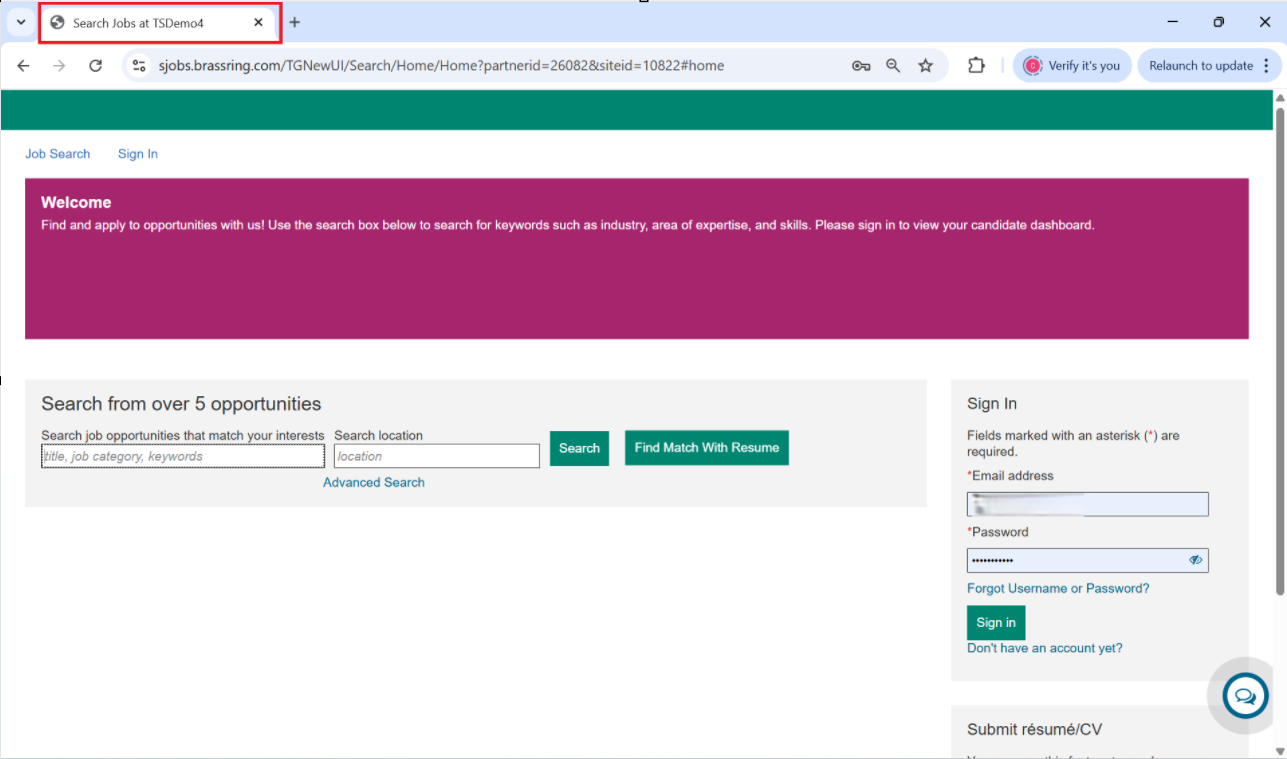
It has been noted that the browser previously labeled the talent gateway landing page as "Job Search Welcome” when accessing the talent gateway, which created confusion for screen-reader users.
With this release, this issue has been resolved. The browser now displays the talent gateway landing page as “Search jobs at [client name]” to enhance the user experience.
Internal Reference Azure Board # 7058.
Recruiter XML Integration: Add Multiple Candidates
Previously, BrassRing users could not specify certain attributes such as candidate type, skills, and more than five work experiences—when adding multiple candidates.
With this release, the “Add Multiple Candidates” feature has been enhanced to provide greater flexibility and data capture. Users can now:
Include candidate type and skills for each candidate
Specify up to 7 work experiences per candidate
Provide start month, end month, and responsibilities for each work experience
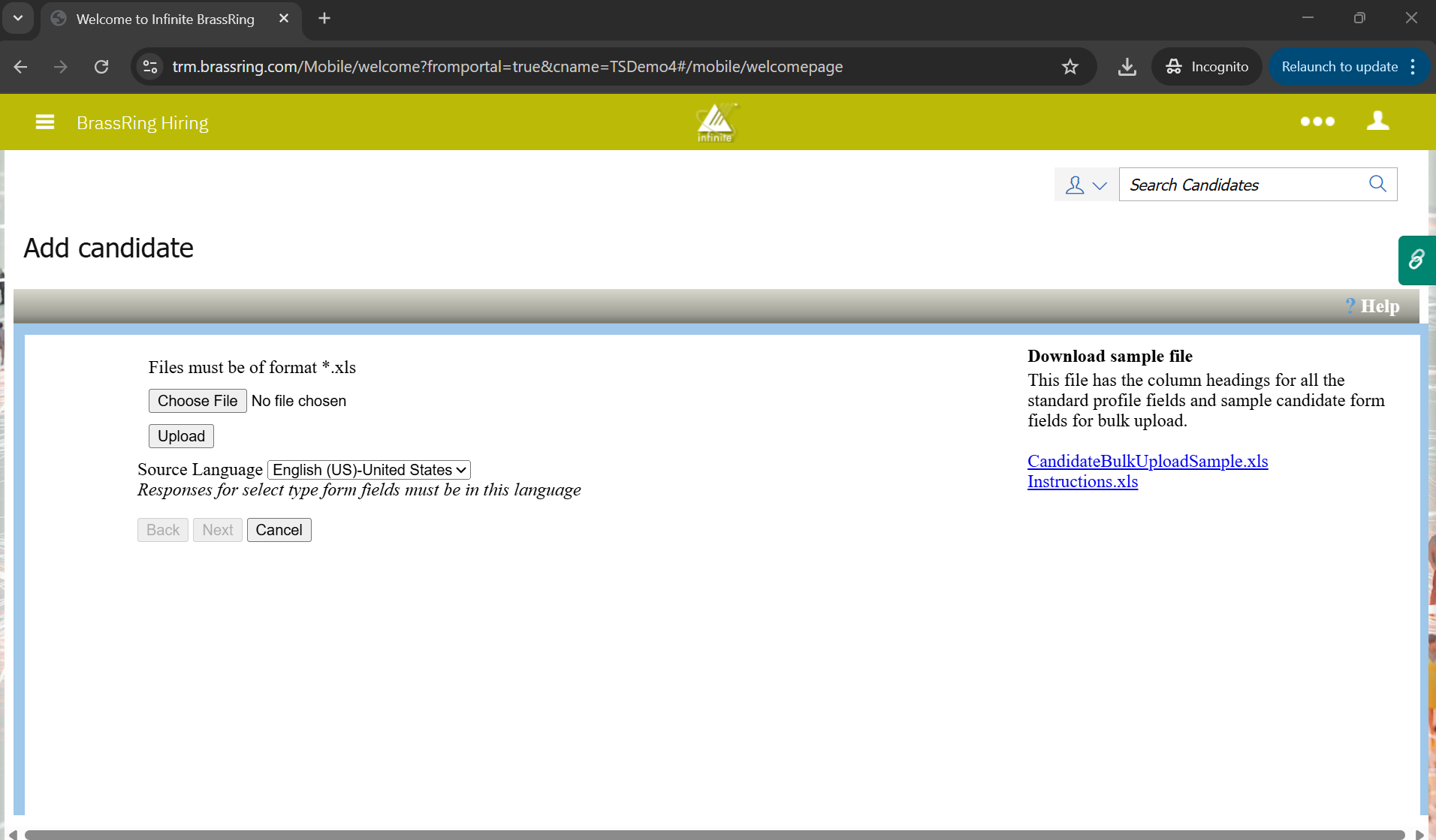
These details can be added directly into the ‘CandidateBulkUploadSample.xls’ file. Once completed, users can upload this file to efficiently add candidates to their respective requisition folders.
This enhancement streamlines bulk candidate management and ensures richer candidate profiles are created during bulk uploads.
Users receive clear error messages if there are any data or file upload issues, making it easier to identify and resolve issues during the bulk upload process.
Note: If the candidate type column is left empty, the system defaults to "External."
Path: BrassRing >> Click on the Hamburger menu >> Candidates >> Add Candidate >> Add Multiple Candidates
Internal Reference Azure Board # 55339.
Workbench: Two-Factor authentication via Email
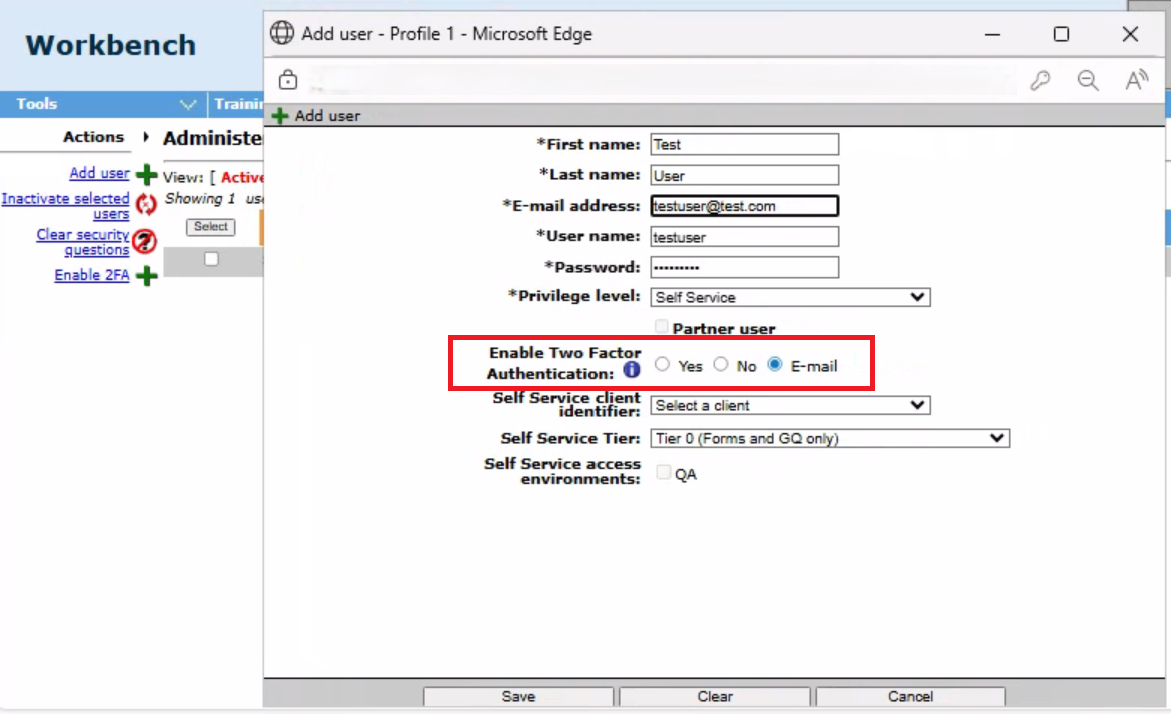
With this release, a new option called ‘Email’ is added to the ‘Enable Two Factor Authentication’ setting for Workbench self-service users. The default setting for ‘Two-Factor Authentication’ is ‘No’.
If this setting is set to ‘Yes’, the Workbench self-service user must answer their security question to log in to the Workbench application.
If this setting is set to 'Email', the self-service user of Workbench receives a login code via email, which is required for authentication to access the Workbench application.
Path: Workbench >> Admin >> Administer users >> Add/Edit user >> Enable Two Factor Authentication >> Email
Internal Reference Azure Board # 60181.
Workbench: Client E-mail Domains
Starting with this release, a new feature called 'Client E-mail Domains' has been added to the basic client settings, enabling the addition of specific email domains. This serves as an extra layer of security for clients, ensuring that two-factor authentication emails are sent only to users with matching domain names and blocks personal email address updates for Workbench users.
Internal Reference Azure Board # 60182.
Workbench: Talent Gateway Mask
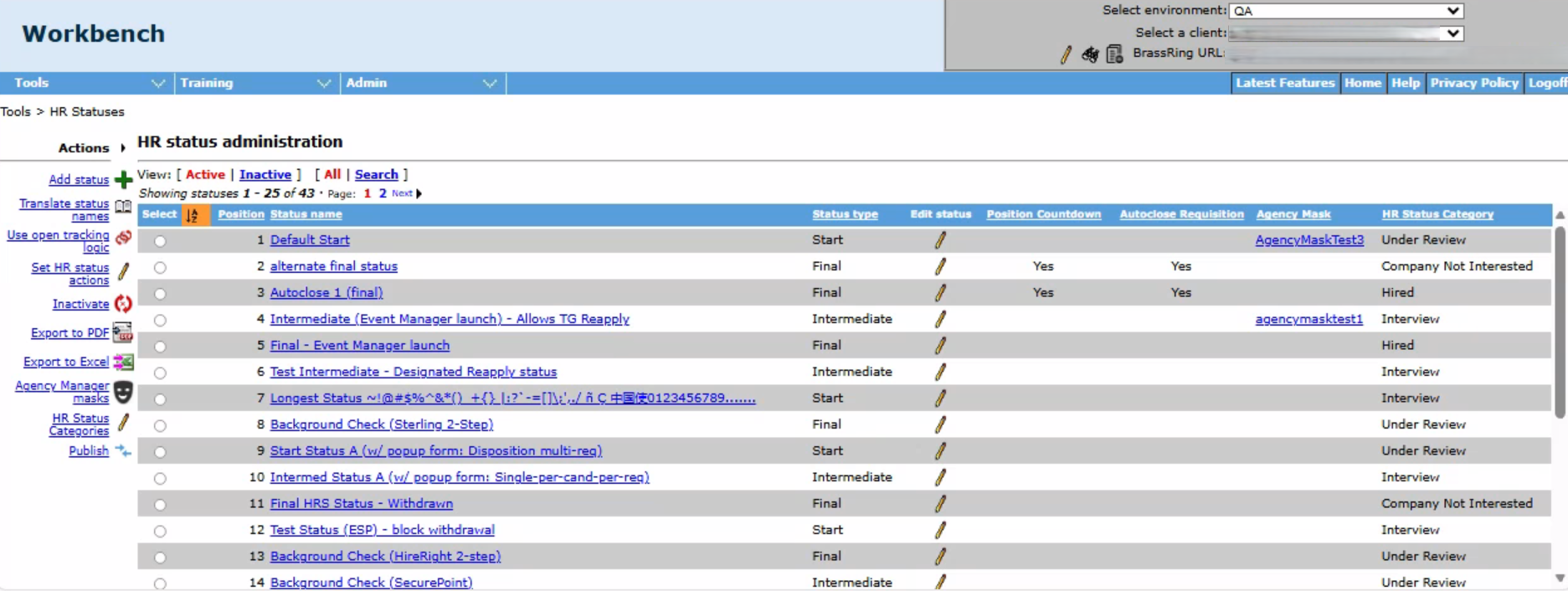
Starting with this release, the Talent Gateway Mask column/action has been removed from the Workbench UI in all locations where it was previously present. Talent Gateway Mask was removed because the HR Status Categories are now mapped and displayed for submitted applications on the Candidate’s Talent Gateway profile, which enhances the user experience and avoids confusion.
Internal Reference Azure Board # 60859.
BRASSRING CONFIGURABLE CHANGES
There are no BrassRing configurable changes for the current release.
BRASSING WORKBENCH CHANGES
The Workbench-related configuration changes in the current release are mentioned in the Visible Changes section.