ONBOARD VISIBLE CHANGES
Onboard Manager: Manage New Hires page
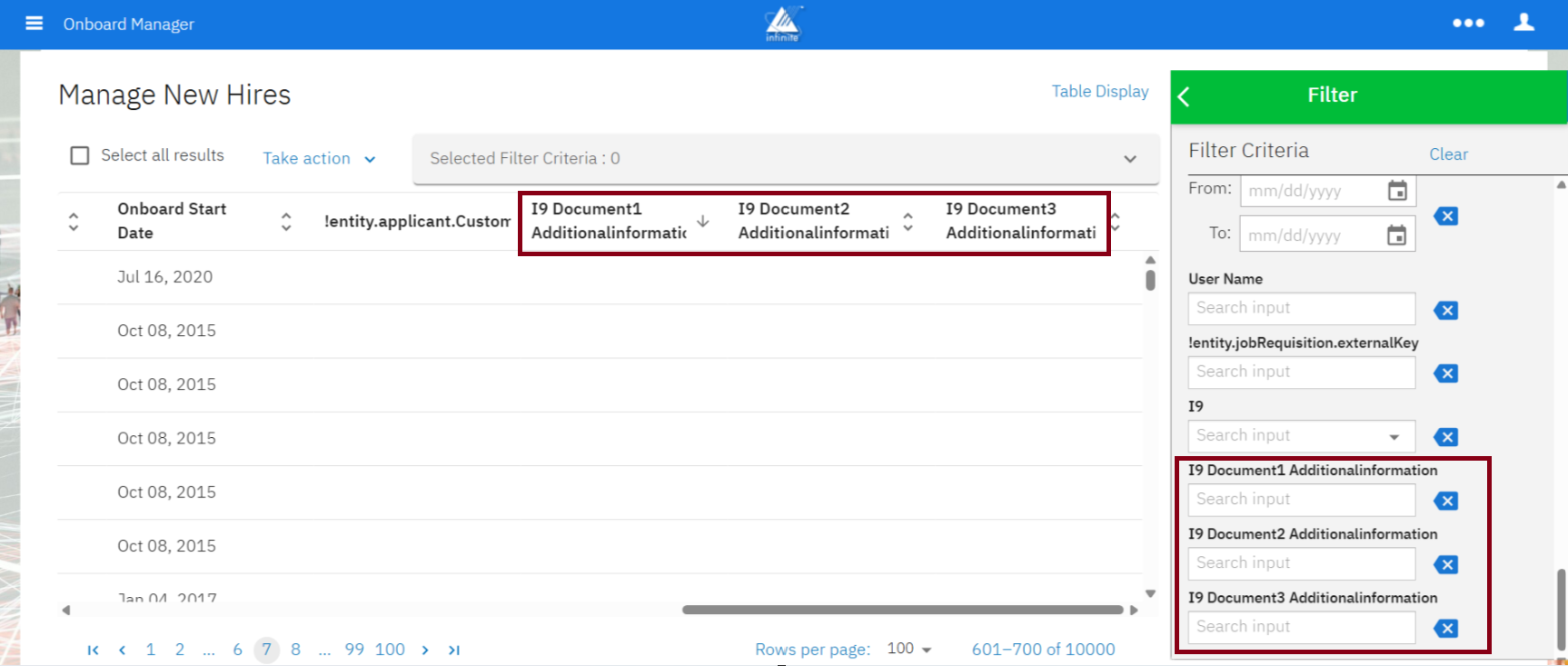
With this release, Onboard users can now filter using the following I9 Section 3 Additional Information fields and add columns in the Table Display on the ‘Manage New Hires’ page.
I9 Document1 Additional Information
I9 Document2 Additional Information
I9 Document3 Additional Information
Path: Login to Talent Suite >> Onboard Manager >> Manage New Hires >> Click on the New Hire >> Click on Filter or Table Display to add the fields.
Internal Reference Azure Board #44925
Onboard Manager: Create Job for New Hire
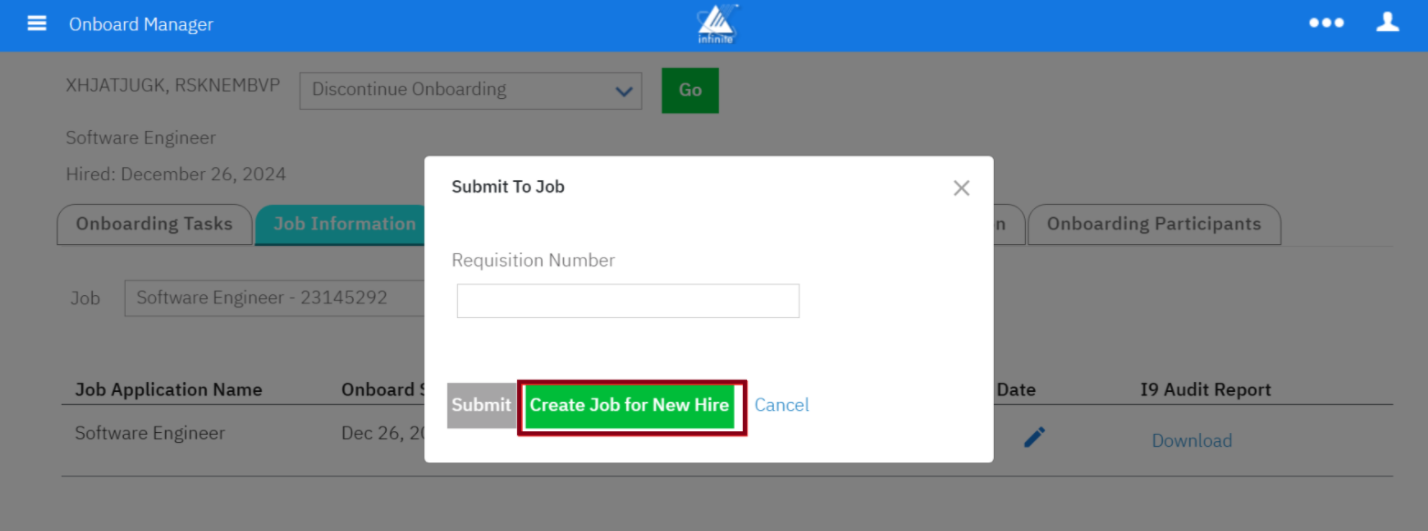
Currently, Onboard users can only submit new hires to an existing job through the “Submit to Job” section.
With this release, Onboard users can now create a new job and associate new hires with it directly from the “Submit to Job” section. The “Create Job for New Hire” button becomes visible only when the “Enable Job Creation” setting is enabled under “Onboard Settings” and the legacy capability “Ability to create a new Job” is enabled at the user type level.
Path: Login to Talent Suite >> Onboard Manager >> Manage New Hires >> Click on the New Hire >> Job Information tab >> Click on ‘Submit To Job’ icon >> Create Job for New Hire
Internal Reference Azure Board #53573
Onboard Manager: Documents access for New Hire
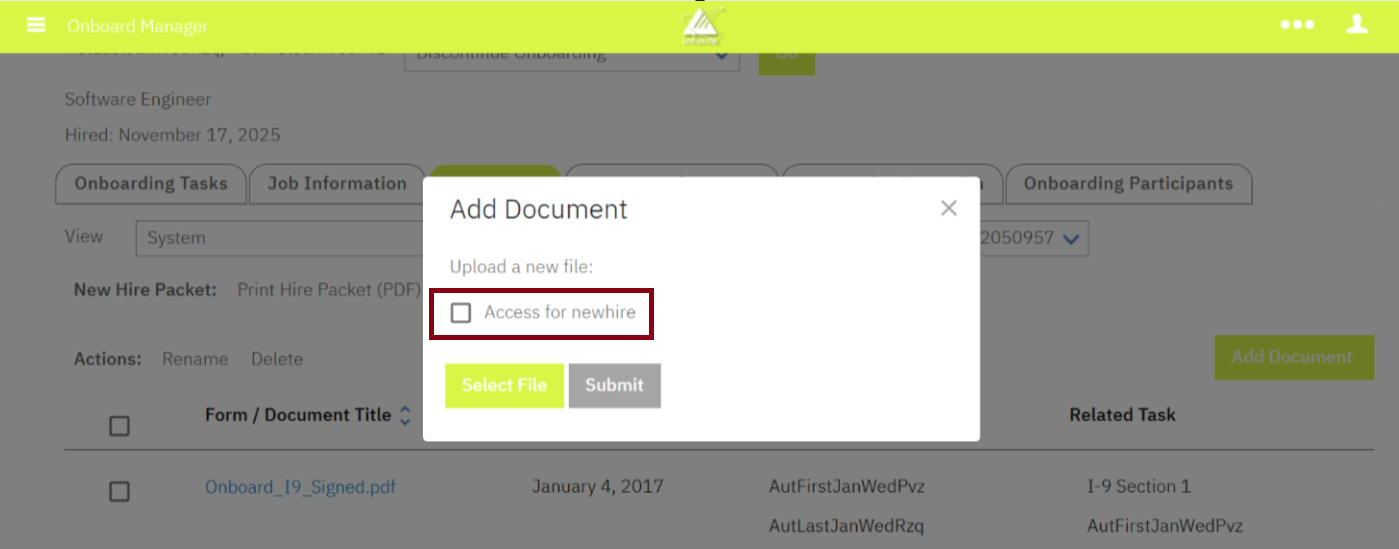
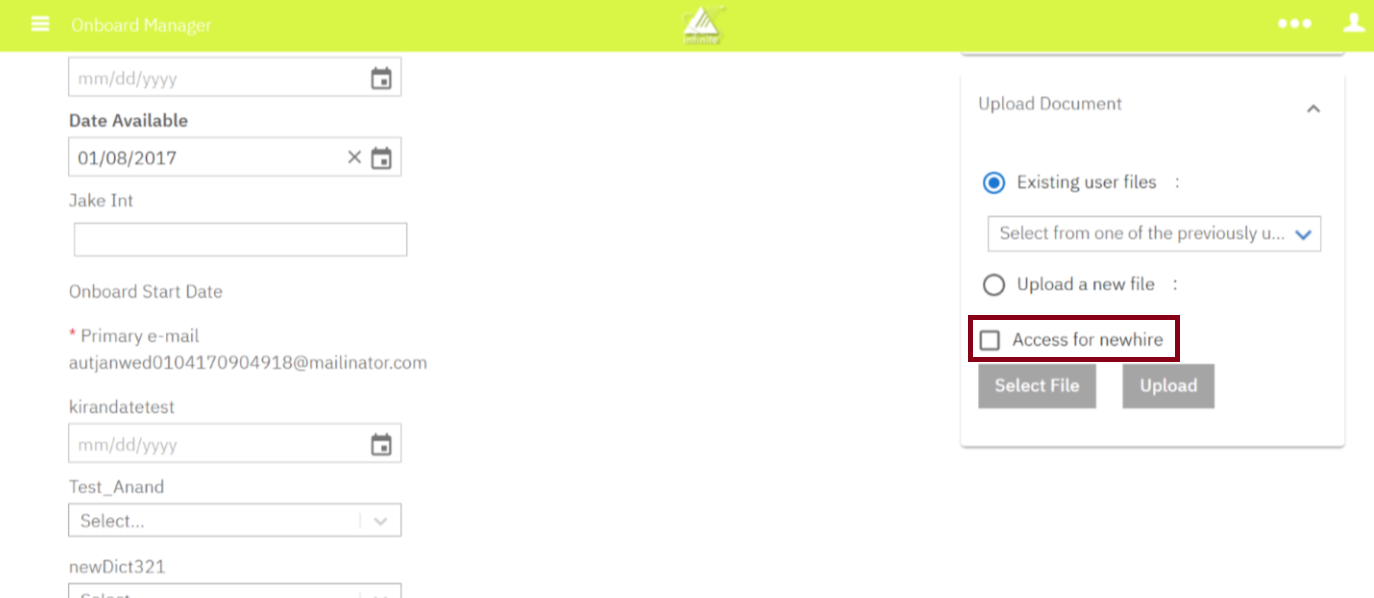
Starting with this release, Onboard users have the option to choose whether uploaded documents can be accessed by new hires. If access is granted, the document is visible to the new hire; otherwise, it remains hidden. This functionality enhances the security and compliance of the documents uploaded by users.
Path: Login to Talent Suite >> Onboard Manager >> Manage New Hires >> Click on the New Hire >> Documents tab >> Add Document >> Check the box ‘Access for newhire’ >> Select File >> Submit
Internal Reference Azure Board #54215
Onboard Manager: I-9 Audit Report
Currently, both in Onboard Legacy and DIT reports, when an I-9 audit report is generated, it displays only one preparer, even in cases where there are multiple preparers.
The enhancement with this release ensures that all relevant preparers who have interacted with the I-9 are displayed in the I-9 audit report.
Internal Reference Azure Board #63542
Talent Suite: New Hire Portal License
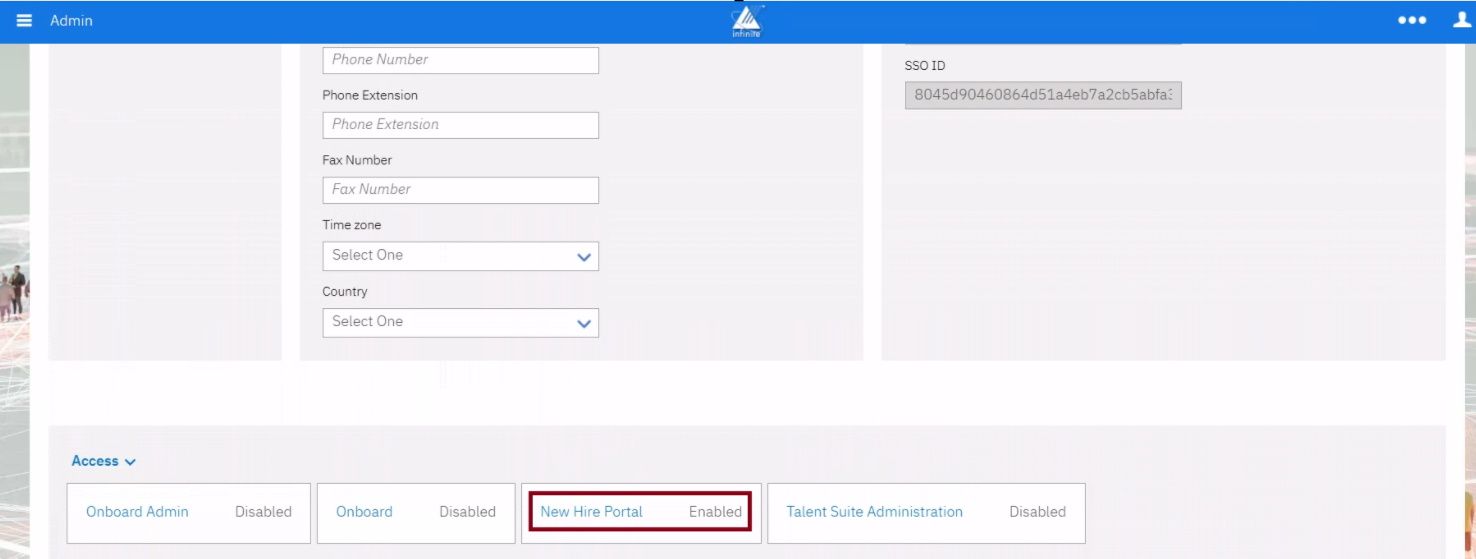
In the Talent Suite Admin users section, it is currently possible to search for new hires; however, the new hire license tab is not accessible, unlike the license tabs for other applications.
With this release, the ‘New Hire Portal’ license tab has been implemented for new hires. When the new hire is successfully created, it appears in ‘Enabled’ status and is non-editable.
Path: Login to Talent Suite >> Admin >> Search Users >> Search for the New Hire and click on the name >> Access >> New Hire Portal
Internal Reference Azure Board #63717
Talent Suite: Import/Export Users
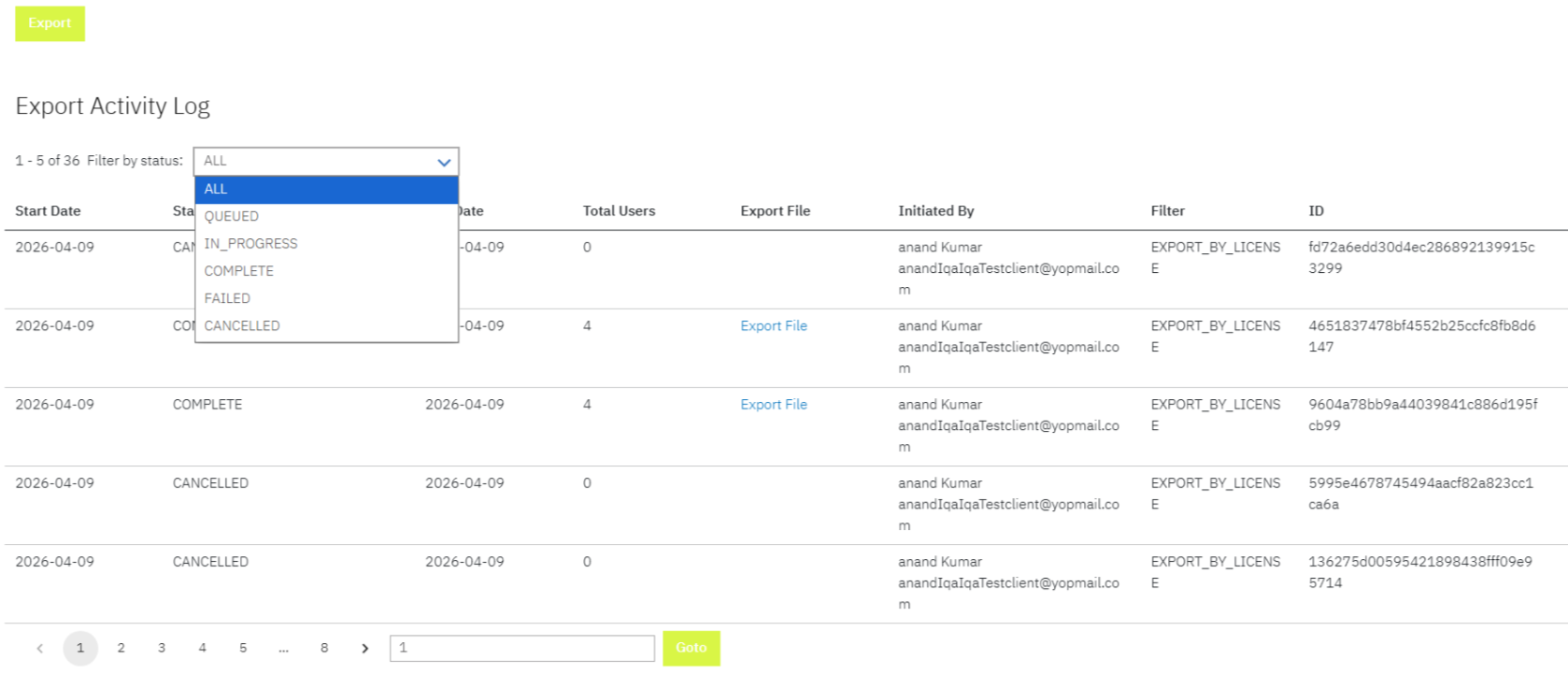
Currently, Talent Suite Admin users do not have the ability to filter the Users Import or Export Activity Log, so all statuses are displayed.
With this release, Talent Suite Admin users can now filter the Users Import or Export Activity Log by selecting a status from the "Filter by Status" dropdown menu.
Pagination has also been added for easier navigation. Furthermore, a 'Go To' option, which includes a textbox and button, allows users to quickly jump to a specific page.
Path: Login to Talent Suite >> Admin >> Manage Users >> Import Users or Export Users
Internal Reference Azure Board #62641
Talent Suite: Manage Email Templates
Currently, when a new user or new hire is created, the “New_User_Created” email is automatically sent. However, Talent Suite Admins would like this email template to be triggered only for new hires whose profiles are created through the standard BrassRing to Onboarding (B2O) integration.
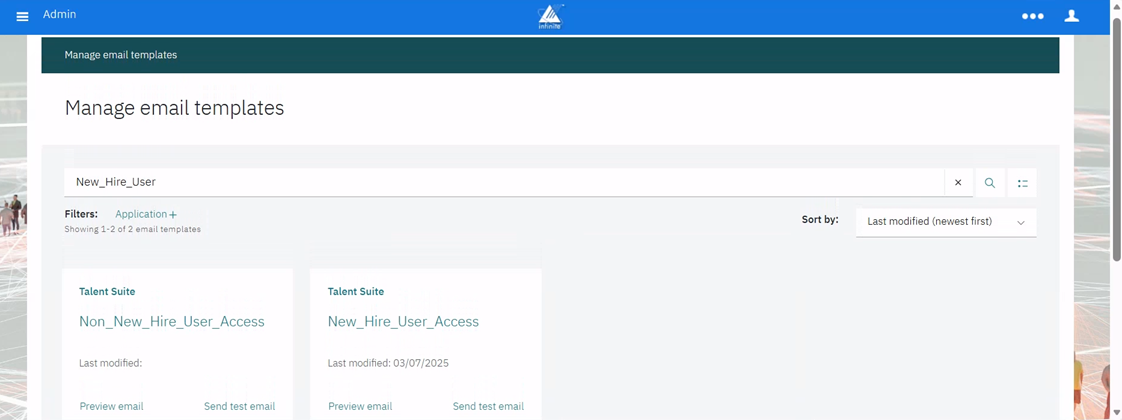
Starting with this release, the “New_User_Created” email template is renamed to “New_Hire_User_Access.” This email is now sent exclusively for new hires created via the B2O integration.
Additionally, a new email template called “Non_New_Hire_User_Access” has been created. This template is similar to the “New_User_Created” email, but it is sent only to non-new hire users who are created with any other licenses (TSADMIN, 2xApp, 2xB, OBADMIN, TG, LM).
Path: Login to Talent Suite >> Admin >> Hamburger Icon >> Manage Email Templates >> Search for ‘New_Hire_User_Access’ and ‘Non_New_Hire_User_Access’ email templates
Internal Reference Azure Board #57164
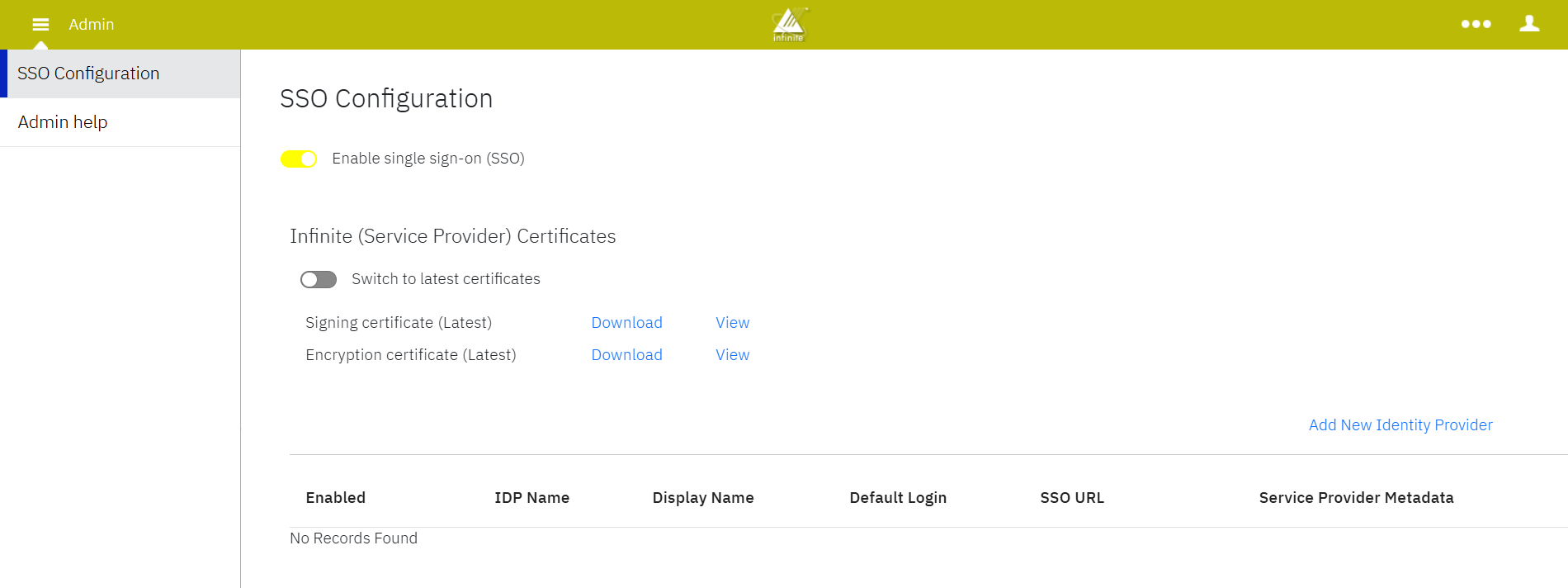
Talent Suite: New Admin User Type
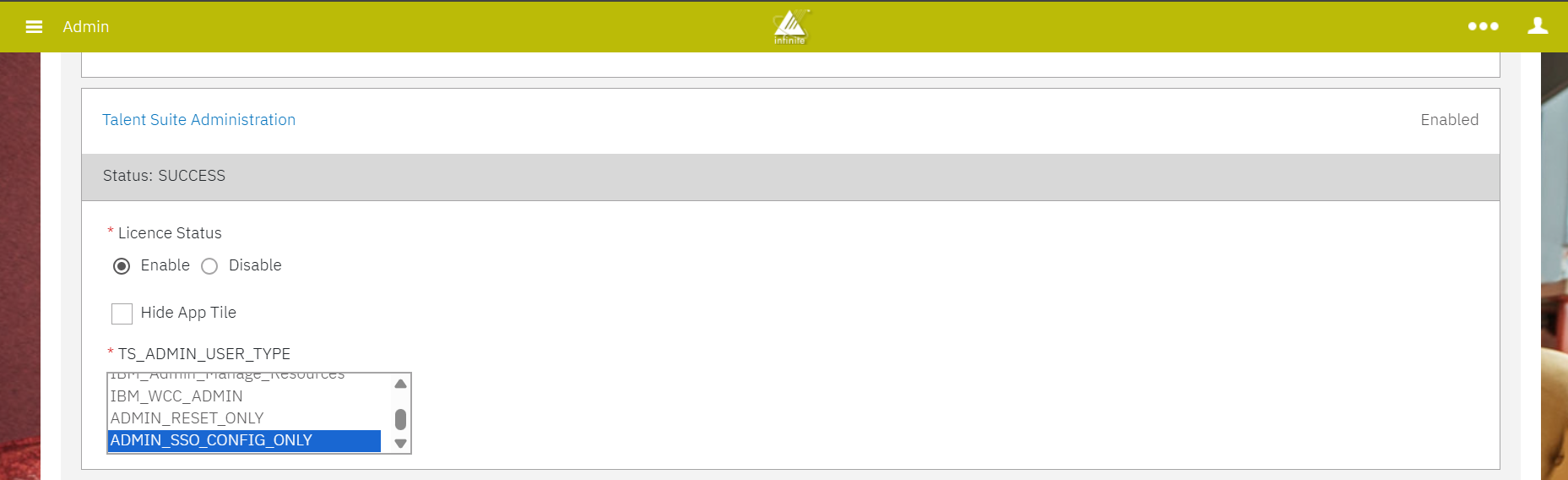
Starting with this release, a new Talent Suite Admin user type, “ADMIN_SSO_CONFIG_ONLY,” is being introduced. This user type allows the assigned user to only access the SSO configuration screen for updating and downloading new certificates within the Talent Suite Admin application.
Path: Login to Talent Suite >> Admin >> Search Users >> Search and Click on the User >> Talent Suite Administration >> TS_ADMIN_USER_TYPE >> ADMIN_SSO_CONFIG_ONLY
Internal Reference Azure Board #64859
ONBOARD CONFIGURATION CHANGES
Onboard Admin: I-9 Section 3
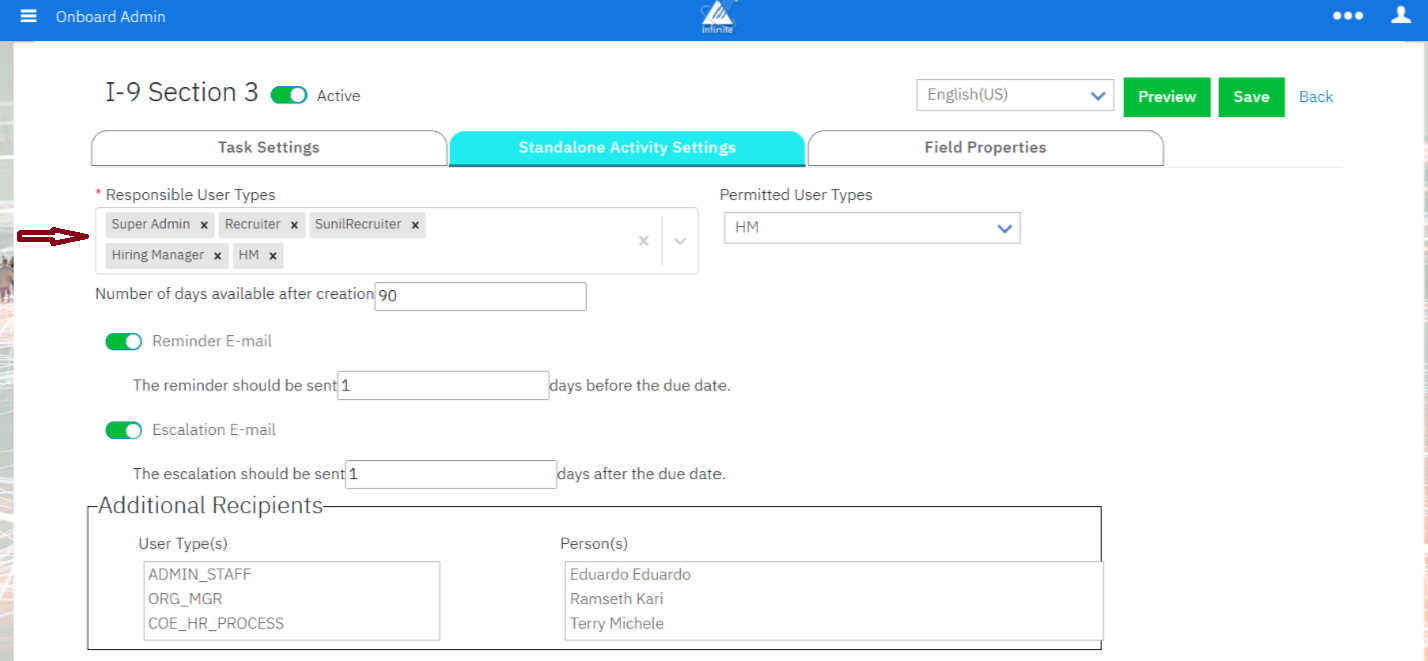
Currently, Onboard Admins can assign only one role with permission to complete I-9 Section 3. In practice, both System Admins and Recruiters are responsible for completing this section. However, granting full Onboard Admin access to Recruiters is not a feasible option. The existing workaround requires System Admins to assist, which can lead to delays and inefficiencies.
With this update, Onboard Admins are able to assign multiple user roles to complete the I-9 Section 3 task. This enhancement ensures that users in different roles and locations can complete Section 3 for their own hires without needing assistance from Onboard Admins.
Path: Login to Talent Suite >> Onboard Admin >> Hamburger icon >> Manage Workflows >> Activities >> Search for I-9 Section 3 and click on it >> Standalone Activity Settings >> Responsible User Types
Internal Reference Azure Board #63068
Onboard Admin: User Type – Administration settings
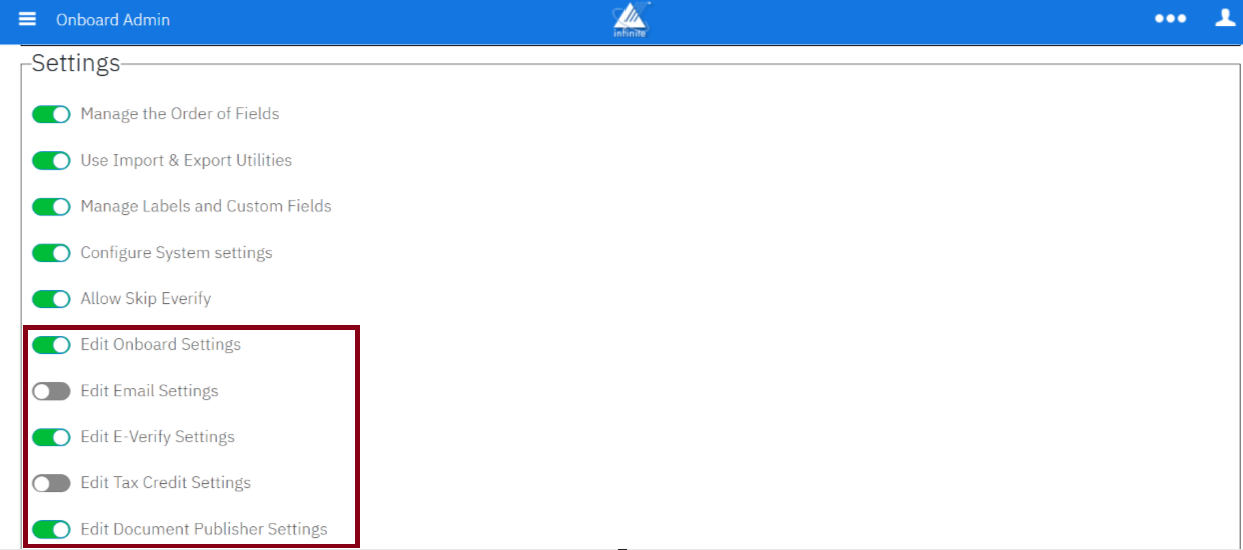
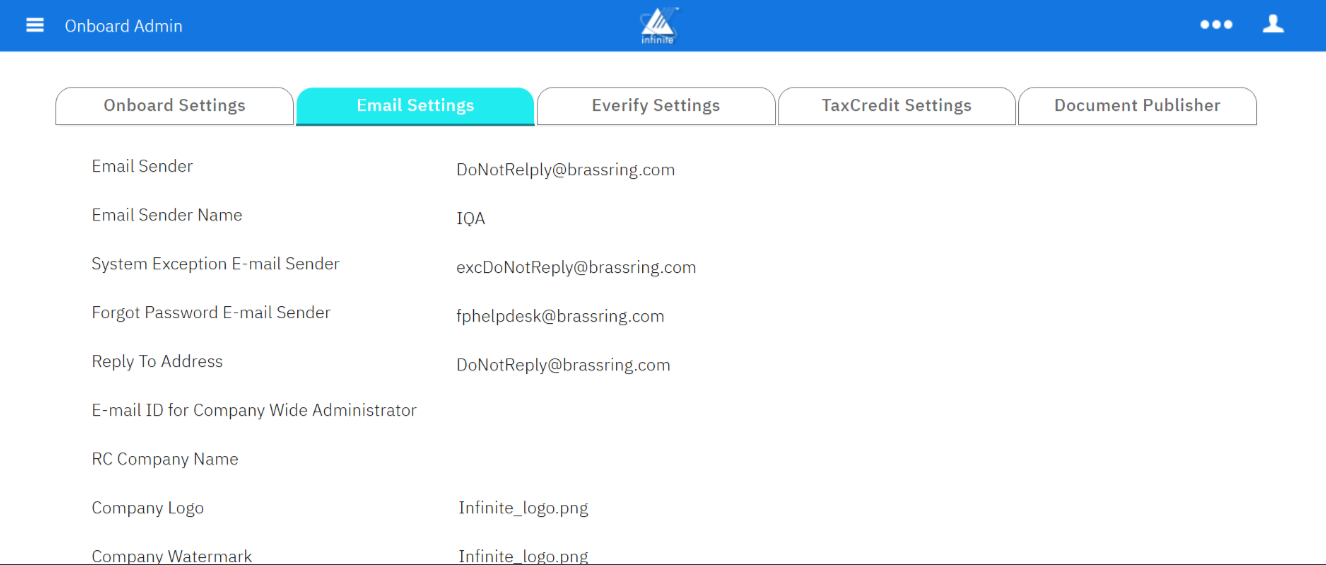
Starting with this release, the following editing capabilities have been introduced at the user type level in the Administration tab under the 'Settings' section. If any of these capabilities are disabled for a specific user type, users belonging to that user type cannot edit those particular settings.
Edit Onboard Settings
Edit Email Settings
Edit E-Verify Settings
Edit Tax Credit Settings
Edit Document Publisher Settings
Note: If ‘Edit Onboard Settings’ is disabled, then the ‘Save Changes’ button is not displayed in the Onboard Settings.
Path: Login to Talent Suite >> Onboard Admin >> Hamburger icon >> Manage Users >> User Types >> Select a User Type >> Administration tab >> Settings
Internal Reference Azure Board #63813
Onboard Admin: Activities – Field Properties
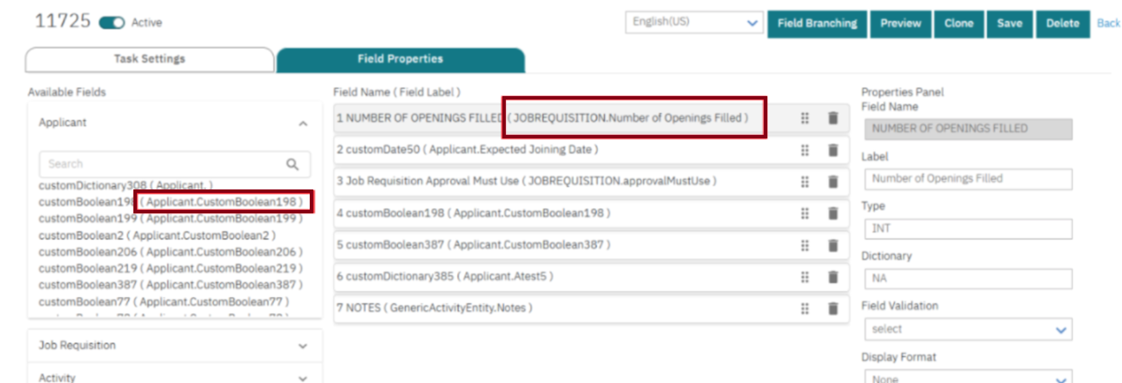
Currently, when Onboard Admins configure fields for activities, the field label appears in the 'Available Fields' column. However, once a field is added to an activity, the list only displays the field's technical name (Example: CustomDictionary285) instead of its label. This can become inefficient, particularly when activities contain numerous fields. To view a field's label after it has been added, users must click on each field individually.
Starting with this release, Onboard Admins can see both the field technical name and the field label in the 'Available Fields' and 'Field Name (Field Label)' columns at the same time while selecting and managing activity fields. This enhancement allows Onboard Admins to efficiently search to add, edit, and reorder fields without needing to click on each one individually.
Note: The Field Label displays in the Format of (EntityName.FieldLabel).
Path: Login to Talent Suite >> Onboard Admin >> Manage Workflows >> Activities >> Click/Edit an Activity >> Field Properties
Internal Reference Azure Board #63621
Onboard Admin: Dictionaries
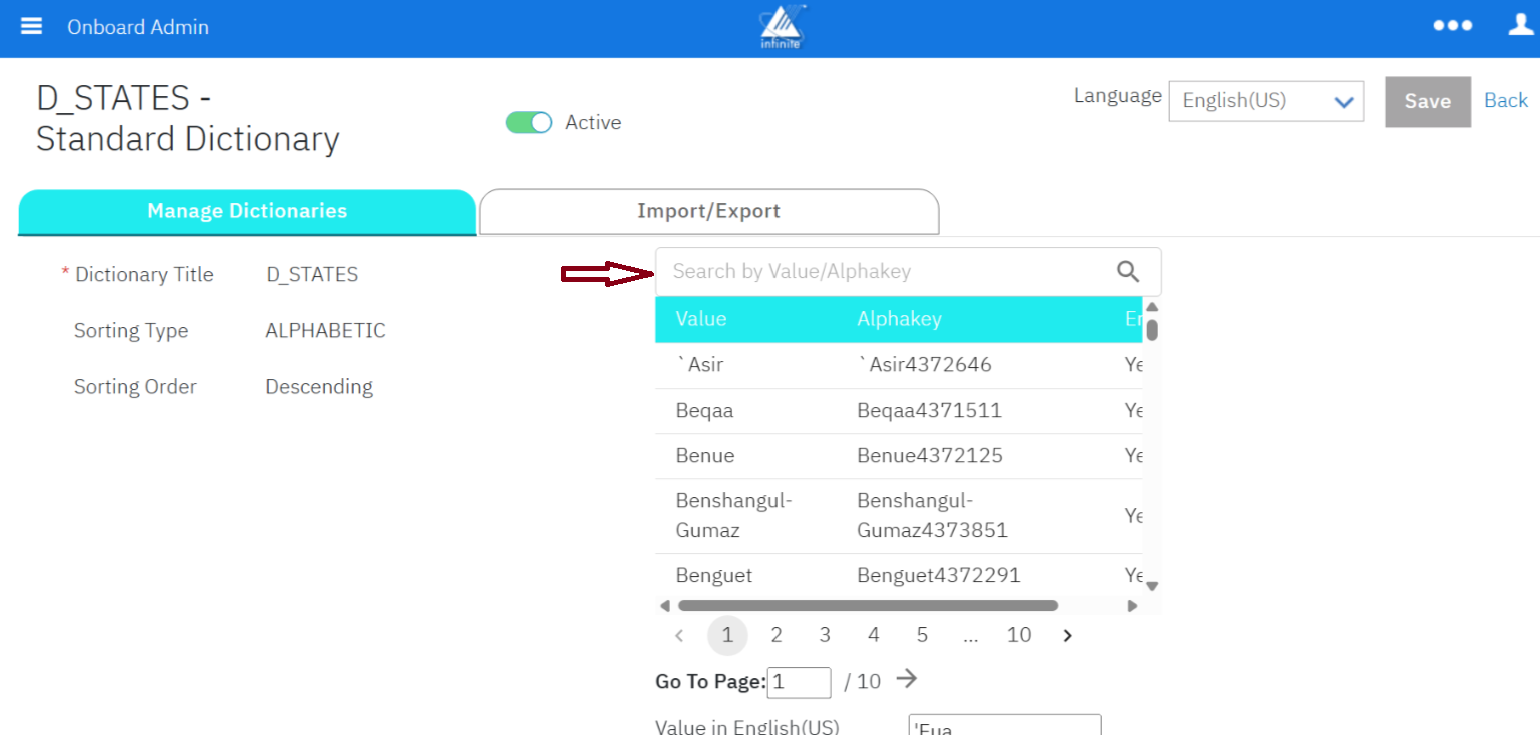
Currently, Onboard Admin users must manually click through multiple pages in the 'Manage Dictionaries' tab to find the desired dictionary value for adding or updating. This process can be quite time-consuming.
With this release, we are introducing a search box that allows Onboard Admin users to quickly search for dictionary values or their corresponding alphakeys. This enhancement significantly speeds up the navigation process for locating dictionary values.
Path: Login to Talent Suite >> Onboard Admin >> Hamburger icon >> Dictionaries >> Search and click on the Dictionary (Ex: D_STATES) >> Manage Dictionaries >> You can Search by Value/Alphakey
Internal Reference Azure Board #62184
ONBOARD FIXED DEFECTS
There are no new defects in the current release.