Product Overview
Signal Labs Talent BrassRing ATS Custom Approval Workflow is a unique, innovative technology that makes it easy for you to automatically apply complex approval rules to the recruiting approval process based on your internal organizational hierarchy.
Custom Approval Workflow:
Is fully integrated with BrassRing ATS. Once BrassRing ATS Custom Approval Workflow is implemented, BrassRing ATS automatically engages BrassRing ATS Custom Approval Workflow whenever users create new requisitions or forms, routing them to the first approver based on the relevant rules. BrassRing ATS Automation Manager triggers can also be used to send notifications to approvers, such as reminder notices, but these notifications will not have Link to approve. You log into the BrassRing ATS Custom Approval Workflow administration console using your BrassRing ATS username and password.
Uses a hierarchical organization structure stored within whatever external system you use to keep organizational reporting relationships current.
Makes adjustments as people move into new positions in your organization. BrassRing ATS Custom Approval Workflow combines functional approval roles with an organizational reporting structure. Behind the scenes, rule mapping drives the approval process for each requisition or form to be routed.
Includes fully configurable business rules to govern approval paths. You can base criteria for the approval path on any field, combination of fields, or in the requisition or form itself.
Allows you to add criteria to the approval chain during the approval routing process. While creating rules-based approval routing involves setting up standard approval paths for different requisitions or forms, it also allows for recruiters or other approvers to add approvers for a particular requisition or form. Although this adds some flexibility, individuals are not allowed to break the pre-defined rules by removing or reordering the sequence of required approvers.
Who should read this help?
This help is written for system administrators who configure and maintain BrassRing ATS Custom Approval Workflow.
These topics describe how to use the Custom Approval Workflow administrative console, but do not provide in-depth descriptions of BrassRing ATS or Workbench functionality.
Search in BrassRing ATS Custom Approval Workflow
You must search for users or sequence codes to perform several administrative tasks in BrassRing ATS Custom Approval Workflow.
This topic describes how to:
Select Users
Select codes
Selecting users
Searching for users is not dependent on current selections or the task you are performing. BrassRing ATS Custom Approval Workflow searches through all of your company's BrassRing ATS users who are registered to use BrassRing ATS Custom Approval Workflow.
From the Admin tab, select System > Users.
Type at least three letters in the Search for box.
Select First name and/or Last name to search for first names, last names, or both that match the letters you typed in the Search for box. You must select at least one of these options.
For example, if you type rob and select both First name and Last name, BrassRing ATS Custom Approval Workflow finds both Robert Foley and Peter Robertson. However, if you type robert foley, BrassRing ATS Custom Approval Workflow will not find anything.
Select Search.
BrassRing ATS Custom Approval Workflow displays a list of users whose names match your criteria.
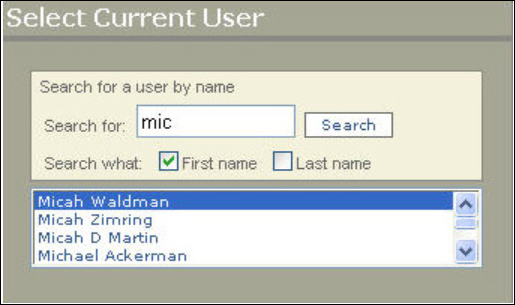
Selecting Codes
You can search for organizational codes or select them from lists. If your organization has a large number of organizational units, it might make more sense to search. However, if you are unsure of the exact name of the organizational entity or its corresponding code, it might make more sense to scroll through the list.
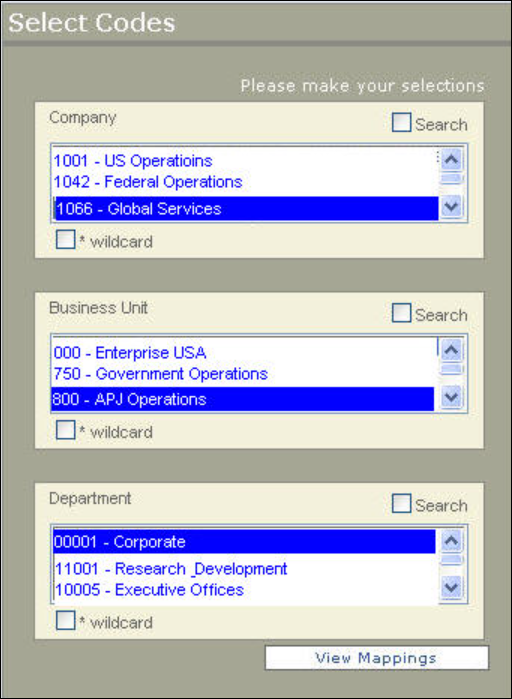
Search
Select the Search check box.
Type the code's first few numbers in the Search for box. You must enter at least one number.
How BrassRing ATS Custom Approval Workflow searches: If you enter 10, BrassRing ATS Custom Approval Workflow finds both 1001 and 1021 but not 2010.
Select Search. BrassRing ATS Custom Approval Workflow displays a list of organizational codes that match your criteria.
Select the codes. To select adjacent codes, select the first one then hold down the SHIFT key and select the last one. To select nonadjacent codes, select the first one, and then hold down the CTRL key and select additional codes. To select all codes, select the Wildcard check box.
List
Uncheck the Search check box.
BrassRing ATS Custom Approval Workflow displays a complete list of organizational codes.
Select the codes. To select adjacent codes, select the first one then hold down the SHIFT key and select the last one. To select nonadjacent codes, select the first one, and then hold down the CTRL key and select additional codes. To select all codes, select the Wildcard check box.
Access BrassRing ATS Custom Approval Workflow from BrassRing ATS
To access BrassRing ATS Custom Approval Workflow from BrassRing ATS, from a pending requisition, select View approvals:
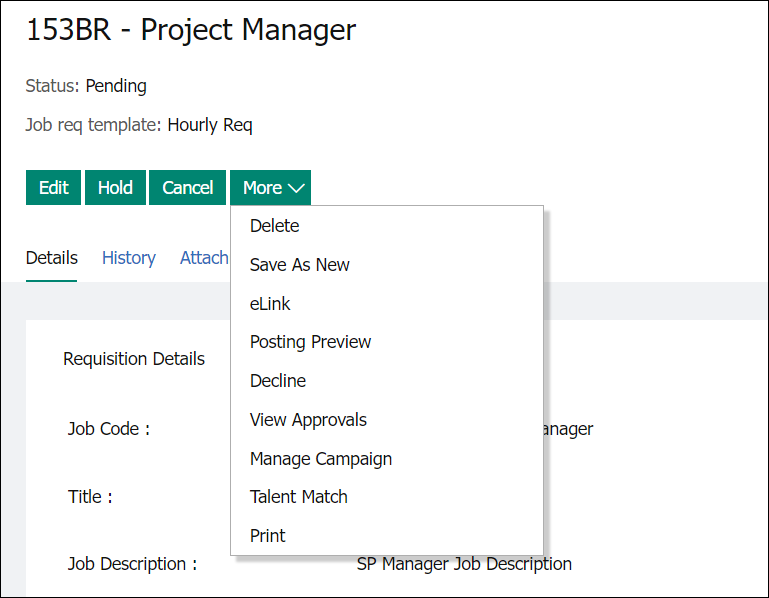
BrassRing ATS Custom Approval Workflow displays the pending requisition and its approval process. You can add another approver to the approval chain from this screen.
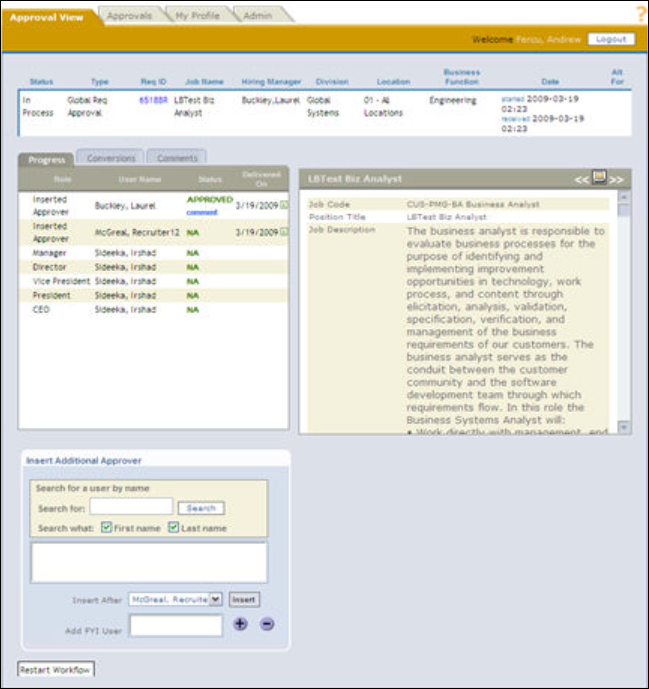
You can also access BrassRing ATS Custom Approval Workflow from the Reqs menu or from the Admin > Admin+ menu in BrassRing ATS.