BrassRing new features for release 26.08.11 are listed here.
BRASSRING Dark Launch
Dark Launch features are those that are released to the Staging environment only and are NOT released to the Production environment for a considerable amount of time.
This process gives an opportunity and enough time to test these features thoroughly before they are available in the production environment. Clients are requested to configure and test these features and provide their feedback and inputs to your respective Infinite representatives.
There are no Dark Launch features in this release.
BRASSRING VISIBLE CHANGES
The BrassRing visible changes for the current release are listed here.
Responsive Recruiter: Polish Language
The BrassRing application currently supports the Polish language for Talent Gateway, Lead Manager, and Agency Manager. However, the Responsive Recruiter UI module of BrassRing does not yet support Polish.
With this release, the BrassRing application now supports the Responsive Recruiter UI in Polish, ensuring a consistent multilingual experience across the entire BrassRing platform. The Polish translations are implemented on all user-facing pages, navigation elements, system messages, and default values. This initiative aligns the Recruiter Experience with the existing Polish language support in other BrassRing modules.
Note: The client should have purchased the Polish language, and the "Polish" locale must be enabled in the client settings under "UI Locales."
Internal Reference Azure Board # 67596.
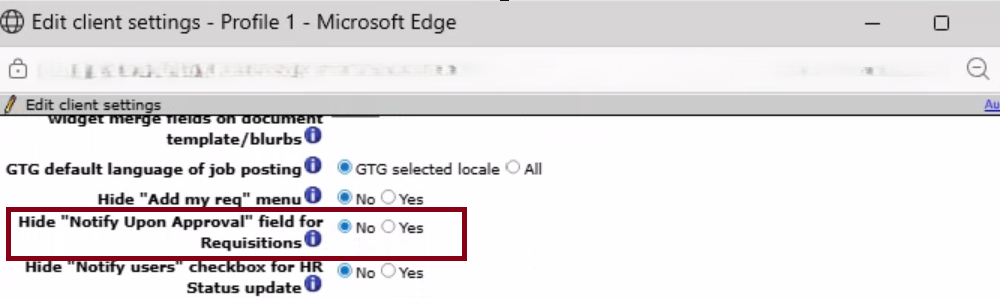
Responsive Recruiter: Requisition - Notify upon approval completion field
Currently, when the approval process is set up on a requisition form, the "Notify upon approval completion" field is automatically required. Users must specify which individuals they want to notify.
With this release, a new client setting has been introduced in the Workbench application. This setting allows users to control the visibility of the "Notify upon approval completion" field on requisitions.
By default, this setting is set to 'No.' If clients wish to enable this feature, they should contact their Infinite representative.
Internal Reference Azure Board # 64976.
Responsive Recruiter: Auto Unpost/Repost Requisitions
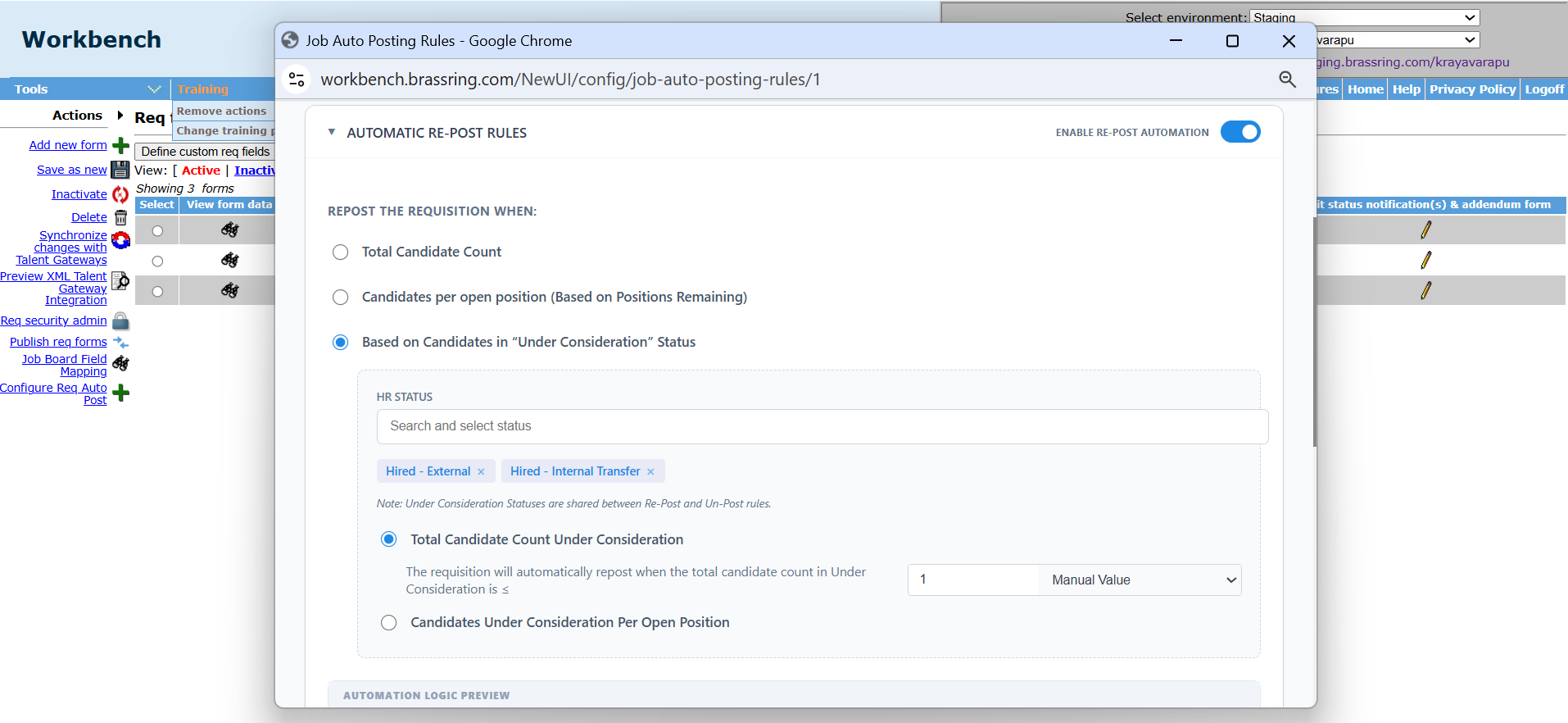
Currently, when clients configure the HR Status rule in multiple rule sets for the Auto Unpost/Repost Requisition functionality, updating the list of HR statuses in one rule set overrides all other rule sets with the latest saved list.
Beginning with this release, clients can configure different HR Status groups for each rule to accommodate various processes. Now, if the list of HR statuses is updated in one rule set, it affects only that rule set and does not impact any other rule sets.
Path: Workbench >> Tools >> Forms >> Req Forms >> Actions >> Configure Req Auto Post >> Create/Edit Rule Set.
Internal Reference Azure Board # 66061.
Responsive Recruiter: Date Field Configuration
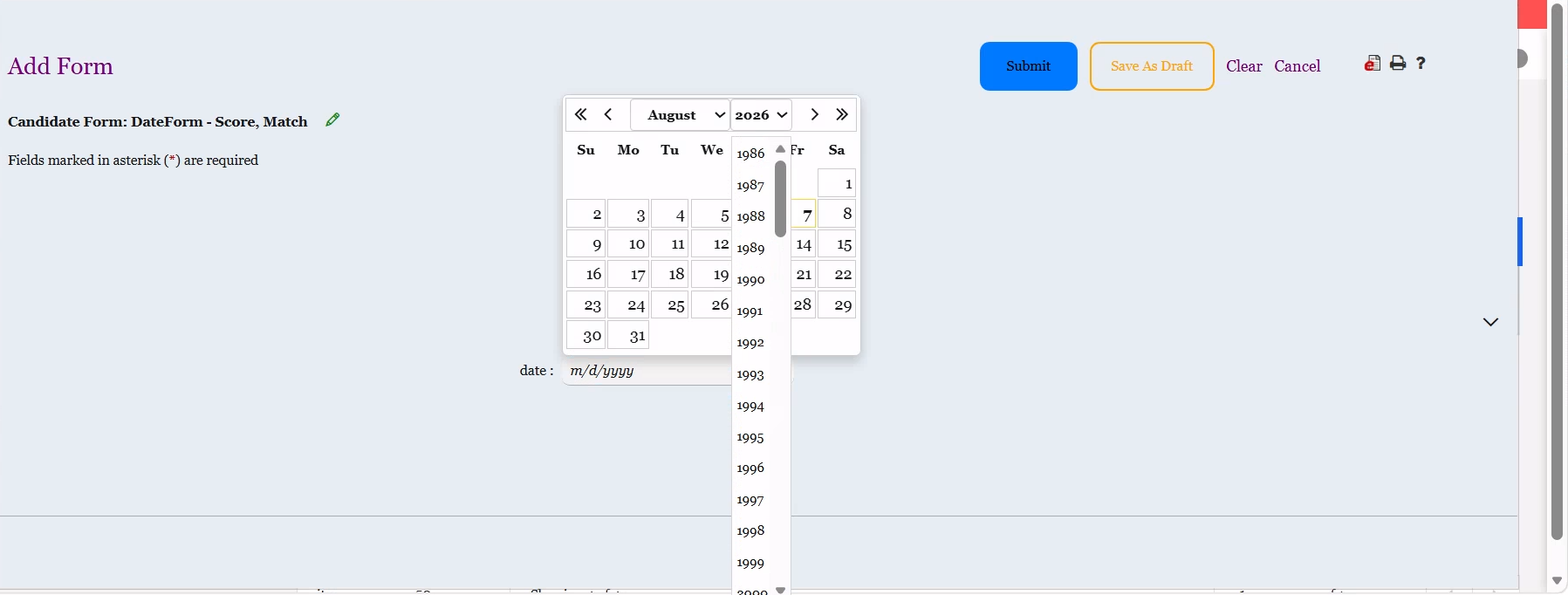
Currently, when Workbench Admins configure the calendar settings for the Date field, they must click ‘Preview.’ This action reveals a year dropdown that displays a range of approximately 10 years both backward and forward (for example, 2016–2026 or 2026–2036). As a result, users have to repeatedly select earlier years to navigate further back in time. This same issue is present in the BrassRing UI for the candidate form's date field.
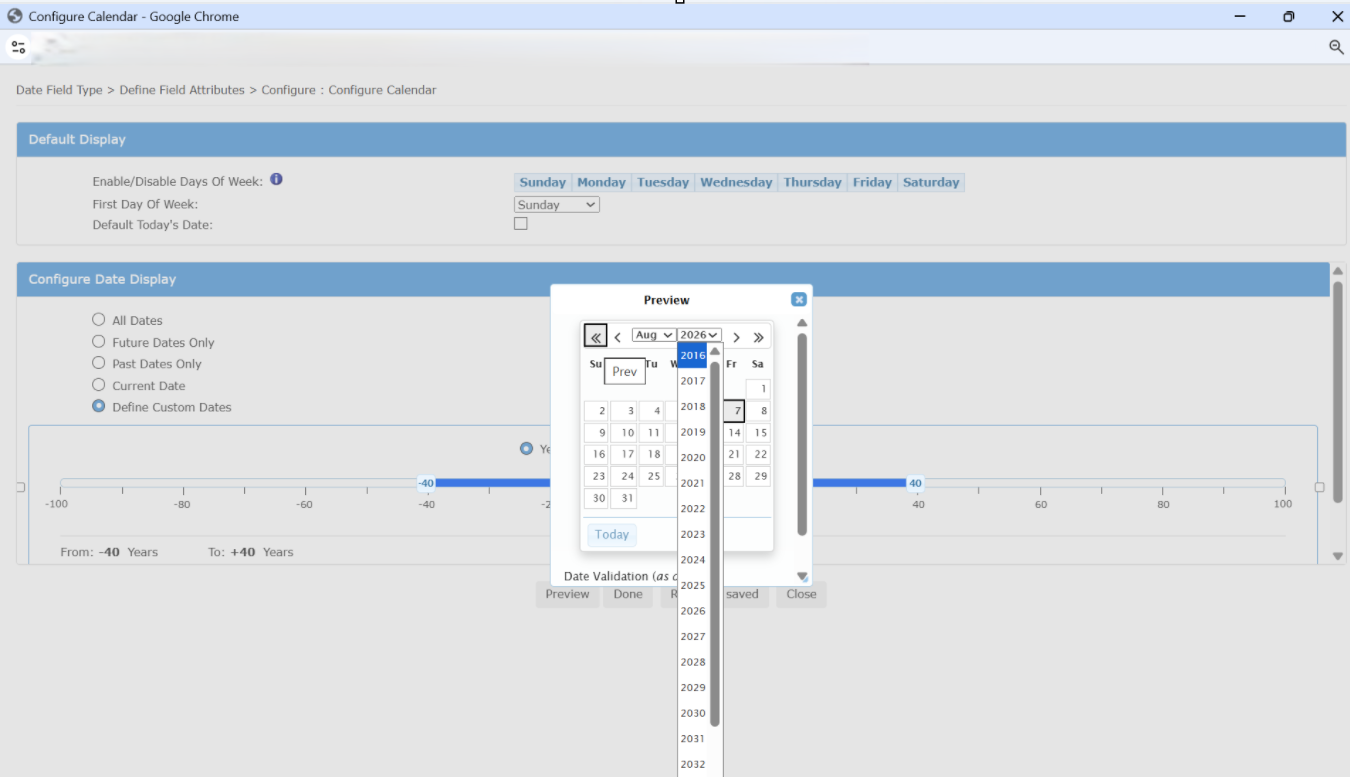
With this release, the Date picker configuration has been enhanced in both Workbench and BrassRing UI. The year dropdown now displays the complete configured year range, allowing users to scroll continuously through all available years without needing to refresh in 10-year increments after each selection.
Internal Reference Azure Board # 68052.
Responsive Recruiter: Candidates Selection
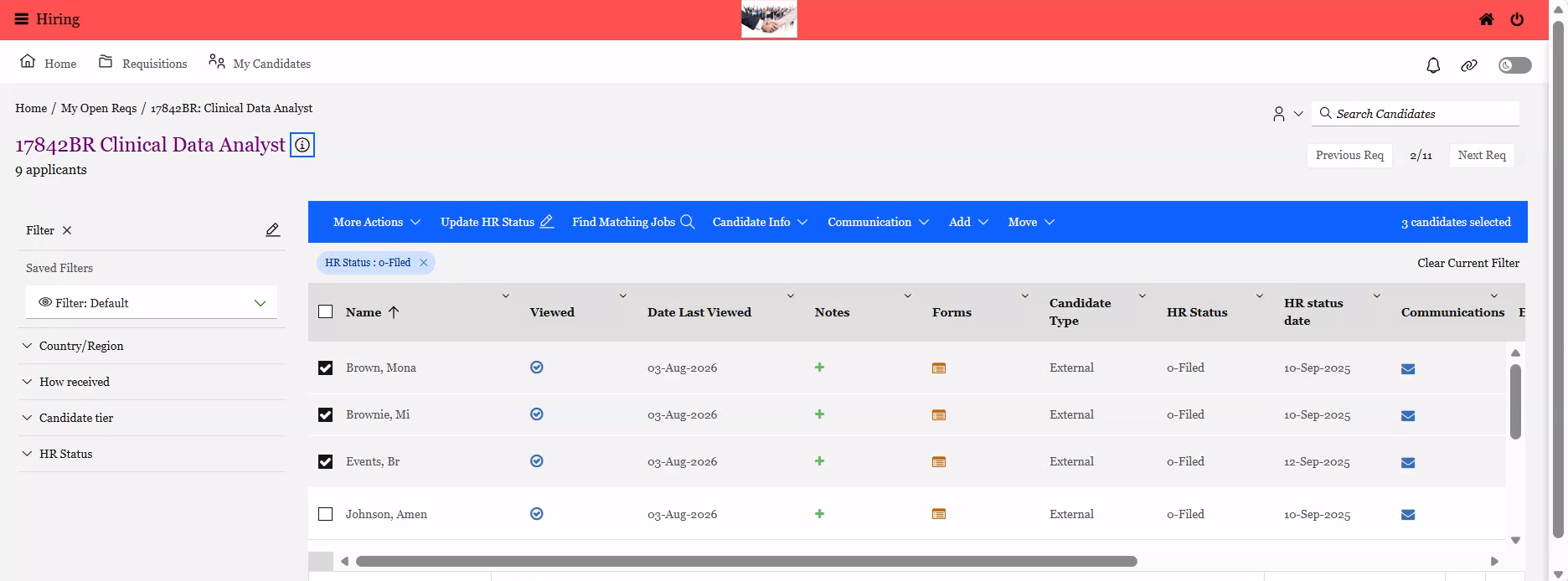
Currently, in BrassRing's new UI, when a user selects multiple candidates for bulk actions or applies filters, navigating to a candidate profile and then returning to the candidate list clears all selected candidates and filters. This requires users to reselect their candidates.
With this release, we aim to enhance efficiency, reduce repetitive tasks, and improve the user experience by ensuring that selected candidates and filters are retained when users navigate back from a candidate profile. This means users need not reselect candidates when performing bulk actions in the new UI.
Selected candidates and applied filters are retained only when returning from the candidate profile to the candidate listing page using either the browser back button or the Canvas(New UI) breadcrumb navigation.
This functionality is consistent across all candidate listing pages, including the Candidates in Requisition folder, the My Candidates tab, and the My Candidates HR Status view.
Any action that refreshes the candidate grid (such as HR status updates, candidate type updates, document creation, etc.) clears the retained selections and filters.
Note: A hidden client setting called “Retain Filter Persistence” needs to be enabled from the backend by the Infinite team upon the client’s request.
Internal Reference Azure Board # 64196.
Responsive Recruiter: Candidate Talent Record – Retain Notes
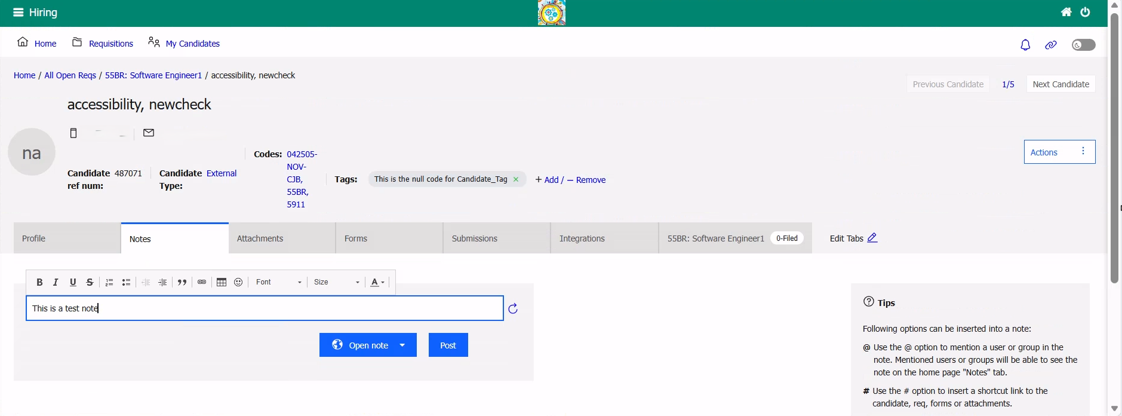
Currently, when a user attempts to add notes in the Notes tab under a candidate's talent record in the new UI and then switches to another tab to check additional information, the entered notes are lost. This disrupts the workflow and reduces efficiency.
Starting with this release, when a user adds notes, it is automatically saved as a draft in both the 'Note' and 'Reply' sections. This means that even if the user switches between tabs in the candidate's talent record, the notes are retained until the page or notes are refreshed.
Please note: The entered notes are retained as long as the page is not refreshed.
Internal Reference Azure Board # 63526.
Responsive Recruiter: Add Multiple Candidates
BrassRing users currently have the option to download a static sample template for bulk candidate uploads. However, this template includes fixed fields that may not align with each client’s specific configurations or custom fields. Clients would like to have the ability to download a personalized template that reflects their unique field setups, which would make bulk uploads easier and reduce errors.
With this release, client Workbench Administrators can now configure a custom candidate bulk upload template by selecting candidate form fields. This enhancement allows Workbench Admins to download and use a client-specific bulk upload template instead of being limited to the default sample template. The custom template can include both standard and custom candidate form fields, and clients can select a maximum of 50 candidate form fields for their personalized bulk upload template.
Path: Workbench >> Tools >> Forms >> Candidate Forms >> Actions >> Bulk Upload Template
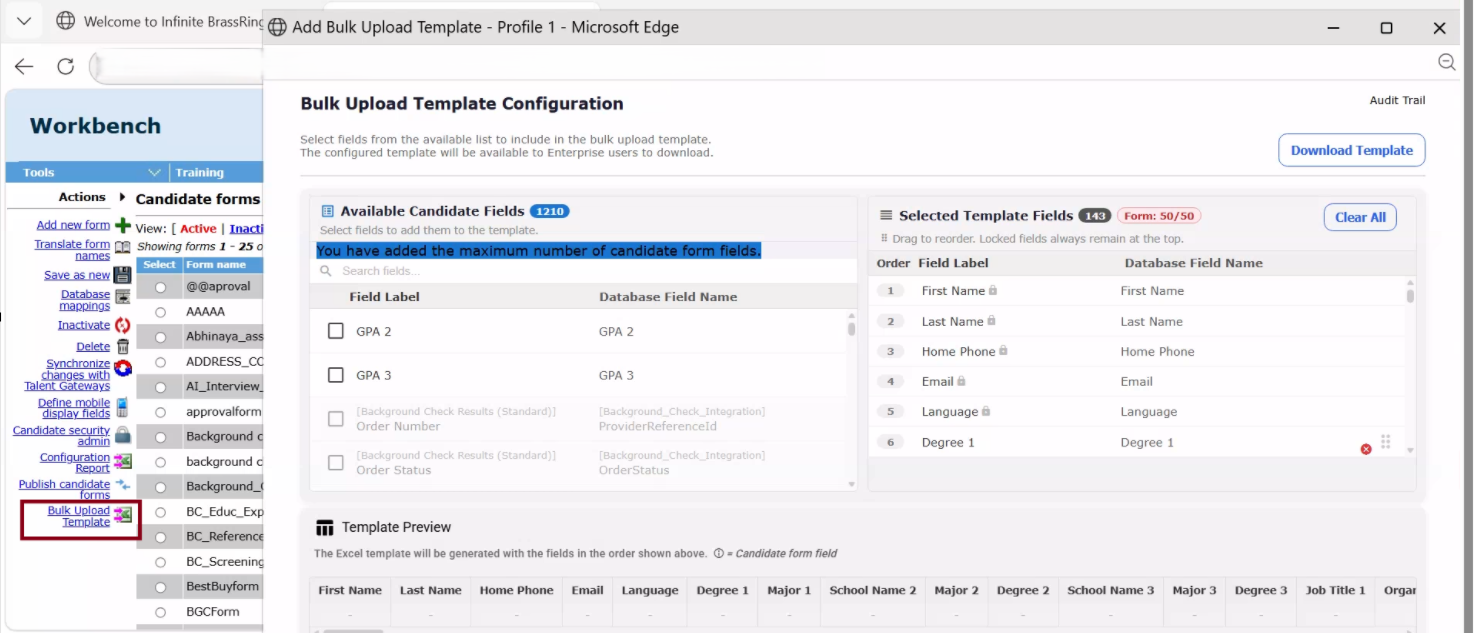
Workbench administrators can:
View available candidate form fields
Select fields to include in the bulk upload template
Arrange the order of fields
Preview the generated template structure
Save the template configuration
Download the generated template for verification
BrassRing users can:
Continue downloading the existing Sample Template
Get the configured Custom Bulk Upload Sample Template from Workbench Admins
Populate candidate data using the downloaded template
Upload candidate records using the existing bulk upload process
Internal Reference Azure Board # 62629.
Talent Gateway: Referral Method – Review selected jobs
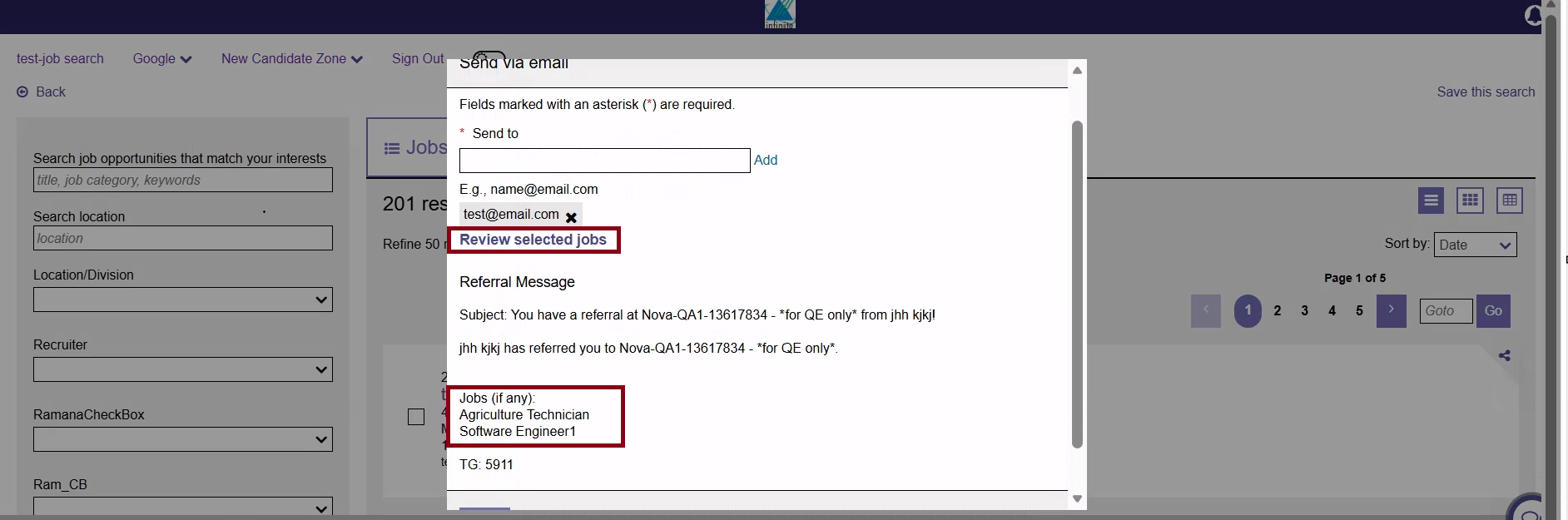
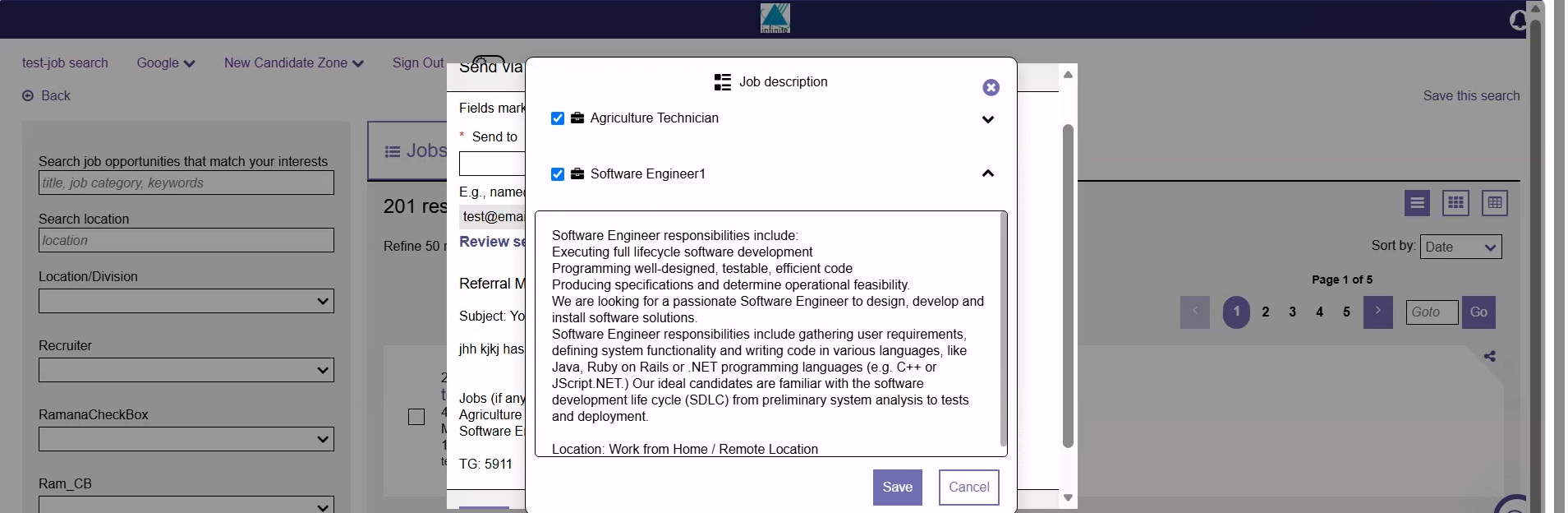
Starting with this release, when an employee refers a candidate to multiple jobs using the “Send via email” or “Upload resume/CV” referral methods, a new link labelled “Review selected jobs” has been implemented. This feature allows employees to preview the job information for each position before completing the email referral process, ensuring that relevant opportunities are shared with the candidate.
Additionally, when using the “Send via email” or “Upload resume/CV” referral methods, the last five candidate email addresses are auto-populated, allowing employees to add them. This saves employees from having to re-enter the same candidate information each time they send a referral email.
The “Send to” email box also validates the entries, checking for restricted email domains or invalid email addresses and displays appropriate error messages.
Internal Reference Azure Board # 64527.
Talent Gateway: Job Search API Upgrade
Starting with this release, we are enhancing the Talent Gateway Job Search API as part of our ongoing modernization efforts. It is important to note that the existing Talent Gateway Search API using QIDs continues to be fully supported and remains available for clients currently using it. This enhancement introduces an additional, streamlined approach and does not replace or sunset the legacy functionality.
Historically, configuring the Search API required several manual steps, including creating an API user in Workbench, capturing QIDs, manually generating XML, and storing the XML within the web router to obtain the XML or RSS feed link. To simplify this process and improve usability, the enhanced Search API now supports both XML and JSON output formats directly from Workbench.
The Search and Display fields are no longer retrieved from the Job Search Fields settings in Talent Gateway. Instead, the API uses field configurations defined in the TG Responsive Settings, ensuring consistency with the responsive candidate experience.
A new Preview XML/JSON capability has been introduced within Workbench. By selecting Preview XML or Preview JSON for the Search API, the system automatically generates the corresponding output using the field configurations defined in TG Responsive Settings, eliminating the need for manual XML generation and maintenance.
The enhanced Talent Gateway Search API now accepts client requests in both XML and JSON formats. The response generation is controlled by the OutputXml value provided in the request payload:
When OutputXml = 2, the API returns results in Link Format.
Please note that while XML output continues to be supported, the RSS output format available in the legacy implementation is not supported in the enhanced Search API.
Additionally, a new authentication mechanism has been introduced for the enhanced Search API. Unlike the legacy Search API, which did not require authentication, the enhanced API uses JWT token-based authentication for all incoming requests, providing improved security and access control.
Documentation for the enhanced Search API is available at the following link.
Link: BrassRing Talent Gateway Job Search API
Internal Reference Azure Board # 1442.
Data Insight Tool: Filters Worksheet
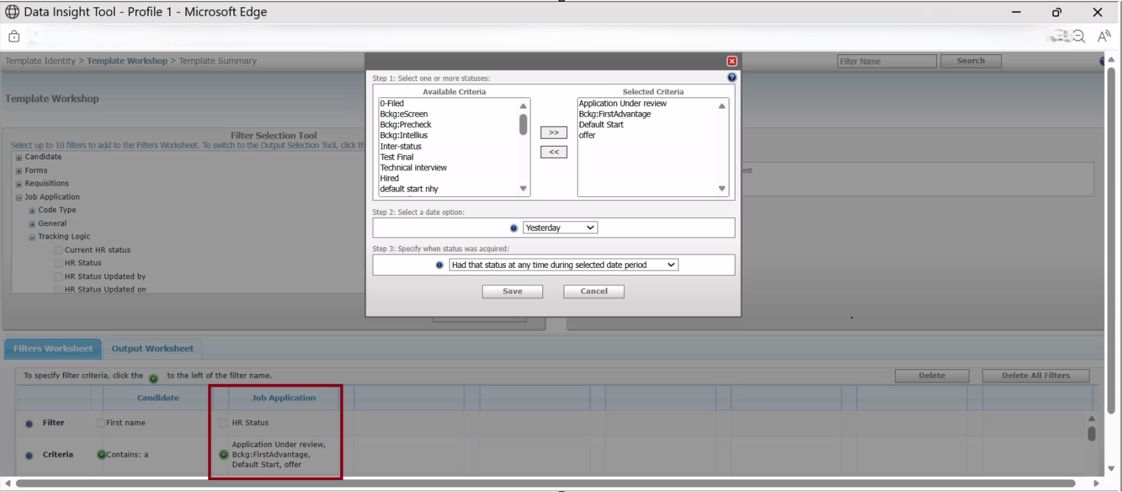
Currently, users of the Data Insight Tool face a long list of options when selecting HR Status or Req Status filters, requiring them to scroll extensively to review their selections, which is not very user-friendly.
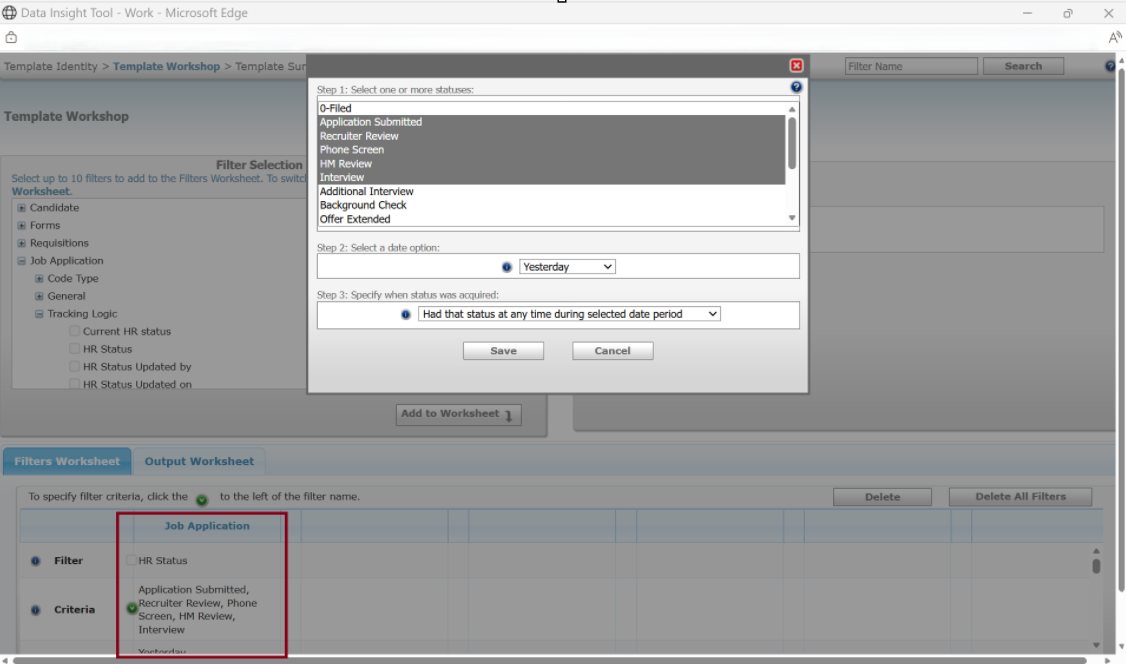
This release introduces a dual selection box in the Data Insight Tool, enabling users to select either HR Statuses or Req Statuses from the "Available Criteria" section. This enhancement allows users to easily review their selected statuses in the "Selected Criteria" section.
Internal Reference Azure Board # 62753.
Responsive Recruiter: Match Score – Audit History
With this release, BrassRing users can now click the “View Audit History” link in the Match Score window to access the audit logs. The “Score Audit Log” grid retains logs whenever a score is changed due to a resume update, job update, parameter change, or other factors. The grid includes columns for Date & Time, Previous Score, New Score, and Reason for Change, providing detailed log information. The Audit History data is read-only, and users can only view the audit information.
Path: Log in to BrassRing >> Go to the Req folder >> In the Candidate results panel, click on the score under “Overall Match Score” >> View Audit History
.png)
Internal Reference Azure Board # 60495.
Agency Manager: Submit Attachments
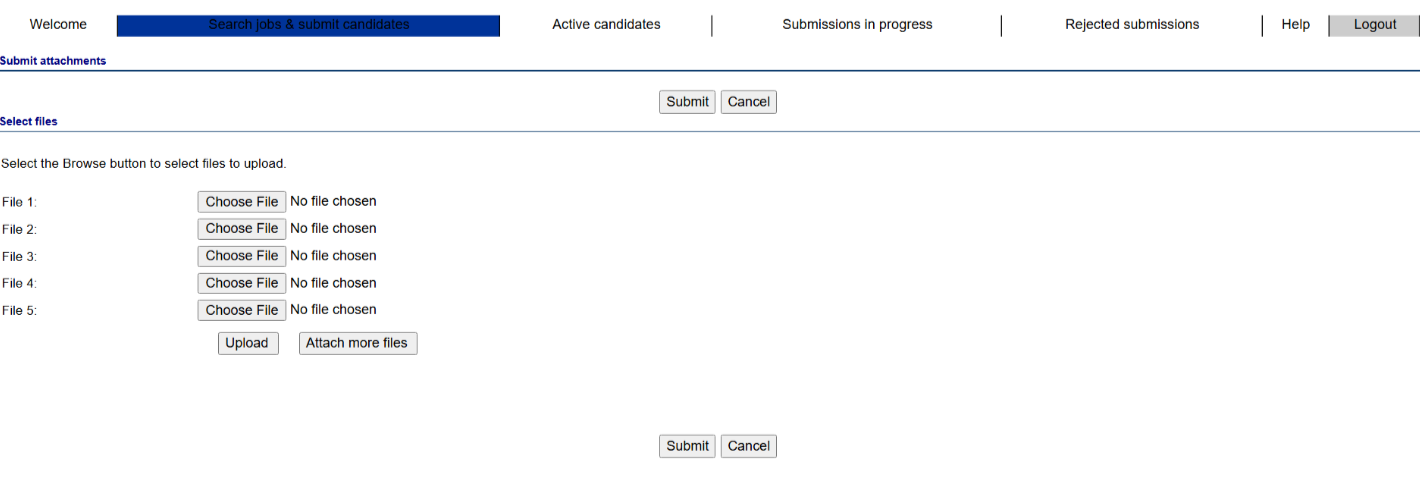
Currently, in the Agency Manager, when a user attempts to upload attachments while submitting a candidate, only one attachment row is displayed. As a result, the user must click the "Attach more files" button multiple times to add additional attachment rows.
Starting with this release, users of the Agency Manager can see five file attachment rows displayed by default when uploading files. This change enhances usability and decreases the number of clicks needed to submit candidate-related documents, leading to a more efficient submission process.
Note: The number of attachment rows displayed is based on the "Number of attachments" configured in the Attachments tab of the Agency Manager. For example, if the "Number of attachments" is set to 7, the user can see 5 file attachment rows and needs to click the "Attach more files" button to add additional rows. If the configured "Number of attachments" is less than or equal to 5, the "Attach more files" button is not displayed.
Path: Workbench >> Tools >> Agencies >> Launch Agency Manager >> Login >> Search Jobs and submit candidates >> Submit Candidate details >> Submit attachments >> Select files >> Attach more files
Internal Reference Azure Board # 67727.
Recruiter XML Integration: Linked Apply Connect Accounts
Currently, the Linked Apply Connect configuration only supports one LinkedIn organization configuration per client in the Workbench application.
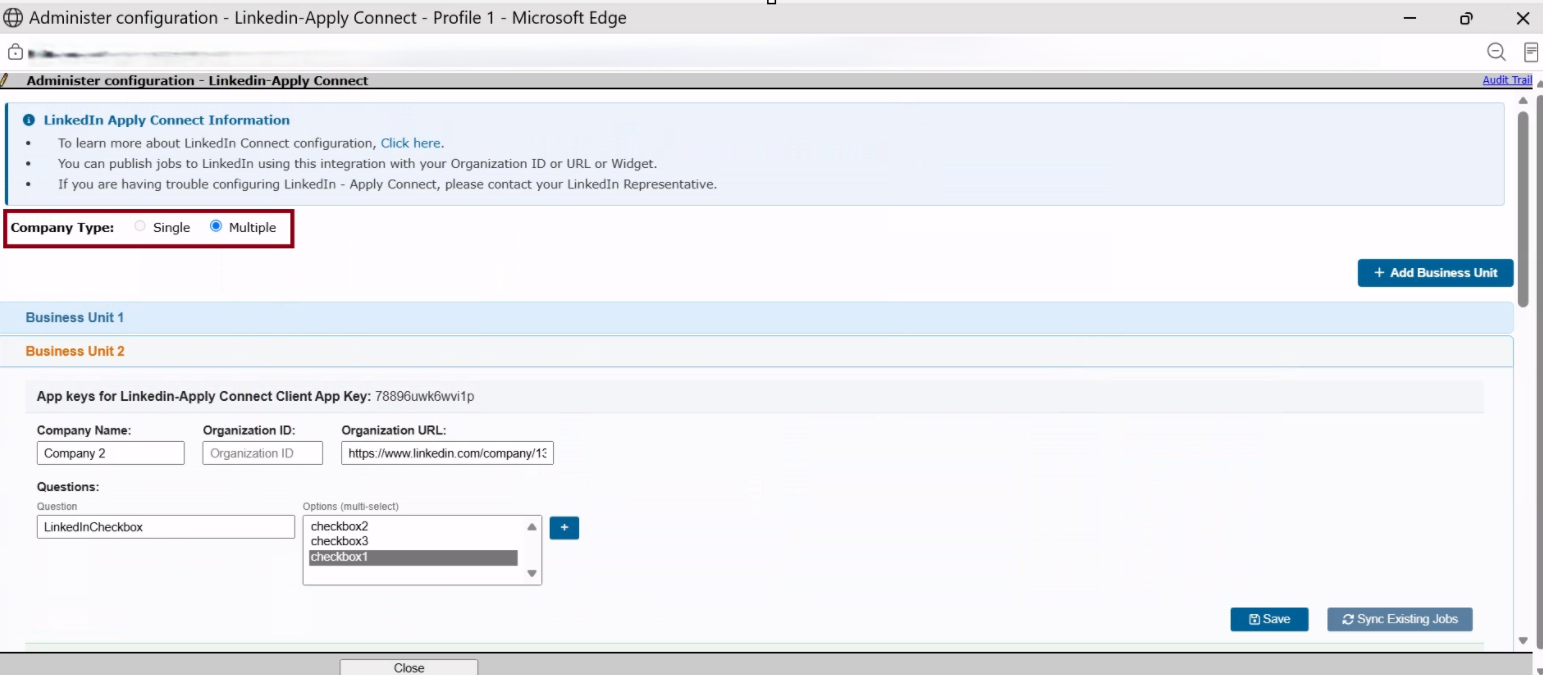
With this release, the Linked Apply Connect functionality has been enhanced to allow clients to maintain multiple Business Units. Workbench Admins now see a new field titled “Company Type,” which enables the configuration of either a single or multiple LinkedIn Apply Connect (Easy Apply) Business Unit accounts. Admins can add, edit, and remove Business Unit configurations from the configuration page according to their needs. Each Business Unit configuration includes the following:
Company Name (Required)
Organization ID (Required)
Organization URL (Required)
Admins can configure each Business Unit and map standard or custom requisition fields. Only fields that support selectable values, such as Single Select, Multi Select, or Dropdown/Option-based fields, are available for mapping.
A maximum of two mapping fields can be configured. The first mapping field is mandatory, while the second is optional. If both mapping fields are configured, the system evaluates them using an “AND” condition.
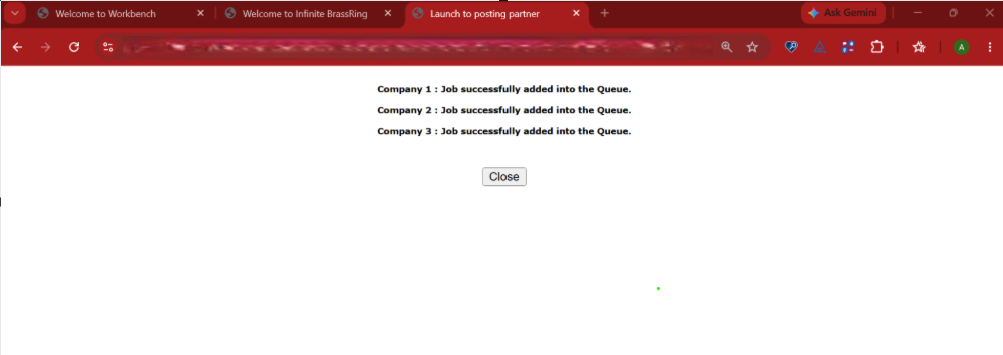
BrassRing users can post requisitions to the LinkedIn Apply Connect for the respective companies based on the selections made for the configured fields on the requisition form.
Candidate applications received through LinkedIn Apply Connect are associated with the correct Business Unit based on the established mapping rules.
Path: Workbench >> Tools >> Settings >> Social Media Configuration >> Linked – Apply Connect >> Administer Configuration >> Company Type >> Single or Multiple >> Add Business Unit
Internal Reference Azure Board # 66063.
BRASSRING CONFIGURABLE CHANGES
There are no BrassRing configurable changes for the current release.
BRASSING WORKBENCH CHANGES
The Workbench-related configuration changes in the current release are mentioned in the Visible Changes section.