BrassRing new features for release 25.12.09 are listed here.
BRASSRING Dark Launch
Dark Launch features are those that are released to the Staging environment only and are NOT released to the Production environment for a considerable amount of time.
This process gives an opportunity and enough time to test these features thoroughly before they are available in the production environment. Clients are requested to configure and test these features and provide their feedback and inputs to your respective Infinite representatives.
There are no Dark Launch features in this release.
BRASSRING VISIBLE CHANGES
The BrassRing visible changes for the current release are listed here.
Responsive Recruiter: Allow Concurrent Sessions
Starting with this release, a new client setting called “Allow Concurrent Sessions” has been introduced in the Workbench application. This setting is presented as a radio button with two options: ‘Yes’ and ‘No’. The default value is set to ‘Yes,’ which permits multiple sessions. If the value is changed to ‘No’ and a user attempts to log in to the BrassRing application, a warning message is displayed. “This account is active in another session. To protect your security, proceeding here will close that session.”
Clicking 'OK' terminates any other active sessions in the background and successfully logs the user in. If the user refreshes the previous active session, the same message is displayed.
Note: Session tracking is not implemented for eLink login flows. Currently, multiple login sessions are permitted.

Internal Reference Azure Board # 57750.
Responsive Recruiter: New UI – Notification Bell icon
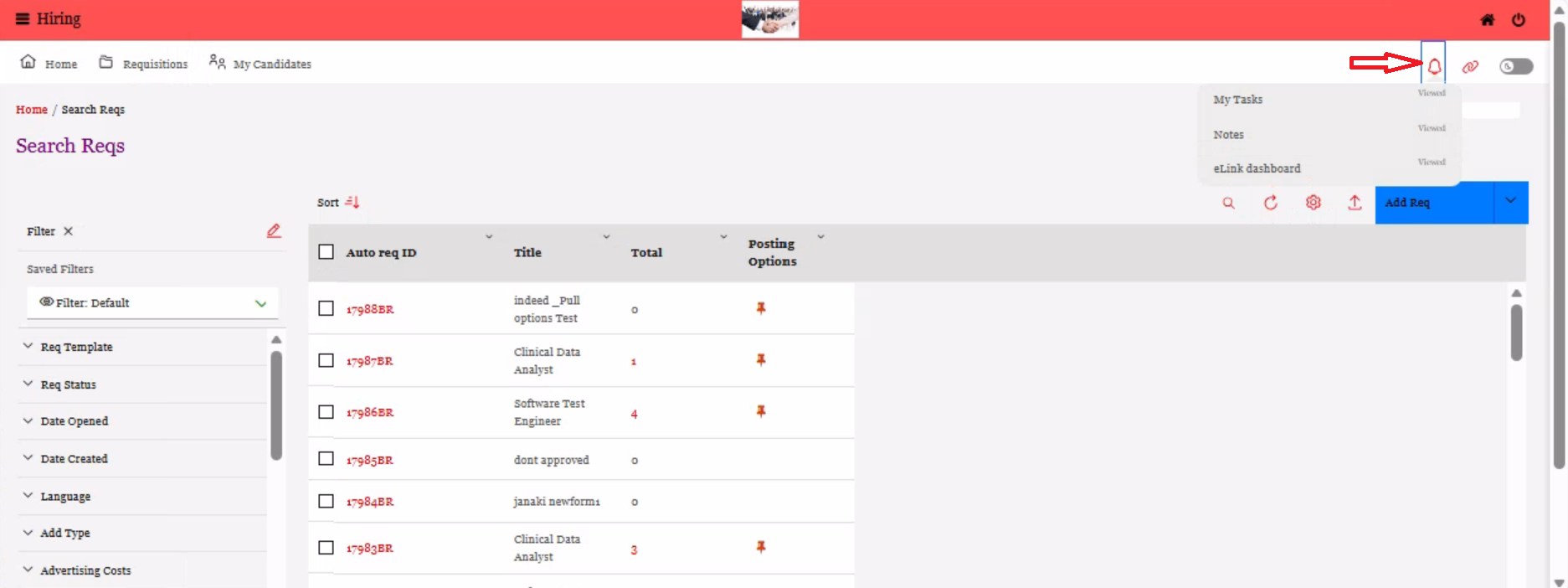
Starting with this release, the Notification Bell icon on the Navigation Header is now visible when accessing the Requisitions, Candidates, Reports, and Admin sections. With this update, users can click on the Notification Bell icon from all the sections and can quickly access their alerts and be redirected to the correct tab on the homepage.
Internal Reference Azure Board # 60100.
Responsive Recruiter: Quick Search
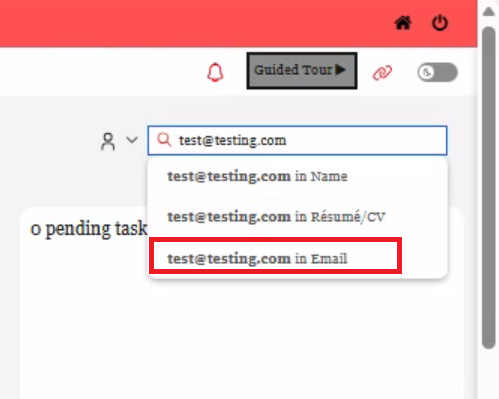
Beginning with this release, BrassRing users can now search for candidates by their email addresses in the quick search bar. This feature enables users to find a specific candidate quickly, without the need to filter through other fields. The candidate email search is not case sensitive and is compatible with both the Responsive Recruiter and the New UI.
Internal Reference Azure Board # 59884.
Responsive Recruiter: New font in CK Editor
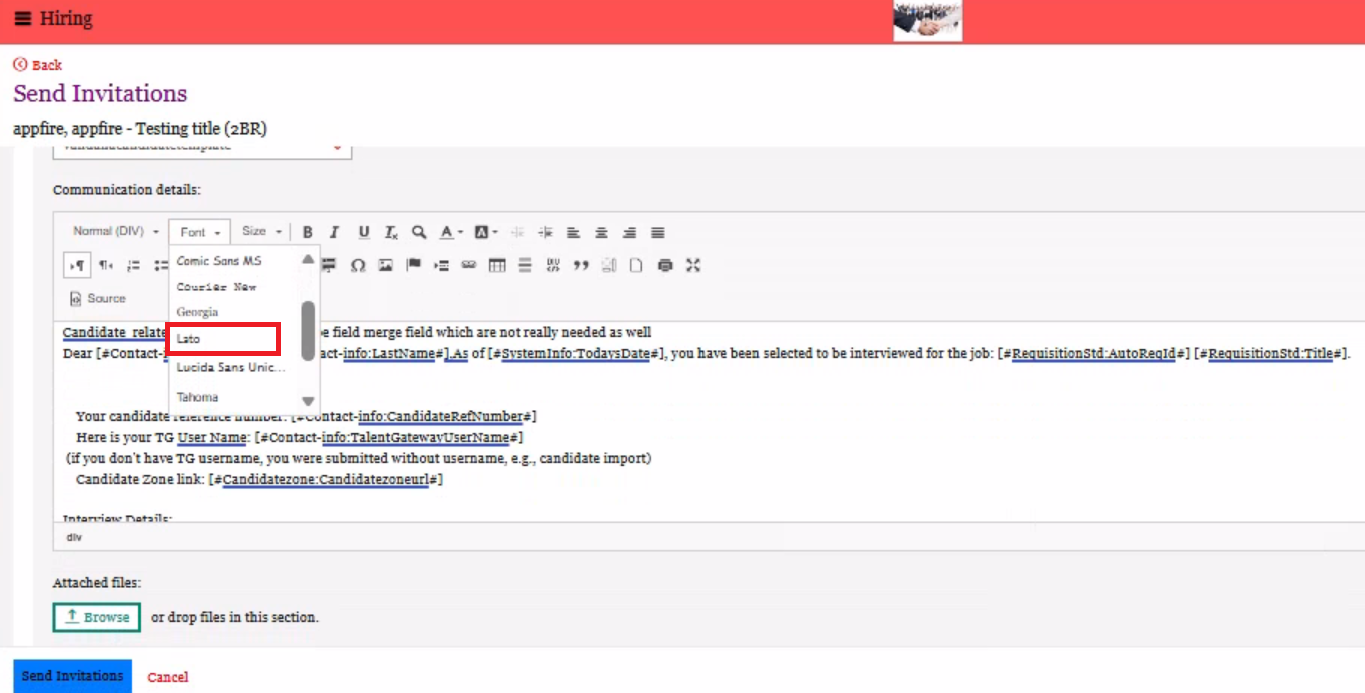
In the previous release, a new font style called 'Lato' was added to the available fonts in the CK Editor, which can be used in both the Requisition and Communication modules.
Starting with this release, the new 'Lato' font can now be applied in the Job Description field within the ‘Mass Req Update’ workflow, Interview Manager, and SMS template modules where the CK editor is displayed.
Internal Reference Azure Board # 60375.
Responsive Recruiter: Candidate Form Fields Confirmation and Masking
Currently, the SSN and Date field types are only enabled with the confirmation settings on the Candidate form configuration in Workbench.
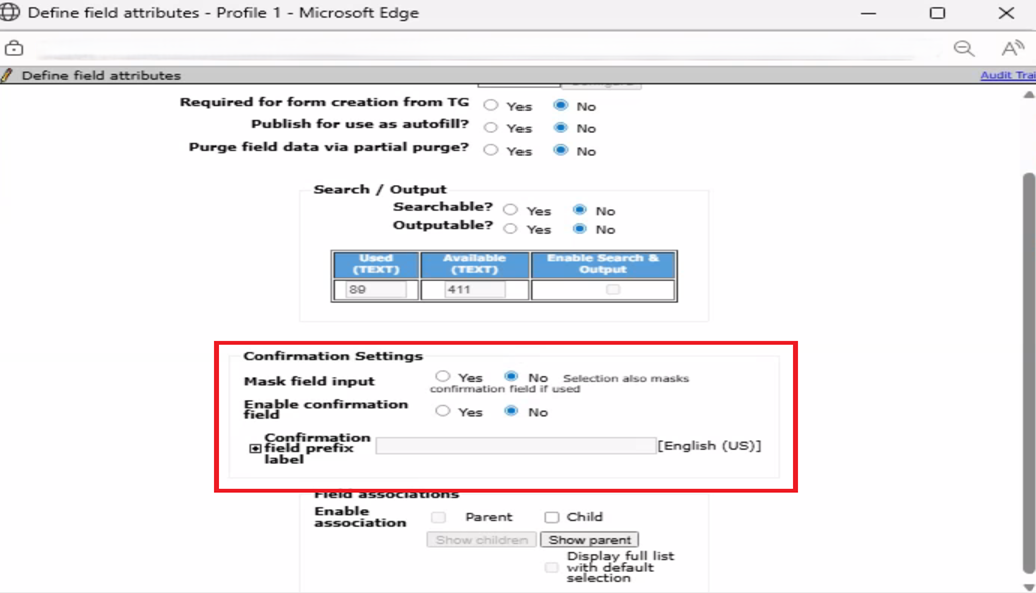
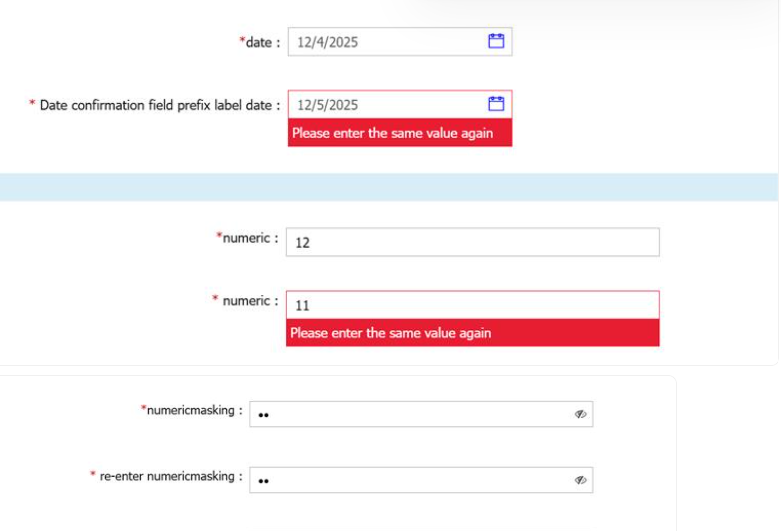
Starting with this release, Workbench Admin Users can now enable field confirmation validation settings for Email, Text, and Numeric fields in the candidate form field configuration. This feature aims to reduce human errors and ensure consistent data entry, such as verifying that email addresses match, in the candidate forms.
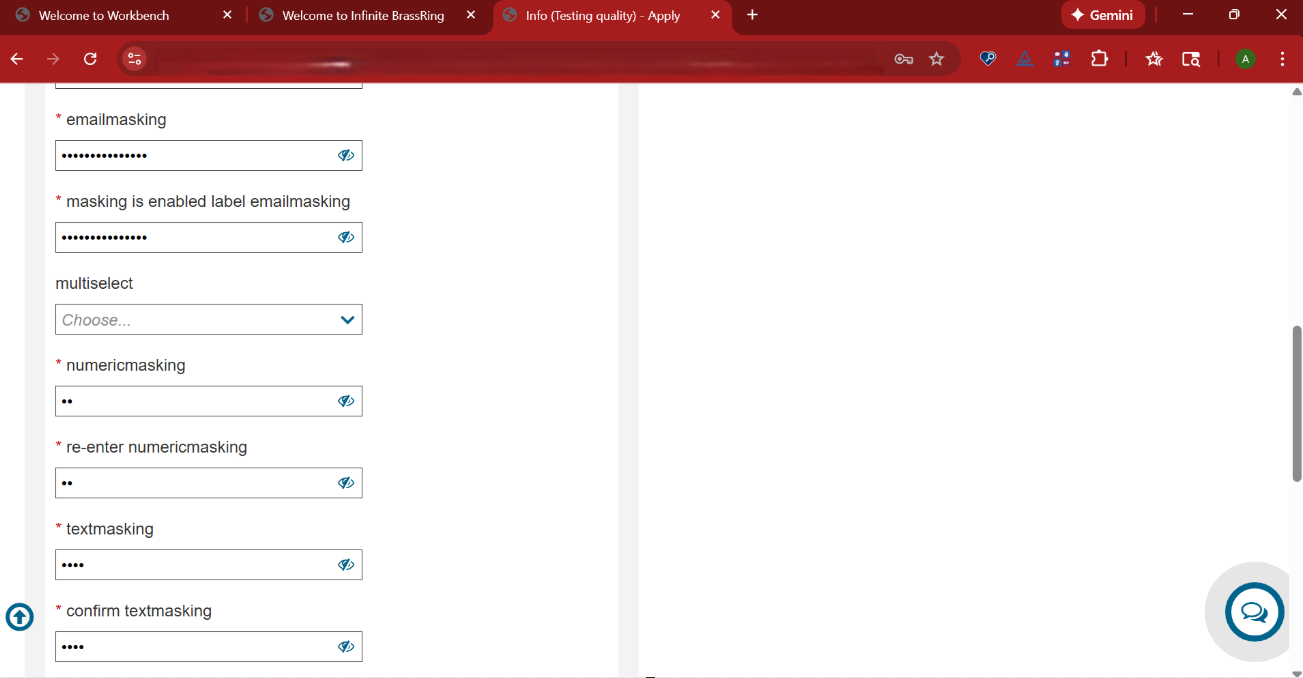
The default setting for Confirmation is set to ‘No,’ but it can be changed to ‘Yes’ by clicking on it. Users can also add a prefix label for the Confirmation field. When these settings are enabled at the field level, the system validates the entries and shows a clear error message if there are discrepancies (for example, “Email addresses do not match”). The Email, Text, and Numeric field types can also be masked.
Note: All fields configured with confirmation appear blank. If CFA is configured for the client, only the parent field is auto-filled, requiring the user to manually re-enter data in the confirmation field.
Path: Workbench >> Tools >> Forms >> Candidate forms >> Administer Form fields >> Edit >> Save and Continue >> Confirmation Settings
Internal Reference Azure Board # 55613.
Talent Gateway: Profile Fields Confirmation
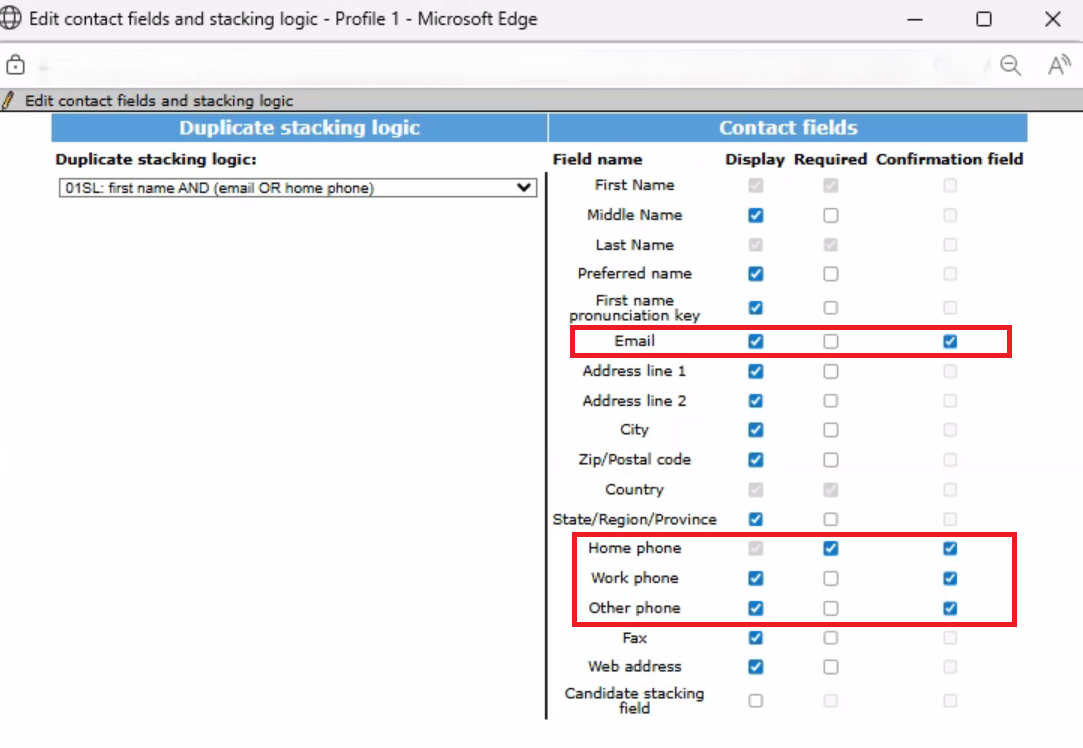
With this release, Workbench Admin Users can now enable field confirmation validation settings for the Email and Phone Number fields in the "Contact Fields and Stacking Logic" edit section on the Talent Gateway. This feature helps minimize human errors and ensures consistent data entry (for example, matching email addresses, phone numbers) in the Talent Gateway profile fields when candidates apply for jobs.
Note: The confirmation and masking settings for candidate form fields apply on the Talent Gateway. In the Gateway Questionnaire contact flow, the confirmation fields for both email address and phone number are going to be delivered in the next build release.
Internal Reference Azure Board # 55613.
Talent Gateway: Application Review Page
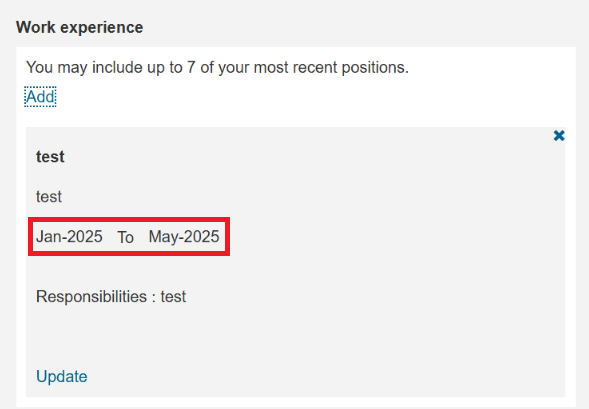
Currently, the 'Start' and 'End' dates in the Work Experience section on the Application Review page are not clearly separated to indicate the duration of each work experience.
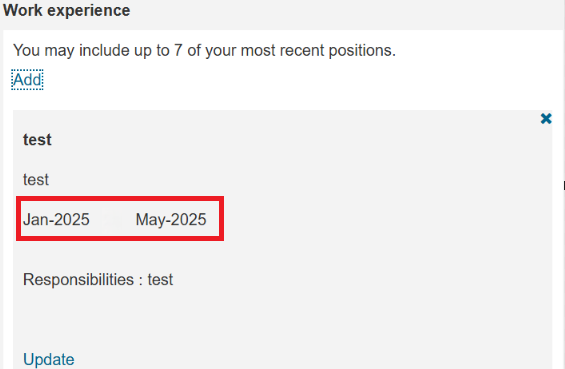
In this release, the word 'To' is added between 'Start' and 'End' dates in the Work Experience section on the Application Review page.
Internal Reference Azure Board # 56510.
Talent Gateway: Enable Resume Builder
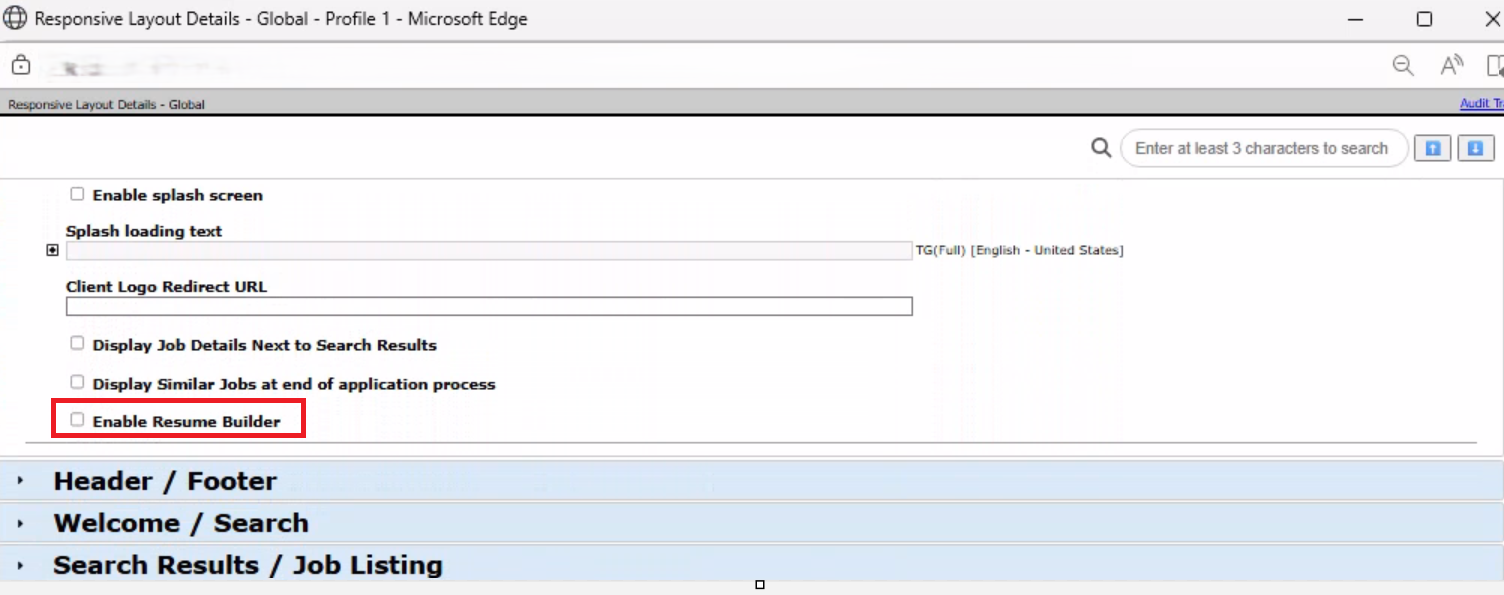
With this release, a new setting called ‘Enable Resume Builder’ has been introduced in the General section of the Talent Gateway's responsive layout. When this setting is activated, candidates can easily create or update their resumes either during the application process or directly from their Talent Gateway profile.
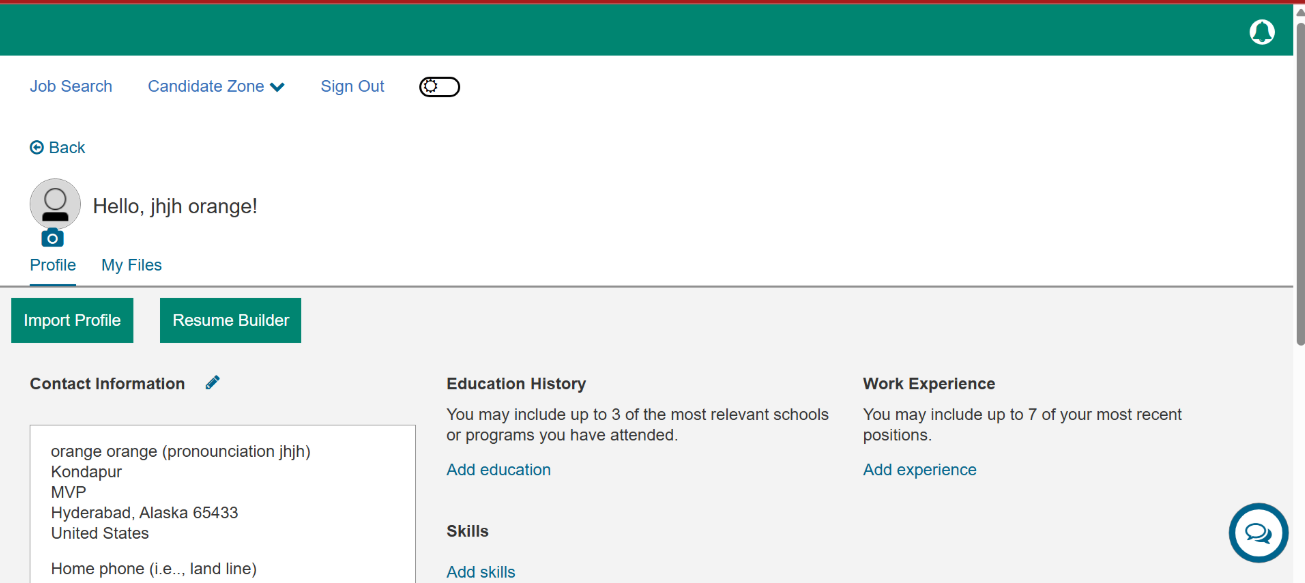
Candidates can create their resume by clicking the ‘Resume Builder’ button on their profile. This feature allows them to add key sections such as Personal Information, Education, Experience, and Skills using various templates. Additionally, candidates can create or edit a custom section as needed.
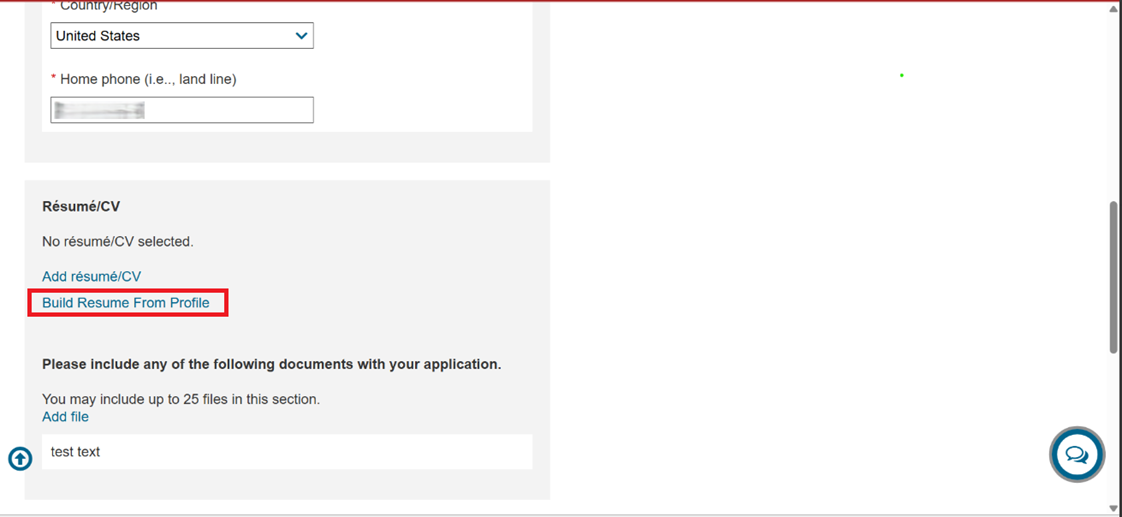
The resume generated by candidates is saved as a PDF, which can be edited or replaced at any time. They can save their resumes and access them from the ‘My Files’ tab, where they have the option to preview or remove the generated resume. If a candidate already has an uploaded resume, they can choose to use the existing one or create a new one using the resume builder.
Clients have the option to enable or disable the Resume Builder within their application workflow on the Talent Gateways. The resume created during the application process is automatically attached to the job application. Generated resumes are versioned to prevent accidental overwrites.
Internal Reference Azure Board # 58699.
Talent Gateway: Two-Way SMS Custom Consent
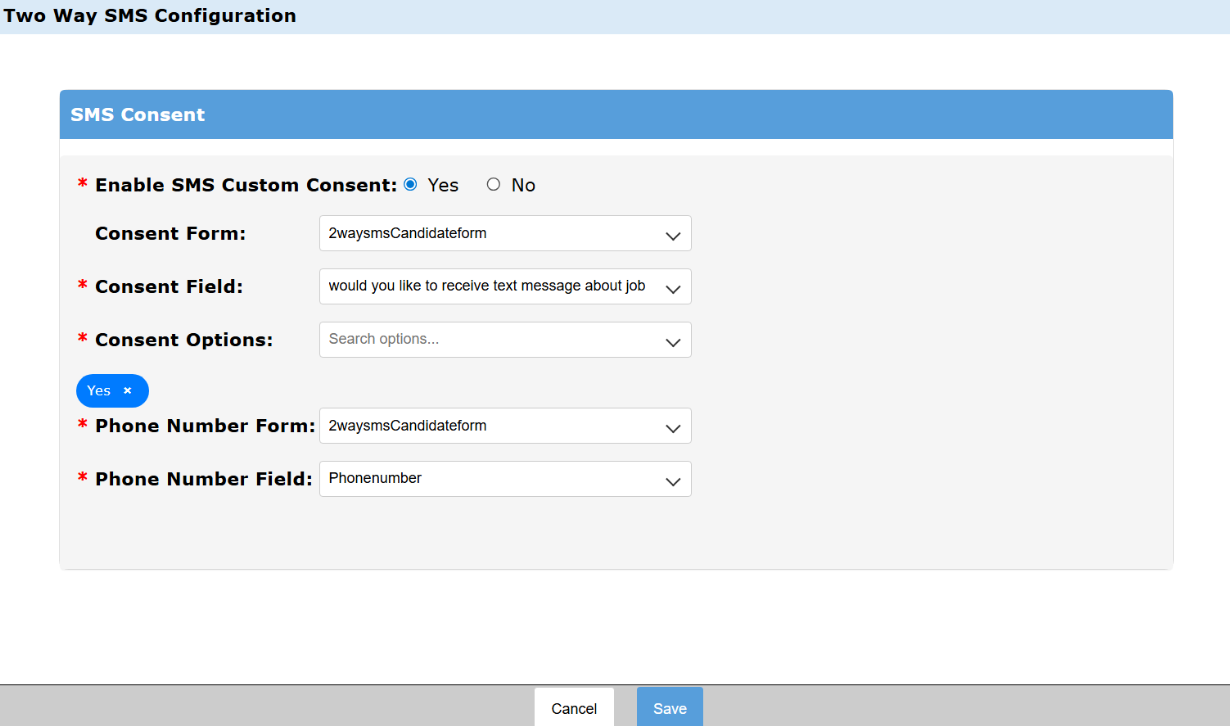
Starting with this release, clients who have activated the Two-Way SMS feature can create their own custom consent fields within a candidate form in the Workbench Two-Way SMS Configuration settings.
By default, the "Enable SMS Custom Consent" option is set to "No." When users select "Yes," clients can customize the consent and phone number information using the available fields on a candidate form. Once custom consent is configured, the standard SMS opt-in fields are hidden on the Talent Gateway. Instead, the customized consent and phone number fields are available for candidates to select, provided that these fields are included in the Gateway Questionnaire.
The 'Consent Form' is optional. If selected, clients need to choose a field from a candidate form for the 'Consent Field.' If only the phone number field is set up and the candidate provides their phone number while applying, this is considered the candidate's consent.
Note:
Consent fields can only be of the following types: Radio, Multiselect, Single Select, or Checkbox.
Phone number fields can only be of the following types: Numeric and Text.
Path: Workbench >> Tools >> Settings >> Fields >> 2-Way SMS >> Enable SMS Custom Consent
Internal Reference Azure Board # 53408.
Data Insight Tool: Employment History Dates
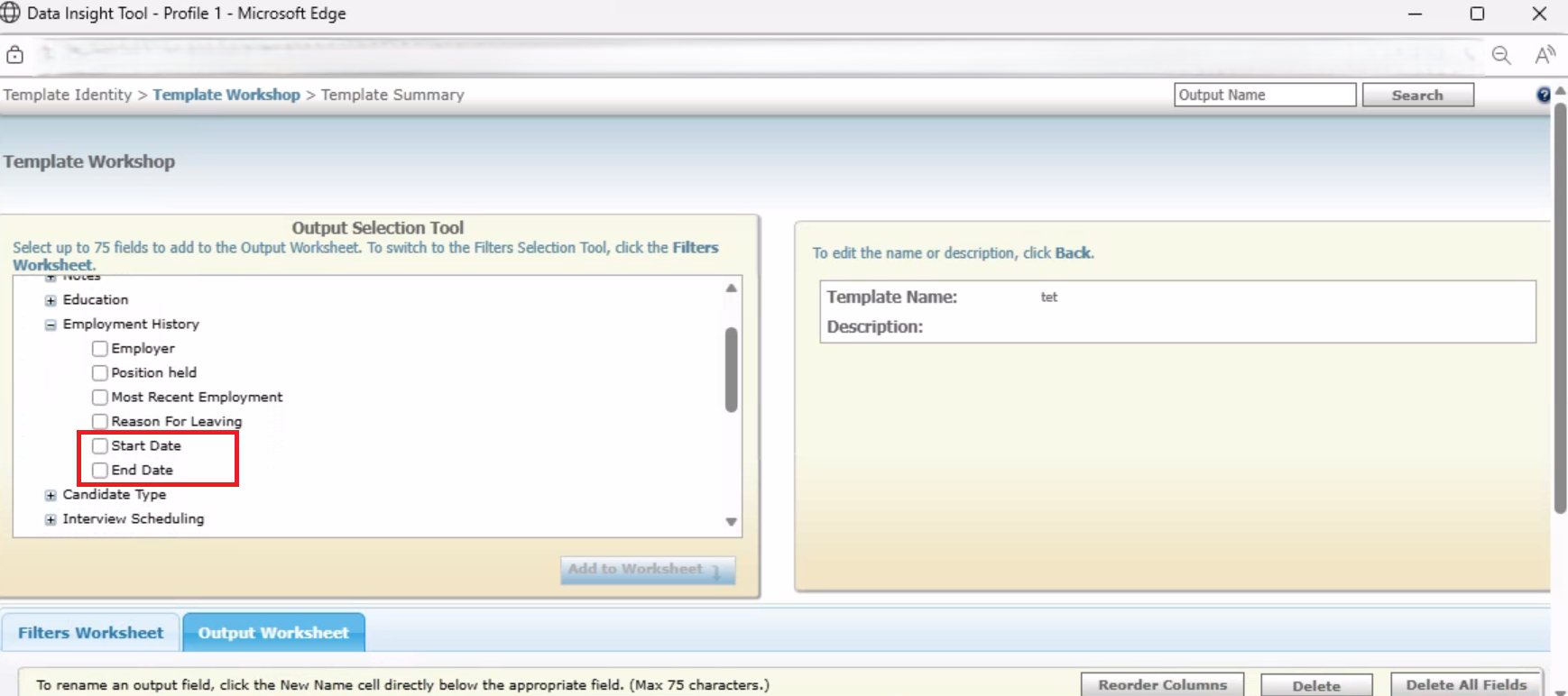
The Candidate’s Employment History section in the Data Insight Tool currently displays both 'Start Year' and 'End Year' fields in the Filters and Output Worksheets.
With this release, users of the Data Insight Tool now see the 'Start Year' and 'End Year' fields as 'Start Date' and 'End Date' fields available for selection in both the Filters and Output Worksheets.
The report displays Start Date and End Date values in the MMM-YYYY format, with month names corresponding to the user's logged-in locale. This change enhances report clarity and usability for users.
The current reports featuring 'Start Year' and 'End Year' fields are going to be replaced with 'Start Date' and 'End Date' fields following the release.
Any field data without 'Start Month' and 'End Month' values are displayed in YYYY format in the report.
Internal Reference Azure Board # 60018.
Rules Automation Manager: Social Referral Reminder Emails
Currently, Social Referral Reminder Emails are sent to both candidates and referring employees via the RAM trigger, even if the job is unposted or expired.
From this release onward, the RAM trigger no longer sends Social Referral Reminder Emails for unposted or expired jobs.
Note: The referral reminder emails are sent by the RAM trigger only if the job is actively posted.
Internal Reference Azure Board # 56768.
Workbench: Candidate Form Attribute
Currently, when creating a new candidate form, the attribute “Erase with candidates” is set to ‘No’ by default. As a result, users can save the form without making any selection.
Starting with this release, the “Erase with candidates” attribute no longer has a default option. If a user attempts to save the form without selecting an option for this attribute, an error message is displayed.
Internal Reference Azure Board # 55550.
BRASSRING CONFIGURABLE CHANGES
There are no BrassRing configurable changes for the current release.
BRASSING WORKBENCH CHANGES
The Workbench-related configuration changes in the current release are mentioned in the Visible Changes section.