As part of the two-way text messaging functionality, the following settings are introduced.
Client Settings: A new client setting, Enable 2-Way SMS, with ‘Yes’ and ‘No’ options. The default option is selected as ‘No’, and an Signal Labs Talent team member can enable this to ‘Yes’ based on the client’s request.
User Type Settings: A new user type privilege 2-Way SMS under the Candidate Actions 3 function is visible, if the client setting Enable 2-Way SMS value is set to ‘Yes’.
.png)
Note: To obtain the phone number, please contact the CSM so we can retrieve it from the vendor and complete the configuration required to successfully set up two-way SMS.
Candidate Consent for 2-Way SMS:
Candidates accessing the Account Settings page see an option to Turn on SMS/Text Messaging for their profile.
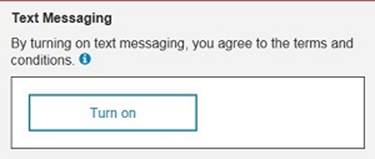
After selecting Turn on, the Country and Other phone number information from the candidate's profile is populated in the appropriate fields. However, the candidate can update this information and save the settings if necessary. If a new candidate is enabling this feature for their profile, they can provide the information directly in these fields.
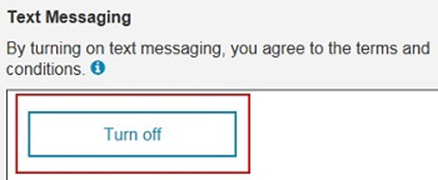
After saving this information, candidates can come back to their Account Settings page at any time and turn off the SMS option. Text messaging can be turned off by selecting the Edit text messaging icon and then the Turn off button.
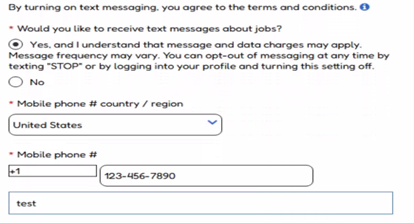
Candidates can also enable Text Messaging for their profile by applying to a requisition. If Text Messaging is enabled, candidates see an extra required field added while applying. This field reads, By turning on text messaging, you agree to the terms and conditions. Would you like to receive text messages about jobs?
By selecting the information icon, the candidates see the terms and conditions that are defined by your organization. (SMS messaging – candidate consent pop-up message field in Workbench)

If the candidate selects Yes to the question, a new field displays (Other phone country or region) to be completed, and the Other phone field is automatically made required.
The Other phone country field selection drives the country code added to the Other Phone field.
Create SMS templates for Two-Way text messaging:
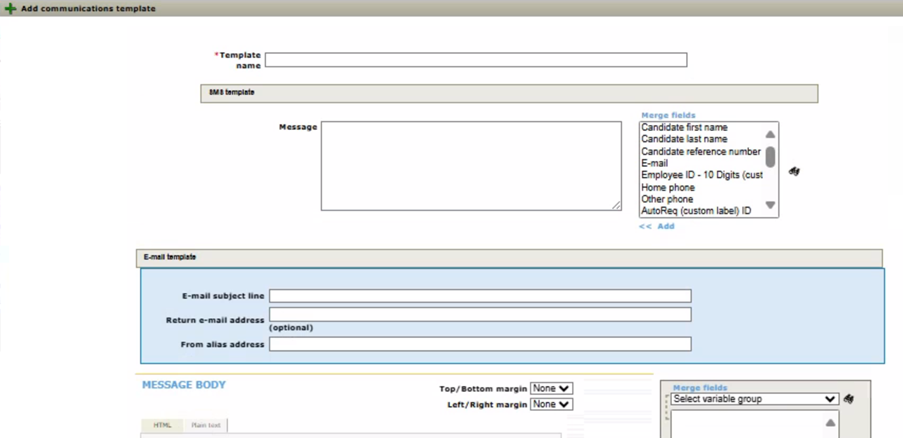
Users can create SMS templates in the BrassRing application, similar to how they create communication templates using the same process.
Users can configure the name of the SMS template, the message, and merge the available field tokens into the message.
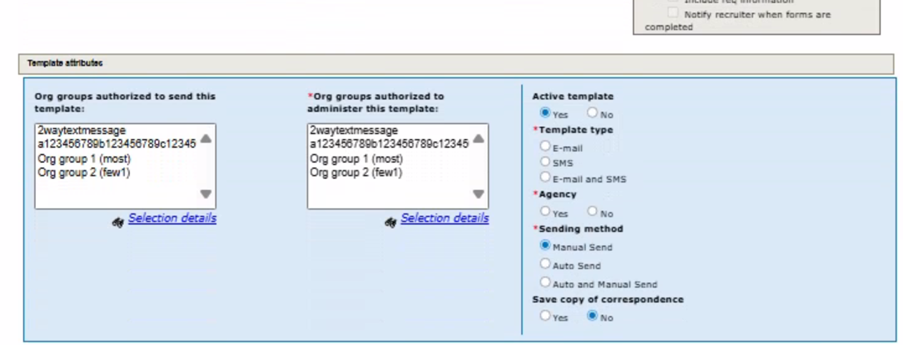
Users can authorize their SMS templates for organizational groups and user types to manage and send the templates using both manual and automatic methods.
Path: Hiring >> Admin >> Communications >> Communications templates >> Add
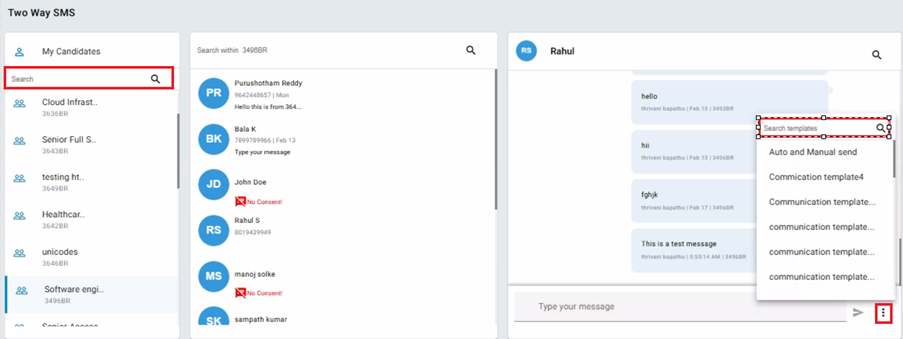
Users can send SMS templates to candidates associated with their requisitions, provided they have a relationship with those requisitions. To send an SMS, navigate to the 'Two-Way SMS menu,' where users can search for their requisitions and select candidates who have given their consent to receive SMS messages. Next to the 'Type your message' field, hovering over the three dots reveals a tooltip that says, 'Click here to see a list of templates.' Users can then search for the desired SMS templates and send them to the candidates.
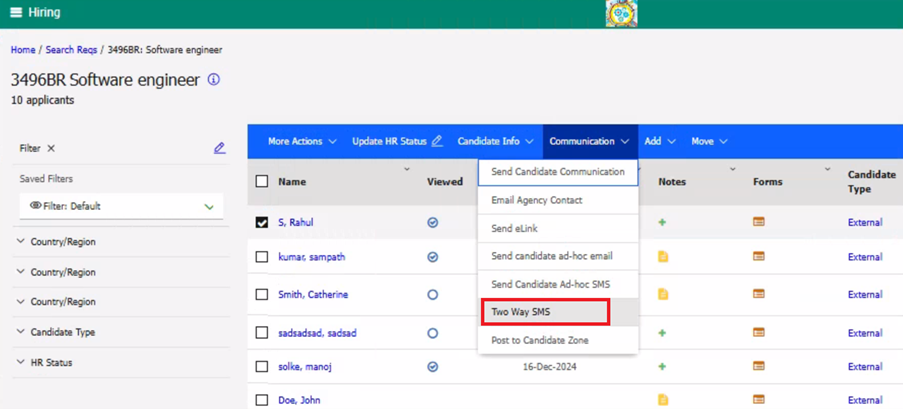
Users can also send the SMS to the candidate from their req folder, communication tab >> Two Way SMS (or) from the talent record Actions >> Send Candidate Communication.
Note: A message is displayed below the initial communication that reads, "Text 'STOP' to cancel." If the candidate replies with "STOP," they will receive the following message: "You have opted out of messages and will not receive any additional messages about this job until you text 'START.'"
Two-Way SMS menu:
The Two-Way SMS menu is accessible only from the New User Experience. To access the Two-Way SMS menu, users need to navigate to the path below, which displays the candidates for each requisition where the user has a my req relationship.
Path: Hiring >> Candidates >> Two-Way SMS
In each requisition, candidates' names are displayed as "First Name, Last Name," with a maximum character limit of 24. If a name exceeds this limit, an ellipsis (…) is shown, and a tooltip appears to display the full name.
Note:
The candidates who had the latest conversations are displayed at the top, followed by the remaining candidates who have not been contacted yet, ordered by their last activity.
A single SMS can have a maximum of 170 characters. If the message exceeds this limit, it is delivered as multiple messages.
If the candidate's talent record has an invalid phone number, a message stating 'the phone number is invalid' is displayed.
Sending Two-Way SMS via RAM:
When Two-Way SMS functionality is enabled, Workbench users can configure RAM triggers to send SMS messages to candidates. A new action called "Send SMS Communication" has been implemented, allowing the trigger mechanism to be associated with candidate-related actions, such as HR status updates and Candidate Form actions.
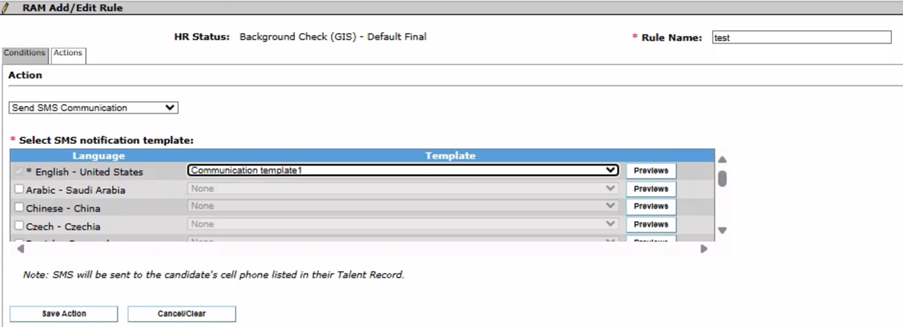
The SMS is sent to the cell phone number of the candidate listed in their Talent Record.
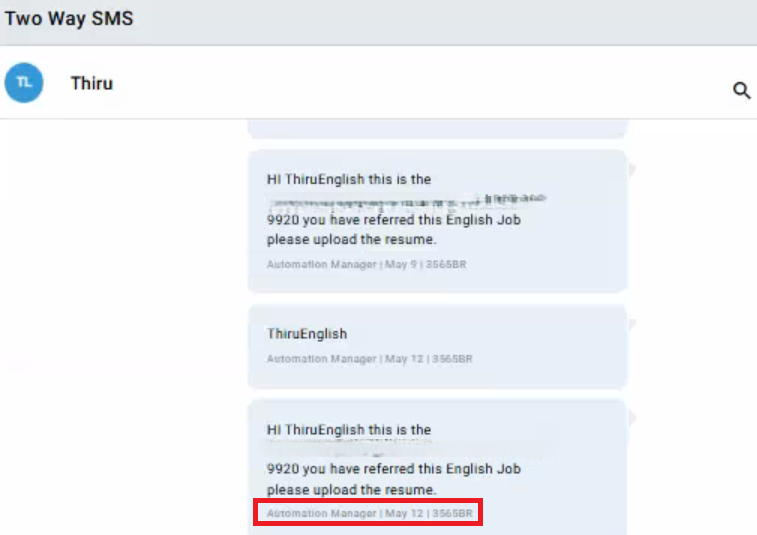
The SMS templates sent through RAM appear in the ‘Two Way SMS’ section, displaying the sender’s name as ‘Automation Manager’, along with the date and req number.
Note: If the candidate has not consented to SMS, the RAM does not send the message, and the RAM logs display "success with no action."
Talent Gateway: Two-Way SMS Custom Consent
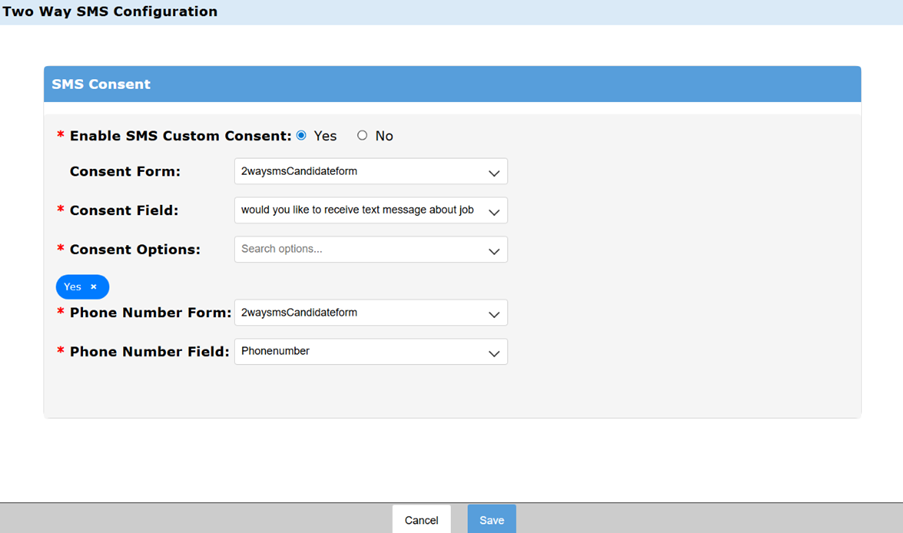
Clients who have activated the Two-Way SMS feature can create their own custom consent fields within a candidate form in the Workbench Two-Way SMS Configuration settings.
By default, the "Enable SMS Custom Consent" option is set to "No." When users select "Yes," clients can customize the consent and phone number information using the available fields on a candidate form. Once custom consent is configured, the standard SMS opt-in fields are hidden on the Talent Gateway. Instead, the customized consent and phone number fields are available for candidates to select, provided that these fields are included in the Gateway Questionnaire.
The 'Consent Form' is optional. If selected, clients need to choose a field from a candidate form for the 'Consent Field.' If only the phone number field is set up and the candidate provides their phone number while applying, this is considered as the candidate's consent.
Note:
Consent fields can only be of the following types: Radio, Multiselect, Single Select, or Checkbox.
Phone number fields can only be of the following types: Numeric and Text.
Path: Workbench >> Tools >> Settings >> Fields >> 2-Way SMS >> Enable SMS Custom Consent