ONBOARD VISIBLE CHANGES
Onboard Manager: Manage New Hires – Task Group Widget
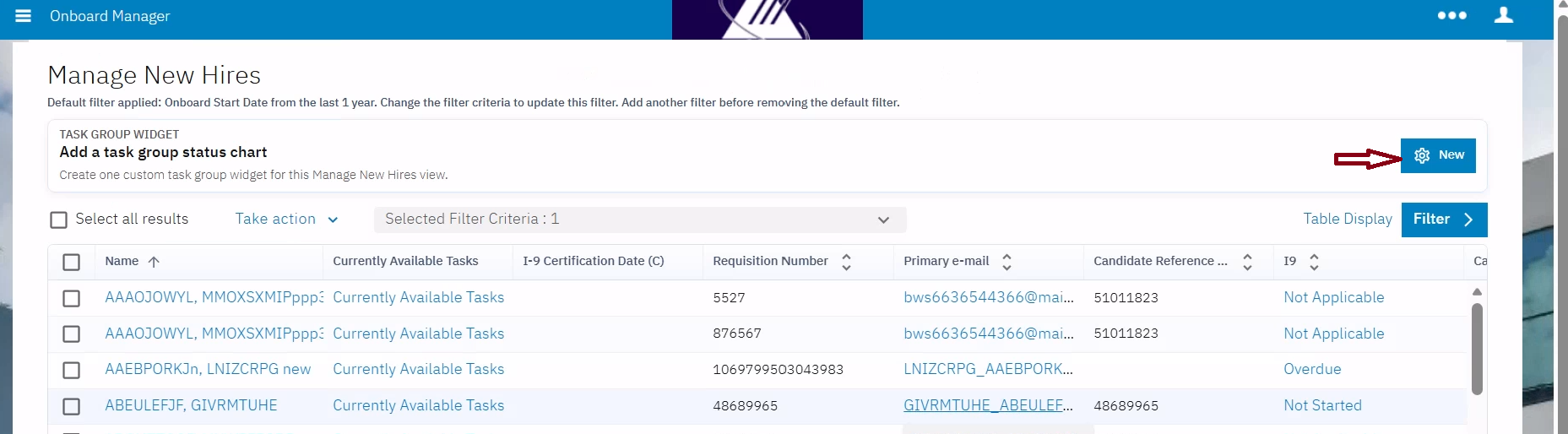
With this release, Onboard Manager users can now add a new task group widget on the 'Manage New Hires' page, improving the overall user experience. Users can select a specific task group to display in the widget. Once the widget is added, it opens in an expanded view, showcasing the status data for the chosen task group. The widget displays task group status counts using both a pie chart and status cards.
Users can click on a section of the pie chart or a status card to filter the Manage New Hires (MNH) grid by that particular status. When a status is selected from the widget, it is added to the MNH filter criteria, and each chosen status is displayed as a filter chip. The MNH grid then reloads to display records that match the selected task group status.
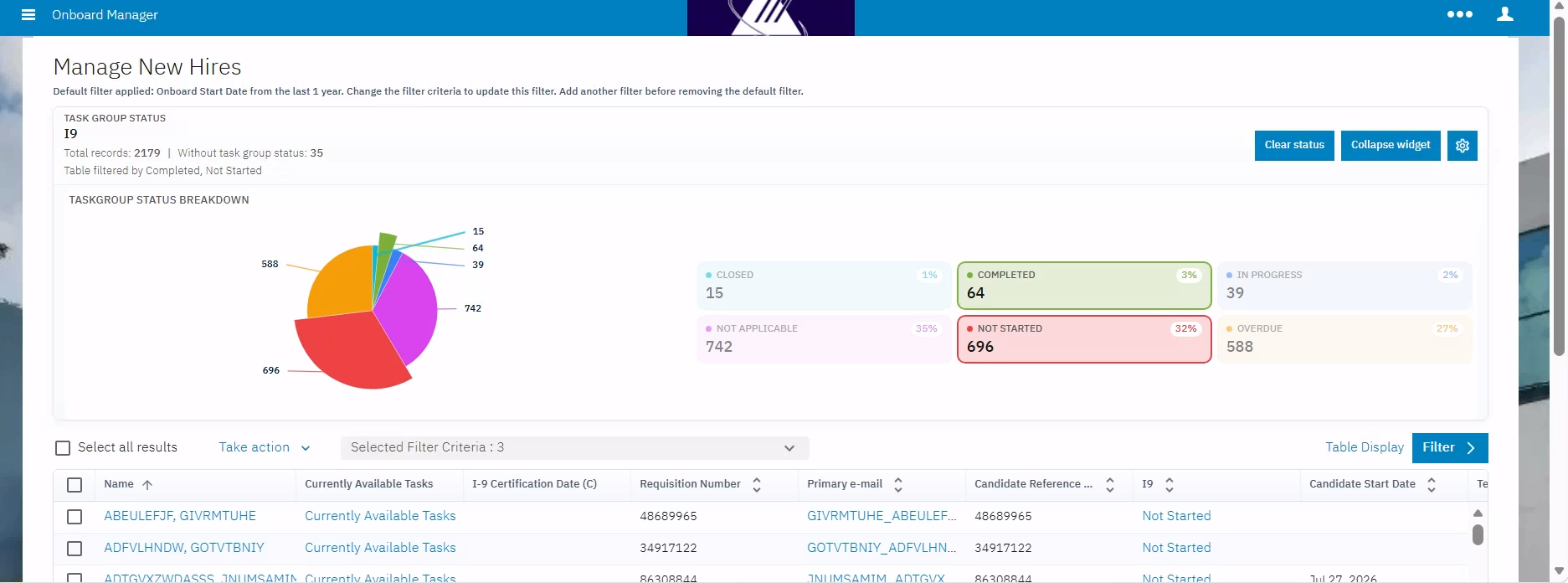
Users can select multiple sections from the pie chart or status cards. When multiple statuses are selected, all are included in the filter criteria. The MNH grid displays records that match any of the selected task group statuses. Selected statuses are highlighted, while unselected ones are dimmed. Users can click on a selected pie chart section or status card again to remove that specific status from the filter, and the MNH grid reloads with the remaining selected statuses.
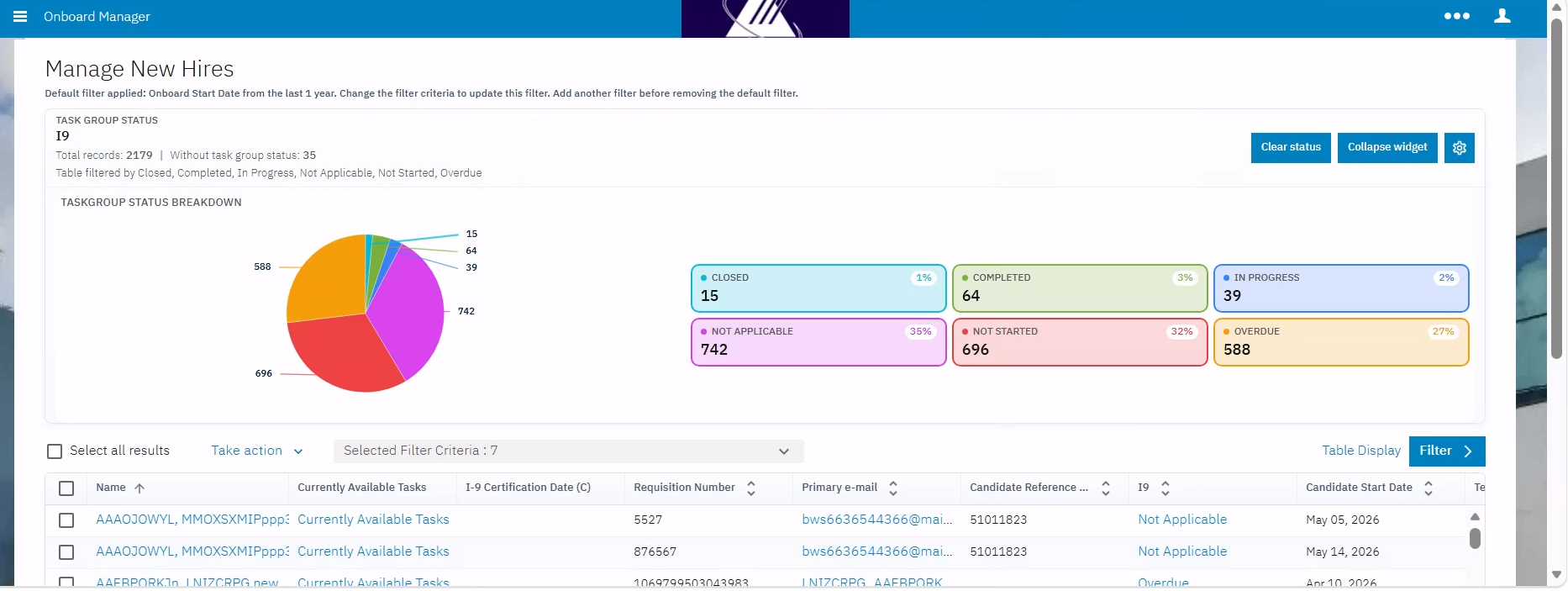
Users can click “Clear Status” to remove all selected task group statuses from the widget. Clearing the selected statuses reloads the MNH grid without applying the task group status filter. If all filters are cleared, the widget’s selected statuses are also reset. When filters are applied from the filter panel, the widget data adheres to the same filter context. Additionally, the grid page resets to the first page whenever the widget status filter is changed. The grid request page size is adjusted according to the selected status counts to ensure that matching records are loaded correctly.
The widget processes records without a task group status separately. Records with a blank task group status are excluded from the pie chart and status counts. If all records for the selected task group have a blank status, the graph is not displayed, and a message appears instead. Users have the option to collapse or expand the widget details. The selected widget is retained throughout the current browser session.
The widget data follows the default filter of “Onboard Start Date within the last year”, ensuring that the pie chart, counts, and grid results remain aligned. This default filter cannot be cleared alone; users must first add another filter before they can remove the Onboard Start Date filter. Users are also able to change the Onboard Start Date range directly.
When the widget loads a large number of records, it may take longer to load or respond. To improve performance, users should apply filters to narrow down the result set.
Internal Reference Azure Board #65976
Onboard Manager: New Hire - Documents
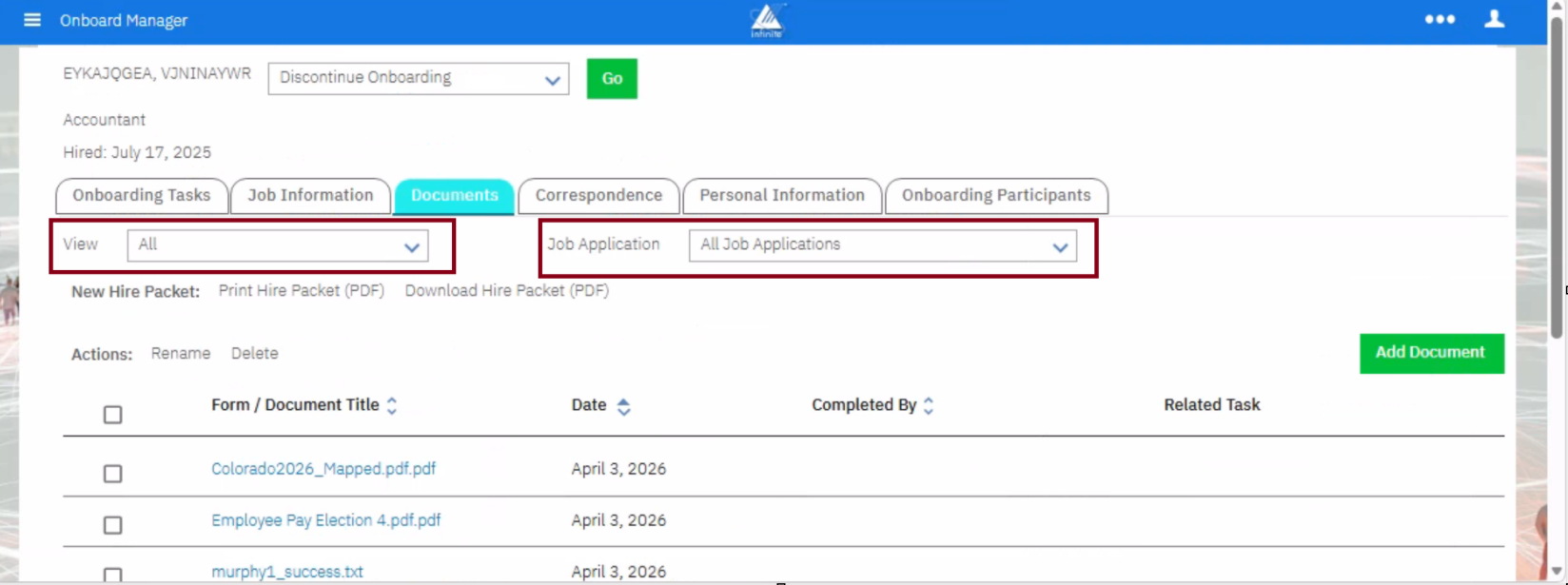
Currently, when a user accesses the Documents tab for a New Hire in the Onboard Manager application and sets the 'View' filter to "All," all documents are displayed, rather than just those related to the selected job application.
With this update, users can set the 'View' filter to "All" to display only the document types associated with the currently selected job application, ensuring that only relevant documents are shown.
Additionally, a new filter option called "All Job Applications" has been added to the 'Job Application' drop-down, allowing users to view documents for all job applications.
Internal Reference Azure Board #65755
Onboard Manager: Send Ad hoc Email
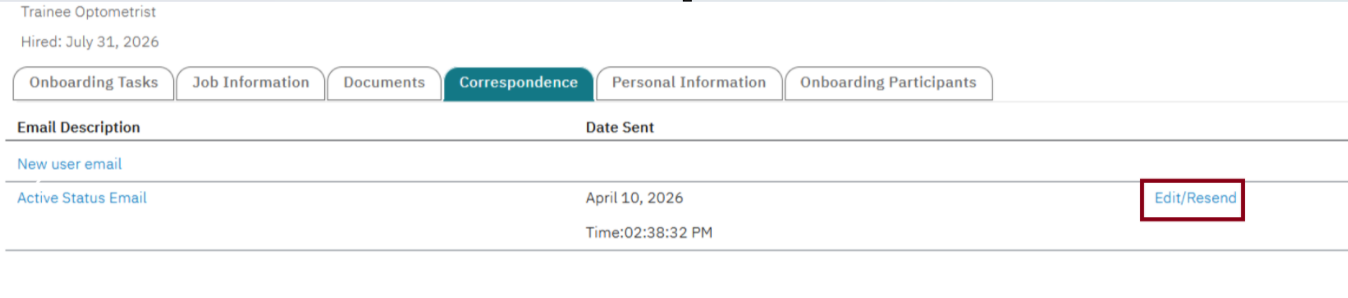
With this release, Onboard Manager users can manually send ad hoc, workflow-related emails to new hires, regardless of automatic activity completion.
In the new hire's "Correspondence" tab, a hyperlink labeled "Edit/Resent" is shown for ad hoc emails configured at the activity level, allowing users to resend these emails.
This feature enables users to preview, edit, and send emails to new hires while also including Onboard users in the cc or bcc sections. This ensures that important communications are delivered when necessary, even if the workflow does not automatically trigger them.
Resent ad hoc emails are logged in the candidate's workflow history under the “Correspondence” tab, complete with date and time details.
Internal Reference Azure Board #59447
Talent Suite: Branding
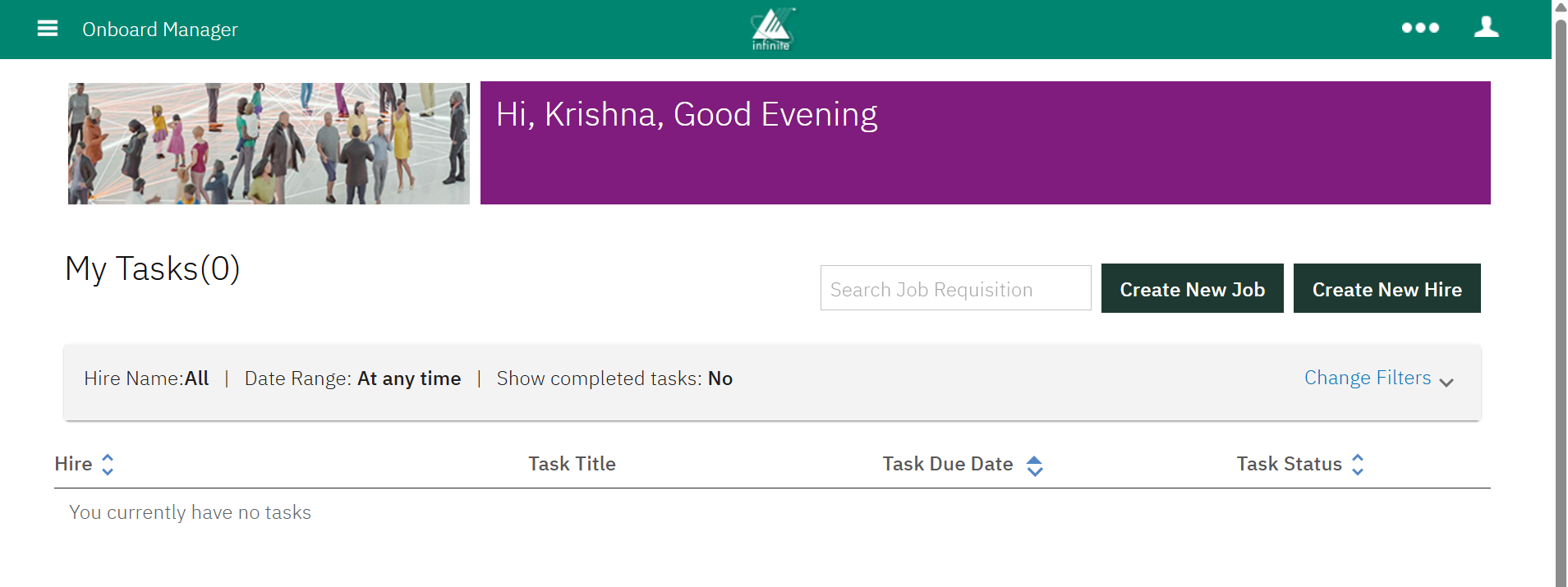
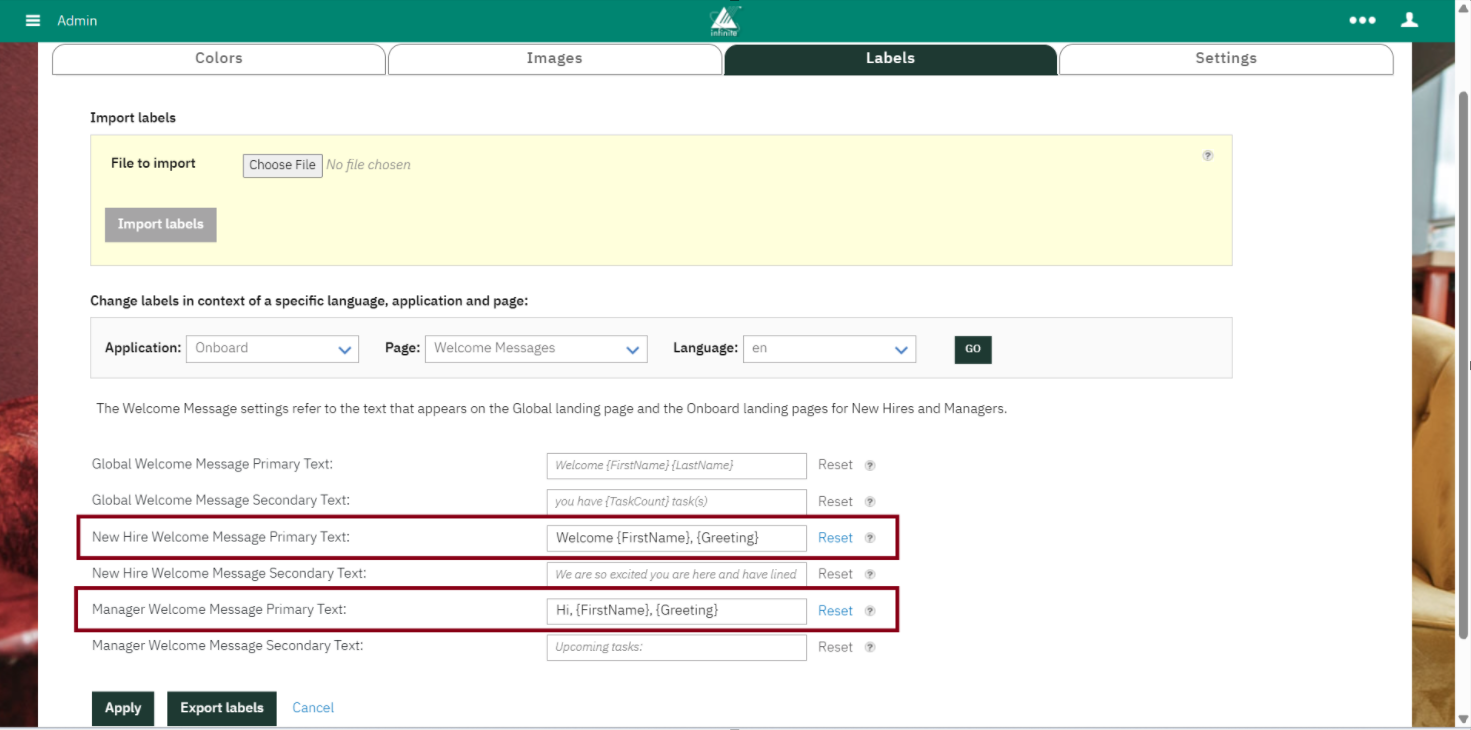
Starting with this release, Talent Suite Admin users can now configure welcome message greetings for both New Hire and Onboard Manager users. This can be done from the Branding menu under the Labels section. Once set up, the system displays personalized greeting messages along with upcoming task notifications based on the user's browser settings.
Example:
New Hire Welcome Message Primary Text: Hi, {FirstName}, {Greeting}
Manager Welcome Message Primary Text: Welcome {FirstName}, {Greeting}
Path: Login to Talent Suite >> Admin >> Hamburger >> Branding >> Labels >> Select ‘Onboard’ under ‘Application, ‘Welcome Messages’ under ‘Page’ and ‘en’ under ‘Language’ >> Click on ‘GO’
Internal Reference Azure Board #54229.
ONBOARD CONFIGURATION CHANGES
Onboard Admin: New Hire Export Dashboard
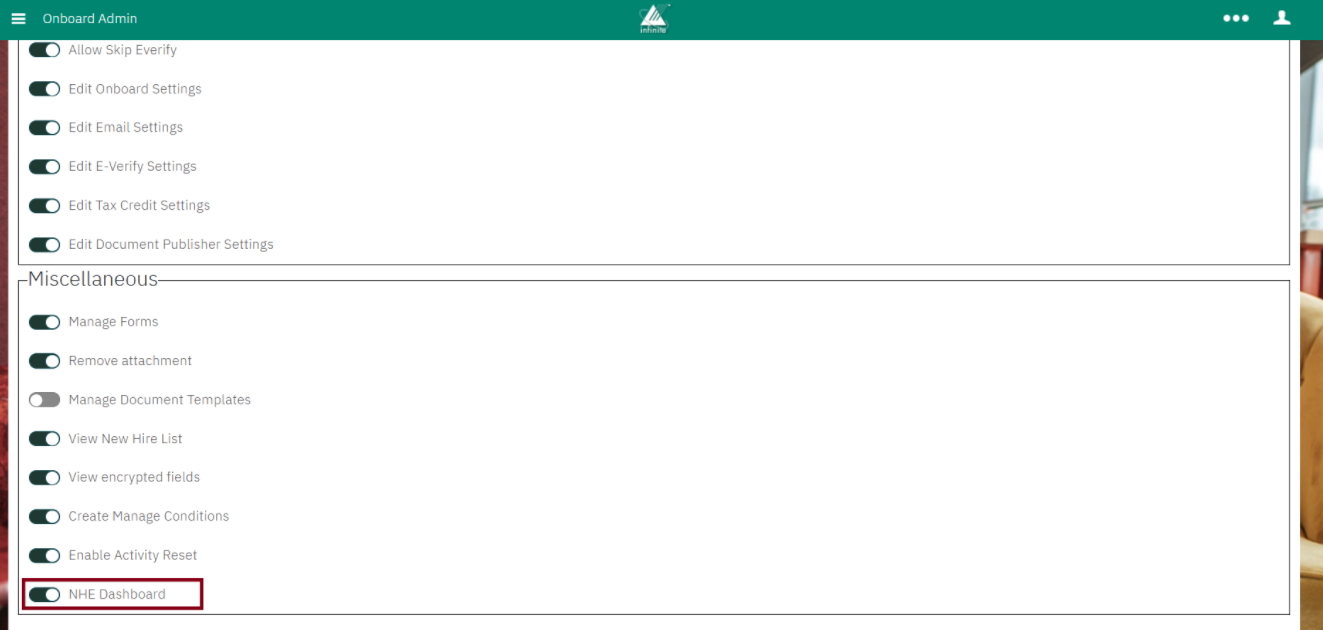
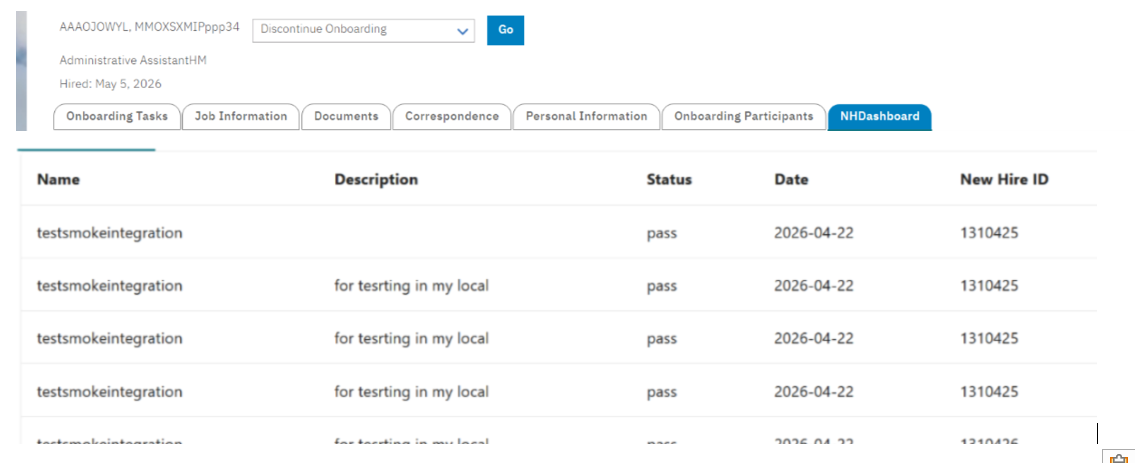
Starting with this release, a new user type capability called "NHE Dashboard" has been introduced in the "Miscellaneous" section of the "Administration" tab within the Onboard Admin application. When this feature is enabled, Onboard Manager users can access the NHE Dashboard by selecting any new hire from the Manage New Hires section. A new "NHE Dashboard" tab appears next to the "Onboarding Participants" tab. This dashboard allows for real-time tracking of New Hire Exports, making it easy to monitor successes, failures, and to retry any failed events.
Path: Onboard Admin >> Click on the Hamburger icon >> Manage Users >> User Types >> Click on the User Type >> Administration >> Miscellaneous >> NHE Dashboard
Internal Reference Azure Board #64553.
Onboard Admin: Forms
Previously, uploading a new version of an onboarding form in the "Onboard Admin" application would erase all existing field mapping information.
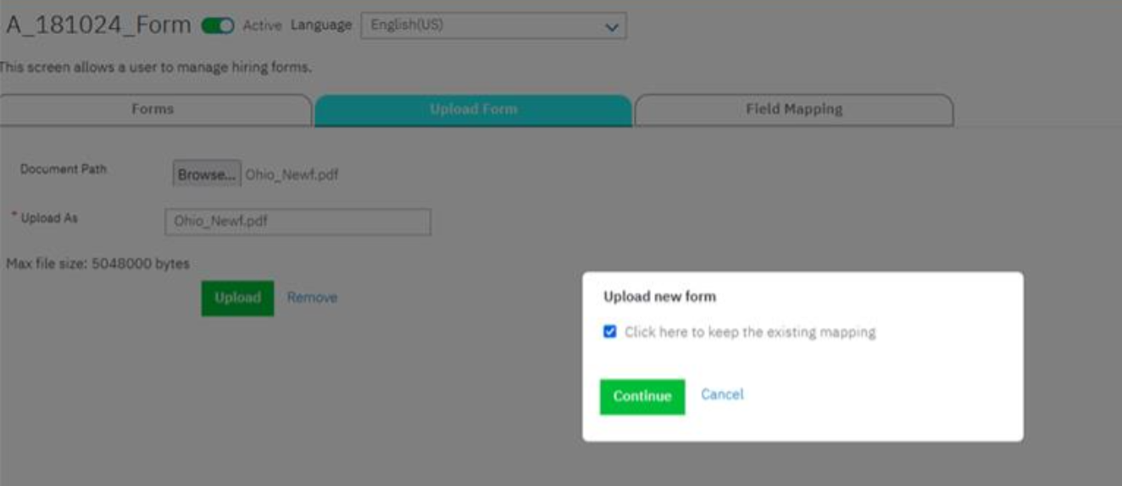
With this release, when users upload a new version and the existing form has field mapping, a pop-up displays providing the option to "Click here to keep the existing mapping." If selected, the user retains the previous field mapping and can further edit as needed. If the option is not selected and the user chooses to continue, the existing mapping is wiped out as before. This enhancement saves users time and eliminates the need to redo field mapping from scratch.
Path: Onboard Admin >> Click on the Hamburger icon >> Manage Workflows >> Forms >> Search and click on a Form >> Upload Form tab >> Choose File >> Upload
Internal Reference Azure Board #65977.
ONBOARD FIXED DEFECTS
There are no new defects in the current release.