BrassRing Lead Manager – Lead Profile History
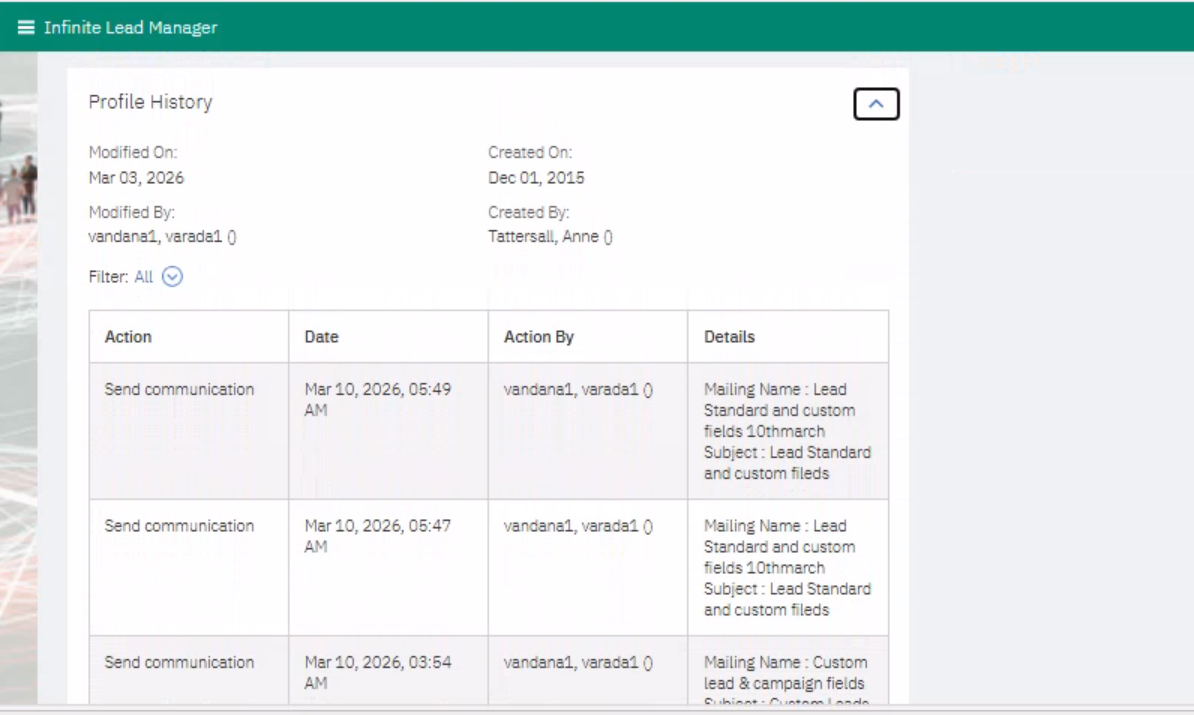
Currently, when a communication is sent to a lead, the date column in the lead profile history only shows the date without a timestamp.
Starting with this release, both the date and timestamp are displayed in the date column for every communication sent in the lead profile history.
Path: Login to BrassRing Lead Manager >> Open any Lead Profile >> Scroll down to the ‘Profile History’
Internal Reference Azure Board # 63700
BrassRing Lead Manager – Email Templates – Custom Fields
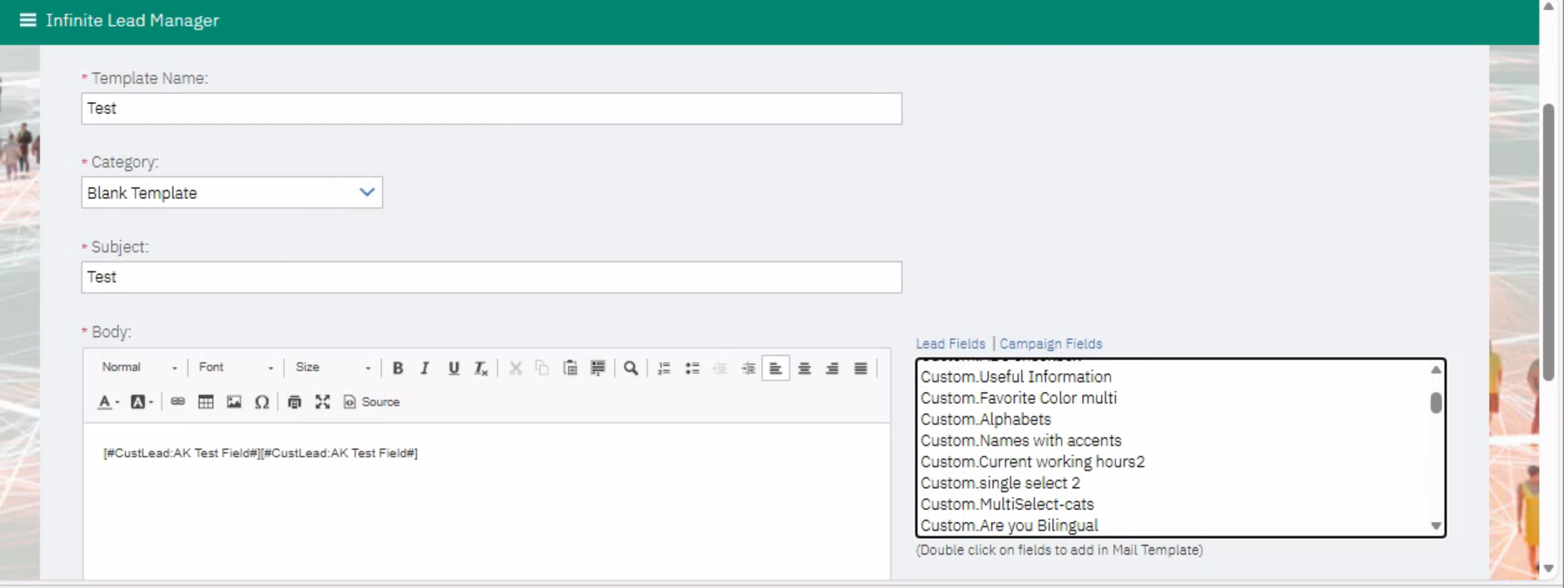
Currently, the email templates in the BrassRing Lead Manager only support standard system fields and do not allow for the inclusion of custom fields in the email content.
With this update, BrassRing Lead Manager users can now be able to incorporate Lead and Campaign custom fields into the email templates, enabling them to personalize emails with client-specific data.
Path: Login to BrassRing Lead Manager >> Click on the Hamburger menu >> Manage Templates >> Email Templates >> Create Custom Template or Edit existing template >> Double click on Lead or Campaign custom fields.
Internal Reference Azure Board # 62747
BrassRing Lead Manager: Mailing List
Users of the BrassRing Lead Manager application can save their filtered lead search results based on the applied filters as a Contact List or a Query List, which are visible in the Mailing List. This feature allows users to easily access their saved mailing lists from the hamburger menu in BrassRing Lead Manager.
Contact List: This is a finite list of specific individuals. To update the list requires manually adding an individual to the list.
Query List: This is a list that is dynamically generated at the time of sending based on the criteria of the query.
Upon accessing any of the saved mailing lists, users can see the columns for Lead Name, Email, and Delete. Users can send communications to the leads included in their Contact or Query mailing lists and have the option to edit or delete their saved lists.
1. Creating a Mailing List
To create a Contact or Query list, please follow the steps below:
Navigate to the Leads screen and apply the required filters to narrow down the leads.
Select the leads that you want to include in the mailing list.
Click on the “Save As List” option available at the top-right corner.
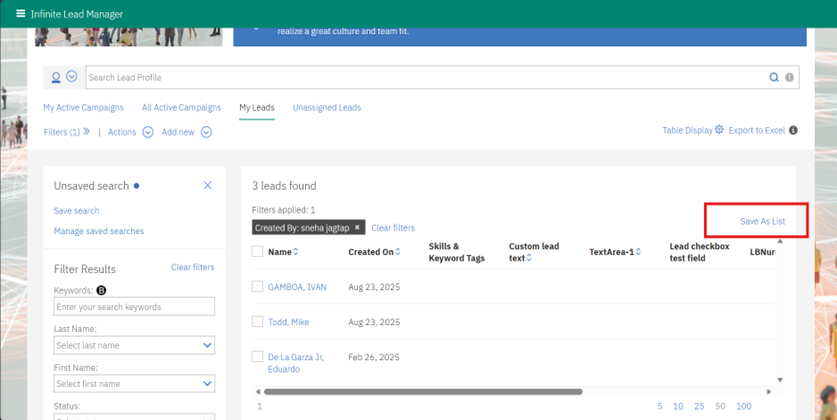
4. A pop-up window opens. Select the Contact list or Query list and enter the mailing list name.
The mailing list name should contain only letters, numbers, and hyphens.
5. Click on Save.
6. A confirmation message is displayed based on the type of list that is saved:
The Contact list is saved in BrassRing Lead Manager.” Or “The Query list is saved in BrassRing Lead Manager.”
2. Editing/Deleting an Existing Contact List
To add new leads to an existing mailing list:
1. Click on the Hamburger Menu and navigate to Mailing Lists.
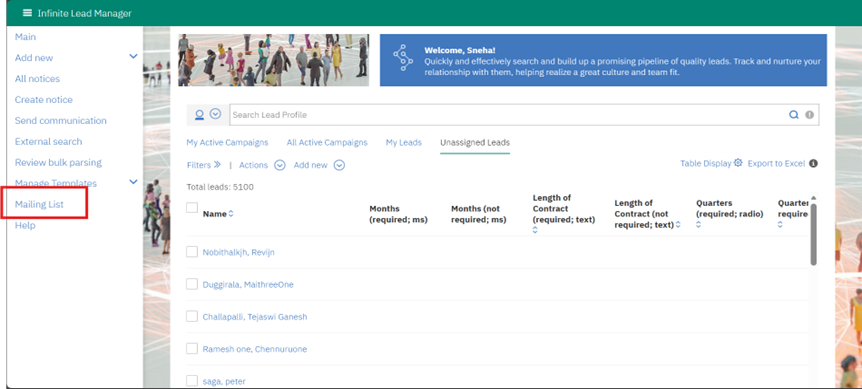
2. Select the Contact list.
3. For the Contact list to which you want to add new leads. Click on the Plus (+) icon available at the top-right corner.
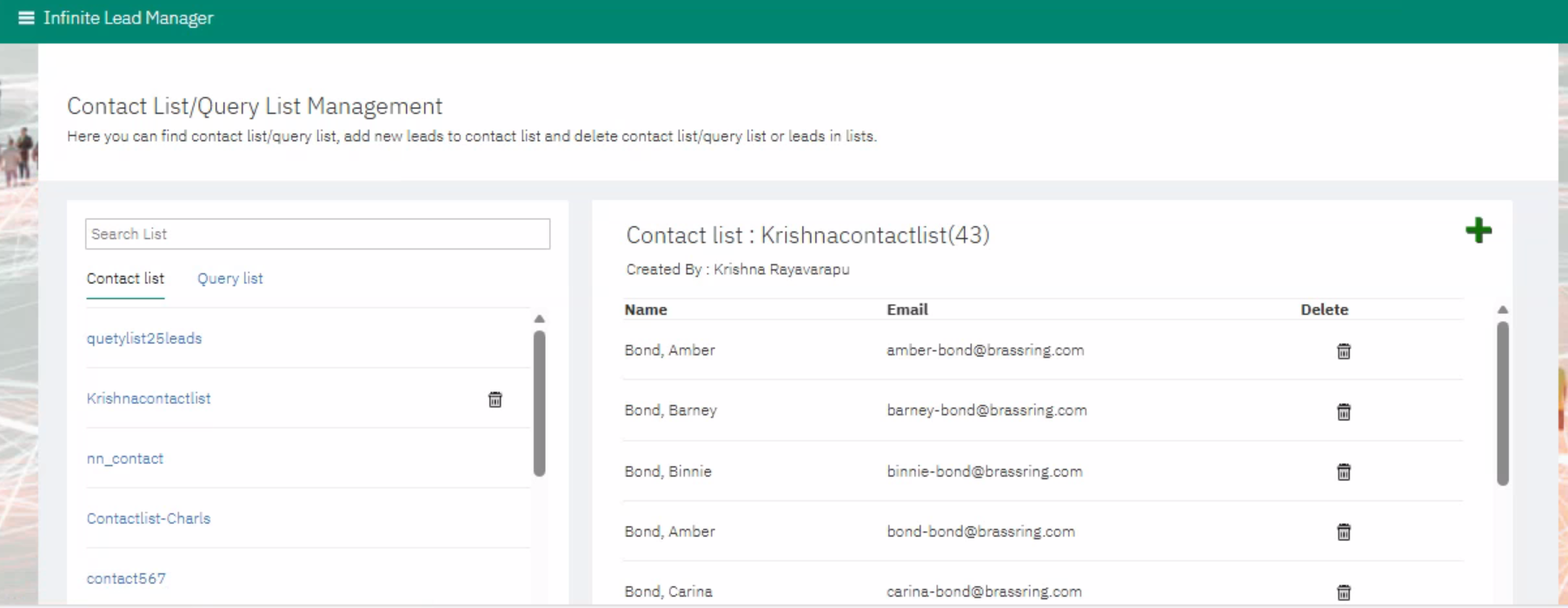
4. Enter the following details:
First Name
Last Name
Email ID
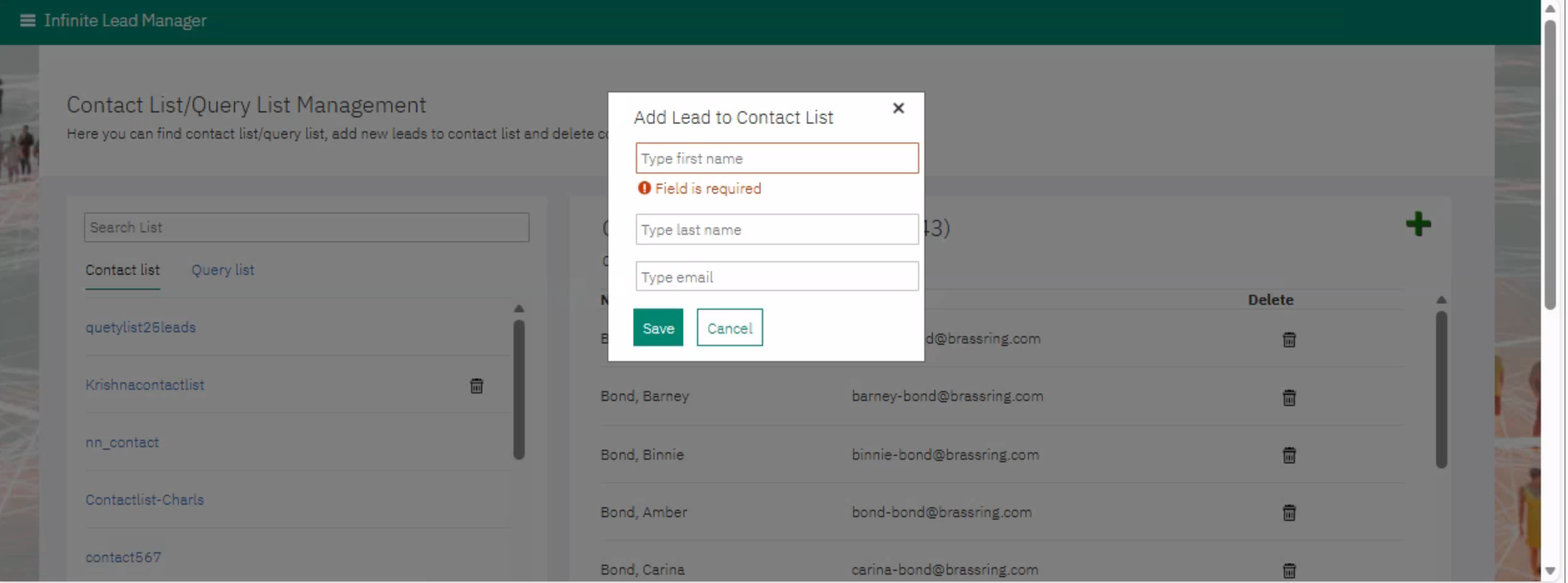
5. Click on Save to add the lead to the mailing list.
Note: Users can only view and delete a Query List. Leads to a Query list are added based on the query.
3. Using a Mailing List for Communication
Mailing lists can be used while sending email communications as outlined below:
1. Click on the Hamburger Menu and select Send Communication.
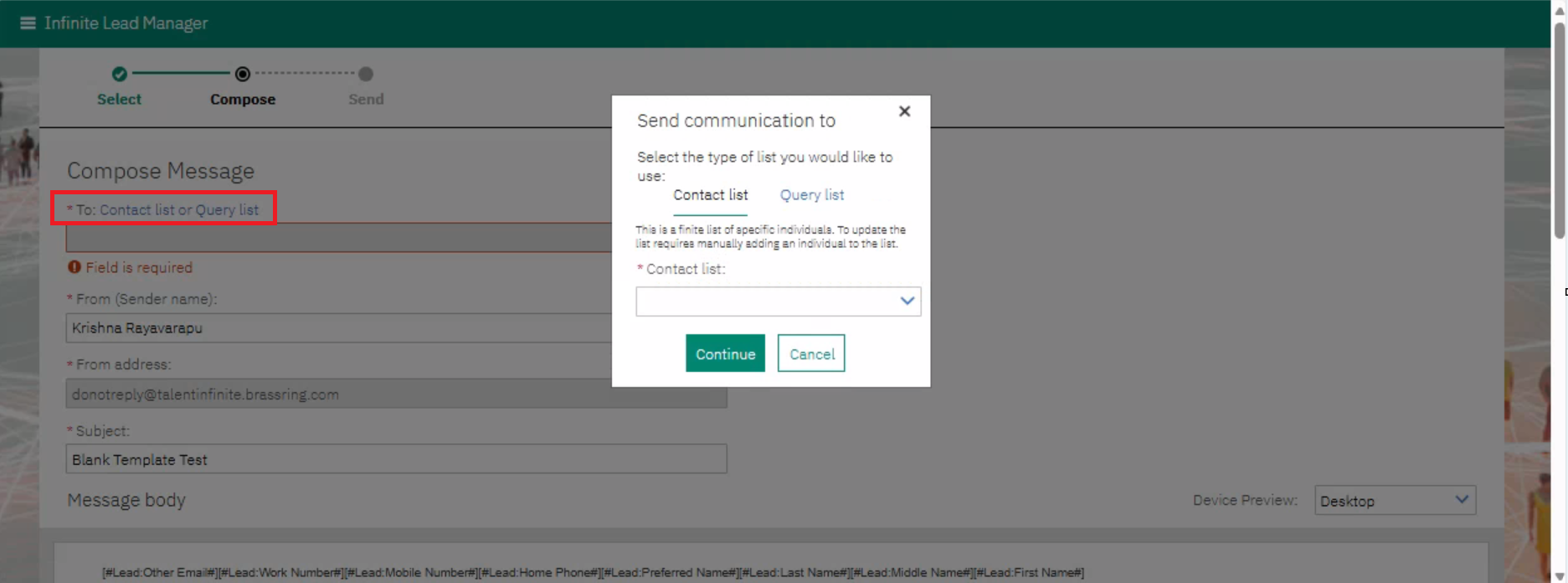
2. Choose an email template.
3. You are redirected to the Compose Message screen.
4. In the To field, select the Contact list or Query list option.
5. Choose the required mailing list.
6. Click on Continue and then Send to deliver the communication to all leads in the selected list.
4. Views Where “Save As List” Is Available
The Save As List option is currently available in the following flows:
My Leads
Unassigned Leads
My Active Campaigns / All Active Campaigns
- Navigate to Lead Count
- Click on Advanced Filter View (top-right corner)
Internal Reference Azure Board # 59575
BrassRing Lead Manager – Automatic Email on Lead Submission
Currently, when a lead is submitted through a landing page, the automatic submission email is not sent to the lead.
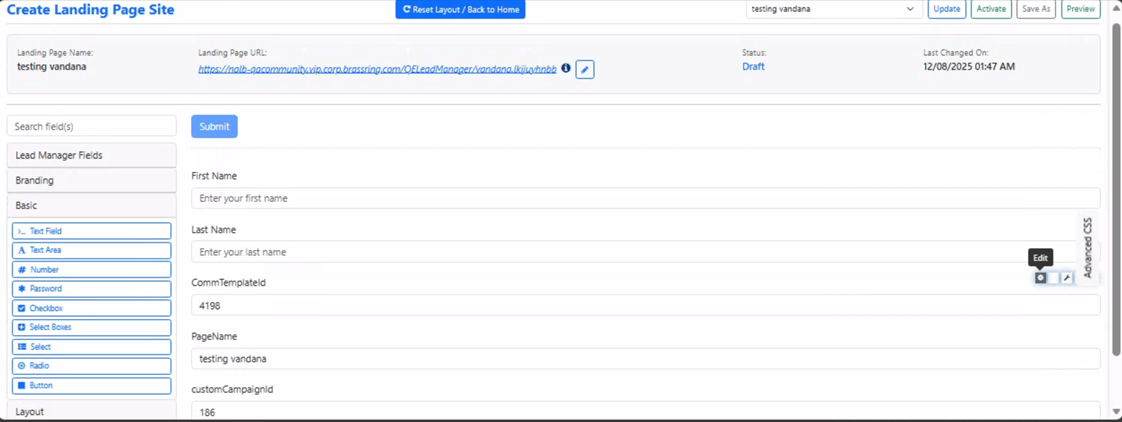
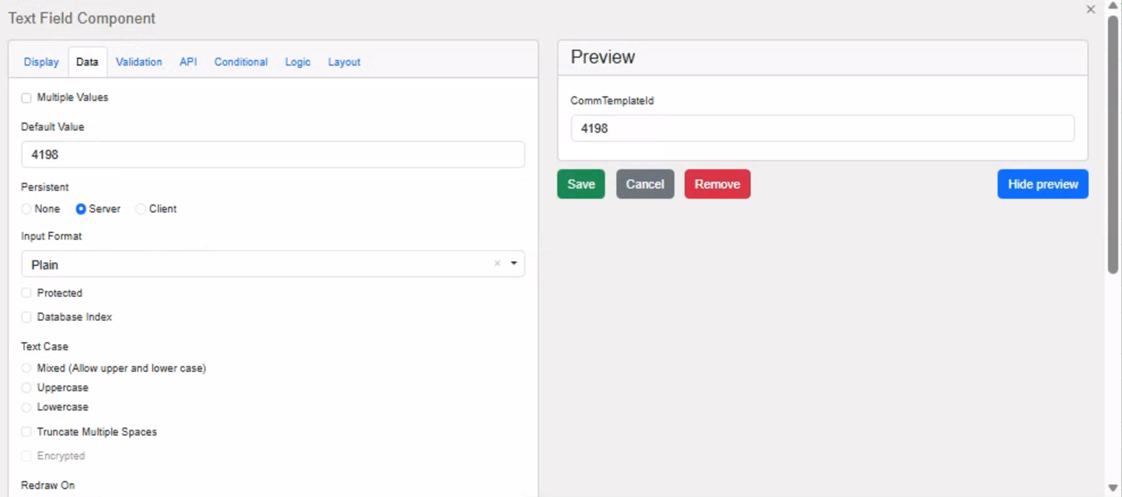
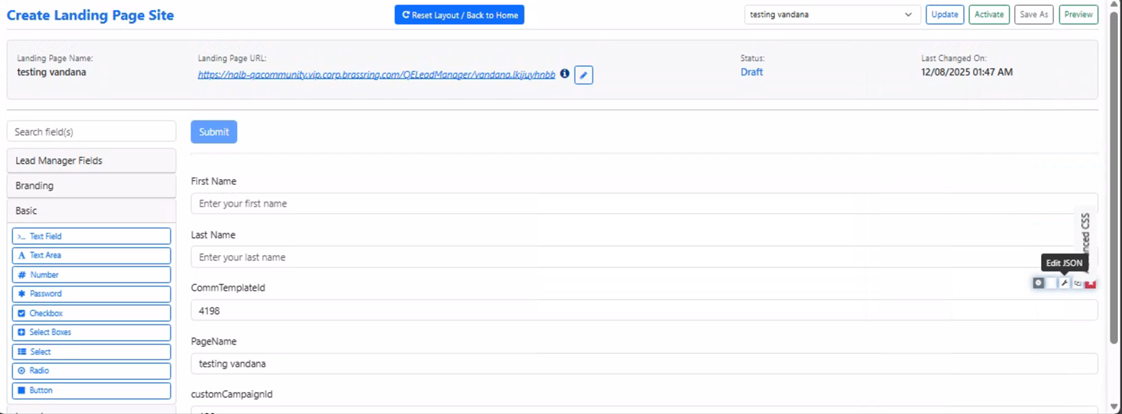
With this release, BrassRing Lead Manager users can now link a campaign to a landing page. They can also choose whether to send an email to the lead who applies via a landing page. To associate the email template, the following fields must be configured as hidden on the landing page.
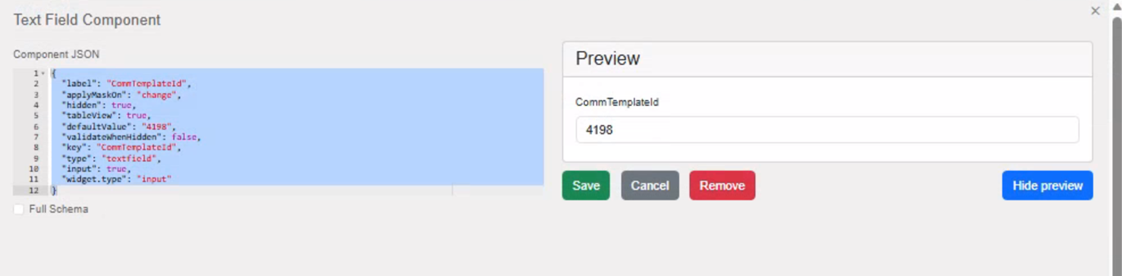
CommTemplateId - whose default value must contain the template ID of the email template used for sending emails. To find the email template ID, click on the name of the email template. The ID is visible at the end of the URL. After obtaining the ID, click on "Edit JSON" and set "key": "CommTemplateId".
PageName - This should specify the name of the landing page.
customCampaignId - Set the default value of "customCampaignId" to "campaignId" (as specified by the client). To find the email template ID, click on the Campaign name; the ID is visible at the end of the URL. After obtaining the ID, click on "Edit JSON" and set "key": "customCampaignId".
Internal Reference Azure Board # 63355.