Abstract
Product: BrassRing Lead Manager
Searching Campaigns in BrassRing Lead Manager
Keywords are highlighted in the results.
Filters are persistent in BrassRing Lead Manager. If filters are added to search results, the filters remain active for subsequent searches until removed.
See Searching Leads for information on Saving Searches, and Autofiling results to Campaigns.
Search result columns can be sorted based on Text, Text Area, Single Select, Radio, and Numeric, field types.
Build 19.07.15. Campaigns can be searched by Campaign name or Campaign ID.
Build 20.04.06. The quick search bar is available on all BrassRing Lead Manager pages except the Send Candidate Communications pages.
Build 20.05.04. Campaign Fields can be added to the list of Filters by selecting Edit Filters.
Build 20.06.01. Select Previous Campaign and Next Campaign to move through campaign search results without having to return to the search results page.
Relevant eLearning
Process:
Select the search bar on the main page or select menu.

Select Campaign or Campaign ID by using the pull-down menu.
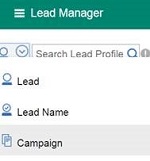
Enter your search criteria and press Enter.
Searching supports Boolean searching, quotation marks “” and parenthesis () for advanced searches.
Boolean Searches support AND, NOT, and OR commands.
Signal Labs AND Kenexa returns results where the Lead has both Signal Labs and Kenexa in their profile.
Signal Labs OR Kenexa returns results where the Lead has either Signal Labs, or Kenexa, in their profile.
Signal Labs NOT Kenexa returns results where the Lead has Signal Labs in their resume but exclude Leads with Kenexa in their profile.
Quotation marks “” are used to search for an exact phrase.
“Training Manager” returns results where the Lead profile has the exact phrase Training Manager.
Parenthesis () are used to do complex searches.
“Training Manager” and (Software or Engineer) returns results where the Lead has Training Manager, and either Software, or engineer, in the profile.
Add any filters as needed by using the Filters pane.
Select the Campaign name to open it.